Lesson 13 of 25
Approve and post journal entries
What you will be able to do
This lesson is for the finance manager, the second person in the journal process. The accountant has submitted two manual entries. You will find them in the Approval Queue, check the lines of one, approve it with a comment, and approve the other with the tick boxes that handle several entries at once. Approval is what posts an entry to the ledger.
Before you start
- The accountant has submitted two journal entries for approval, as in the previous lesson.
- You are signed in with the Finance manager role, which holds the right to approve journal entries. The person who prepared an entry cannot be the one who approves it.
Steps
- 1
Look in the Approvals inbox
In the left menu select Approvals. The inbox lists records waiting on a step you can decide, from every module that uses it. The two journal entries are here, each with its amount, its approval policy and a link called Open record. You approve journal entries in the Approval Queue inside Journals, which Open record leads to.
- Select Approvals
- 2
Open Journals and select Approval Queue
Go back into the entity, select Accounting, then Journals, and select the Hide navigation icon for more room. Select Approval Queue. Only entries that their preparer has submitted are listed. A tick box appears at the start of each row, and a green tick, the approve button, at the end.
- Select Accounting
- Select Journals
- Select Hide navigation
- Select Approval Queue
- 3
Open the first entry and check it
Select the eye on the capital entry. Read each line: the suspense account is debited 500,000, share capital is credited 300,000 and the loan account is credited 200,000. Ask yourself whether the accounts are right, whether debit and credit are the right way round, and whether you have seen the evidence. Then select Close.
- Select View
- 4
Select the green tick to approve
Close the entry, then select the green tick at the end of its row. The window called Approve and post names the entry and its amount. It says that your approval is recorded under the organisation's journal posting policy, and that the entry posts once every required step is approved. In Comment type what you checked; the comment is kept in the audit trail.
- Select Close
- Select Approve entry JE-2026-0017
- Type Comment:
Agreed to the bank advice and the loan agreement.
- 5
Select Approve
Select Approve. A message says Entry approved and posted. The entry leaves the queue, and from this moment the 500,000 dirhams is out of suspense and shown as share capital and a loan.
- Select Approve
- 6
Tick an entry to approve several at once
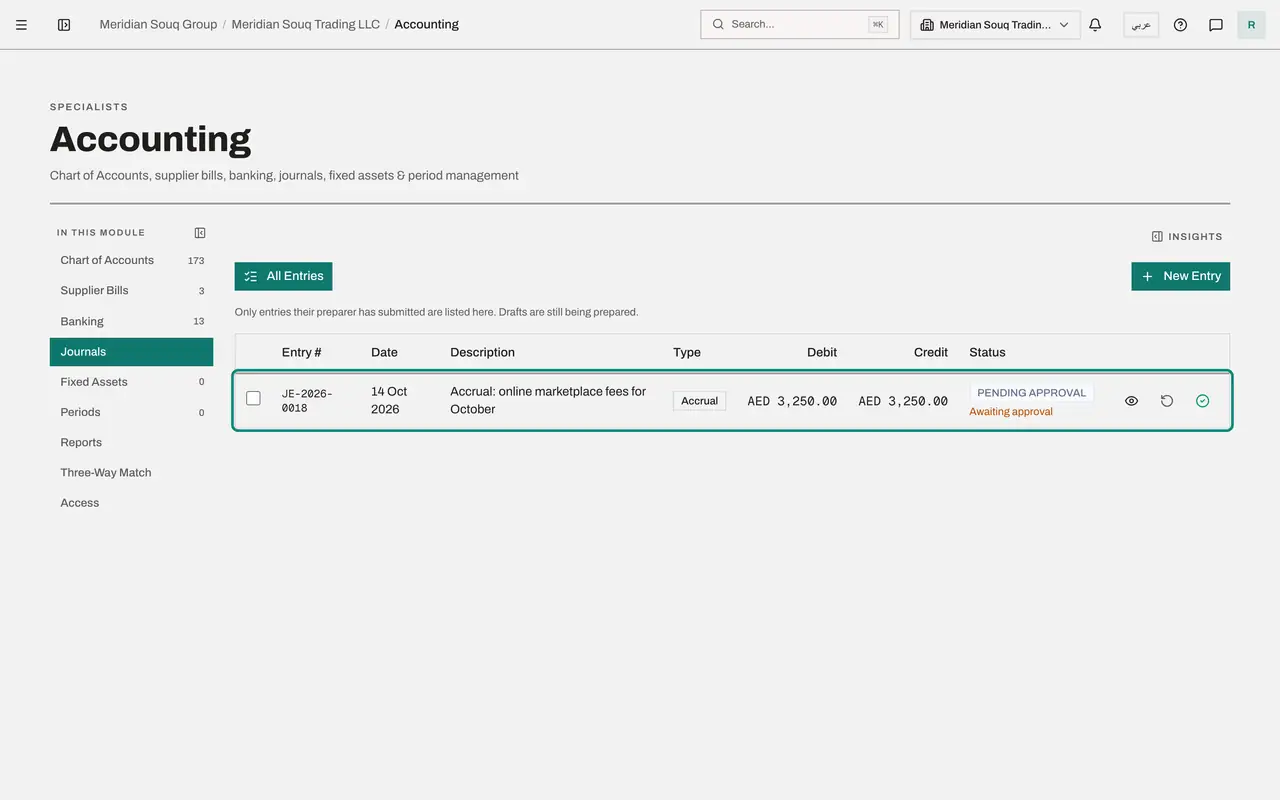
When many entries are waiting, tick the box at the start of each one you have checked. A button appears above the list with the number selected. Tick the accrual, then select the button Approve 1 selected.
- Select Select entry JE-2026-0018
- Select Approve 1 selected
- 7
Confirm the batch
The window explains that each entry goes through the approval policy on its own. Select the Approve button in the window. A summary reports how many entries were posted, partly approved, skipped or refused. An entry is refused, for example, if you prepared it yourself.
- Select Approve 1
- 8
Close the summary and check the queue is empty
Close the window. The Approval Queue is now empty: nothing is waiting for you.
- Select Close
- 9
Select All Entries and find the posted entries
Select All Entries. The accrual is at the top with the status Posted, and so is the capital entry. A posted entry has one button left: the curved arrow, Reverse entry. Posted entries are never edited or deleted.
- Select All Entries
How to check it worked
Both entries show the status Posted in All Entries, and the Approval Queue is empty.
Common mistakes
- Approving from the description alone. Open the entry and read the accounts, the sides and the amounts. Once it is posted, the only way back is a reversal.
- Waiting to be told. Check the Approvals inbox, or the Approval Queue inside Journals, every day: both list what is waiting for you.
- Leaving entries in the queue at month end. An entry that is still pending is not in the ledger, so the reports for the month would be incomplete.
Check your understanding
1. What happens when you approve a journal entry and no further approval step is required?
- A.It becomes a draft again
- B.It is posted to the ledger and leaves the Approval Queue
- C.It is deleted
- D.It waits until the period is closed
Show answer
Answer: B. It is posted to the ledger and leaves the Approval Queue
The entry posts once every required step is approved. With one step, your approval posts it, and it counts in the reports from then on.
2. Where do you find the journal entries waiting for your approval?
- A.In Financial Reports
- B.In Accounting, Journals, with the Approval Queue button
- C.In Accounting, Supplier Bills
- D.In Accounting, Periods
Show answer
Answer: B. In Accounting, Journals, with the Approval Queue button
Approval Queue lists only entries that their preparer has submitted. Drafts are still being prepared and are not shown there.