Lesson 9 of 25
Match bank lines to supplier bills
What you will be able to do
This lesson is for the accountant who reconciles the bank. Matching ties a statement line to the supplier bill it pays, and posts the payment for you. You will look at Manual match, let Auto-Match pair the line it can, exclude a line that was already recorded by hand, and follow the result to the bill, the journals and the Three-Way Match report.
Before you start
- The October statement has been imported, as in the previous lesson.
- The bill GCP-INV-26-0431 is verified and unpaid. Only verified bills can be matched.
- You are signed in with the Accountant role for the entity.
Steps
- 1
Open the bank account
In the left menu select Accounting, then Banking, then the card for Al Waha Commercial Bank. Select the Hide navigation icon at the top left, so that the list has more room. All thirteen lines are Unmatched. Each has three icons under Actions: Manual match, Categorize and Exclude.
- Select Accounting
- Select Banking
- Select Al Waha Commercial Bank
- Select Hide navigation
- 2
Open Manual match on the supplier transfer
On the transfer to Gulf Carton that carries the bill number ending 0431, select the first icon, the chain link, called Manual match. The window shows the transaction, its amount and its date. Open Match to and choose Supplier Bill.
- Select Manual match
- Select Match to
- Choose Supplier Bill
- 3
Look at the list of bills
Open the list under it. It offers the verified bills, with the closest amount first: each shows its number, the supplier, the amount and the date. Bills that are not verified are not offered. You could choose the bill here and select Match. Instead, press the Escape key and select Cancel, to see the automatic way.
- Select Choose a document
- 4
Select Auto-Match
Select Cancel, then Auto-Match above the list. A window asks how to match the unmatched lines. Rules Only compares each line with the open verified bills by amount and reference, by date, and by the name of the other party. Rules plus AI Matching goes on to reason about the lines the rules could not place, and uses AI credits.
- Select Cancel
- Select Auto-Match
- 5
Choose Rules Only
Select Rules Only. A message says that matching has started, and the button reads Matching while it runs in the background. It can take a minute or more, so carry on with other lines in the meantime.
- Select Rules Only (Free)
- 6
Exclude the transfer that was recorded by hand
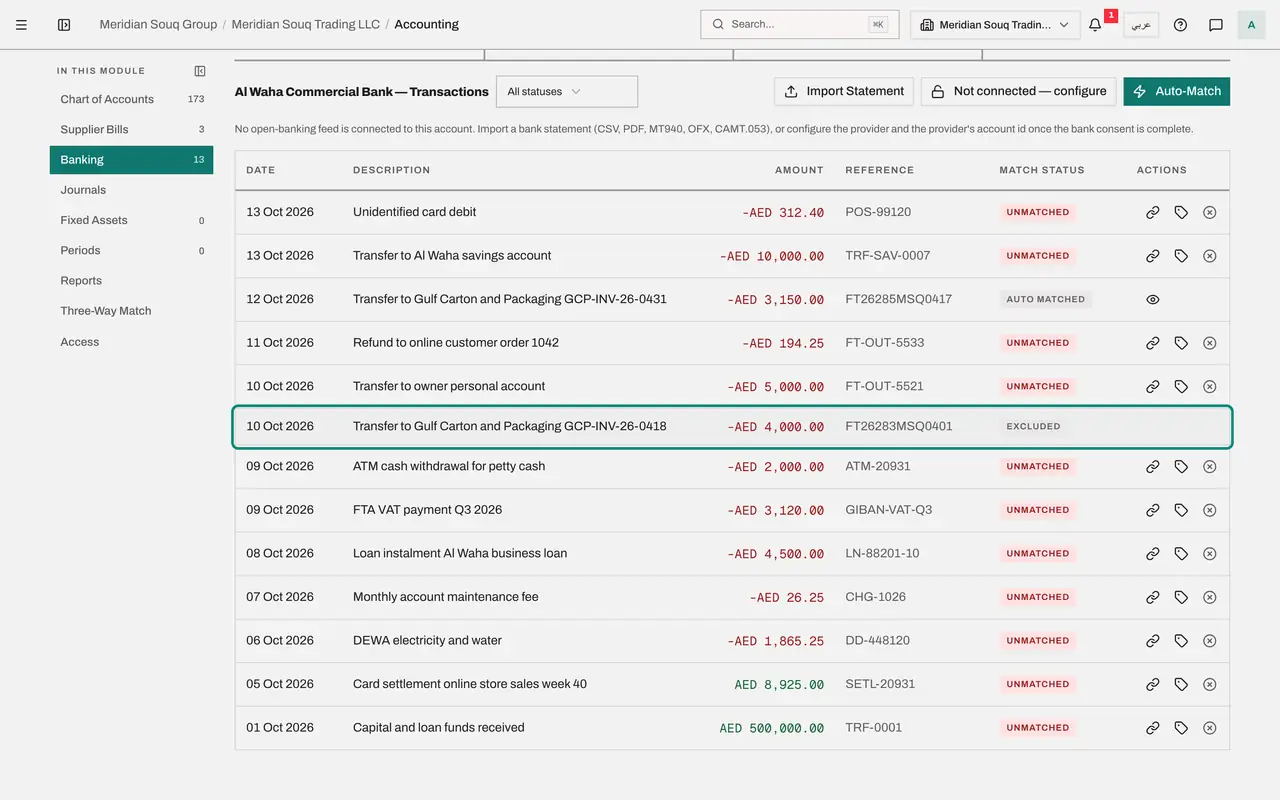
The transfer of 4,000 dirhams to Gulf Carton was recorded as a payment on the first bill in an earlier lesson, so its entry is already in the books. Matching it would post it twice. On that line select the third icon, Exclude. A window asks you to confirm: Exclude this transaction from reconciliation? Select Confirm. The line's status changes to Excluded and it leaves the unmatched total.
- Select Exclude
- Select Confirm
- 7
See what Auto-Match paired
When matching has finished, a message reports how many lines were matched. The transfer for the second bill now shows Auto matched: the bank description carried the bill number, and the amount agreed with the bill.
- 8
Open the matched line's details
A matched line has an eye icon, View details. Select it. The line opens to show the reasoning, here an exact amount with a matching reference, and how confident the match is.
- Select View details
- 9
Read the tiles
The tiles above the list have moved: one line matched, with the percentage of the statement that is reconciled, and fewer unmatched lines with a smaller value. The lines that remain have no bill behind them and will be categorised.
- 10
Check the bill is paid
Select Supplier Bills in the section list. The bill with the number ending 0431 now shows Paid. You did not record a payment on it; the bank match did. The first bill still shows Partially paid, with 4,820 dirhams outstanding.
- Select Supplier Bills
- 11
See the entry in Journals
Select Journals. A new entry of the type AUTO_PAYMENT was posted by the match, dated the day the money moved: it debits Accounts Payable and credits the bank account 3,150 dirhams.
- Select Journals
- 12
Open Three-Way Match
Select Three-Way Match in the section list. This read-only report sets each bank line beside the document it was matched to and shows any difference. The matched transfer is listed with the supplier and the bill amount beside it; a line with nothing behind it is Unmatched. The tiles give the match rate and the counts. Use From, To and Status to narrow the report.
- Select Three-Way Match
How to check it worked
One statement line shows Auto matched and one shows Excluded. The bill GCP-INV-26-0431 shows Paid, and Journals holds an entry for its payment.
Common mistakes
- Matching a bank line to a bill whose payment was already recorded by hand. The match would post the payment a second time. Exclude such a line instead.
- Expecting Auto-Match to finish at once. It runs in the background and can take a minute or more. Carry on with other lines and come back.
- Leaving the bill number off the transfer. Auto-Match pairs lines by amount, reference, date and party name, so a bank description that carries the supplier's bill number is matched most reliably.
Check your understanding
1. What does matching a bank payment to a verified supplier bill do?
- A.It only colours the line
- B.It posts the payment to the ledger and marks the bill paid
- C.It deletes the bill
- D.It sends a message to the supplier
Show answer
Answer: B. It posts the payment to the ledger and marks the bill paid
The match is the record of the payment: Accounts Payable is debited, the bank account is credited, and the bill's payment status follows.
2. A supplier transfer on the statement was already recorded as a payment on the bill. What do you do with the statement line?
- A.Match it to the bill
- B.Categorize it as Other
- C.Exclude it
- D.Import the statement again
Show answer
Answer: C. Exclude it
The payment is already in the books. Excluding the line takes it out of the unmatched total without posting anything a second time.