Lesson 2 of 25
Set up the chart of accounts
What you will be able to do
This lesson is for the accountant who sets up the books. You will fill the chart of accounts from a ready-made UAE template, read the list and the tree view, add an account of your own, change it, switch it off and bring it back.
Before you start
- You are signed in with the Accountant role for the entity.
- You know what kind of business the company is, because the template is chosen by business type.
Steps
- 1
Open Accounting
In the left menu, under Finance, select Accounting. It opens on Chart of Accounts. Scroll past the two settings cards to the row of buttons above the list: Table, Tree View, Template, Bulk Upload CSV, Seed Template and Add Account.
- Select Accounting
- 2
Select Seed Template and open the Template list
Select Seed Template. A template is a ready-made set of accounts, numbered the usual way: the 1000s are assets, the 2000s liabilities, the 3000s equity, the 4000s income and the 5000s and above costs. Open Template to see the seven business types.
- Select Seed Template
- Select Template
- 3
Choose UAE Trading and select Seed
Meridian Souq buys and sells goods, so choose UAE Trading, then select Seed. A message confirms that 169 accounts were created, and the list fills. If you seed again later, only accounts that are missing are added.
- Choose UAE Trading
- Select Seed
- 4
Read the list
Each row is one account: its code, its name in English and in Arabic, its type, a subtype used for grouping in reports, its balance and its status. Balance shows a dash until entries have been posted. The types are Asset, Liability, Equity, Revenue and Expense.
- 5
See that template accounts are locked
At the end of each row, under Actions, are a pencil and a switch. On accounts that came from the template both are greyed out. Rest the pointer on the pencil and it says System accounts cannot be edited.
- 6
Select Tree View
Select Tree View to see the same accounts grouped under their type, which is how they add up in the financial reports. Each group shows how many accounts it holds. Select Table to return to the flat list.
- Select Tree View
- 7
Go back to Table and select Add Account
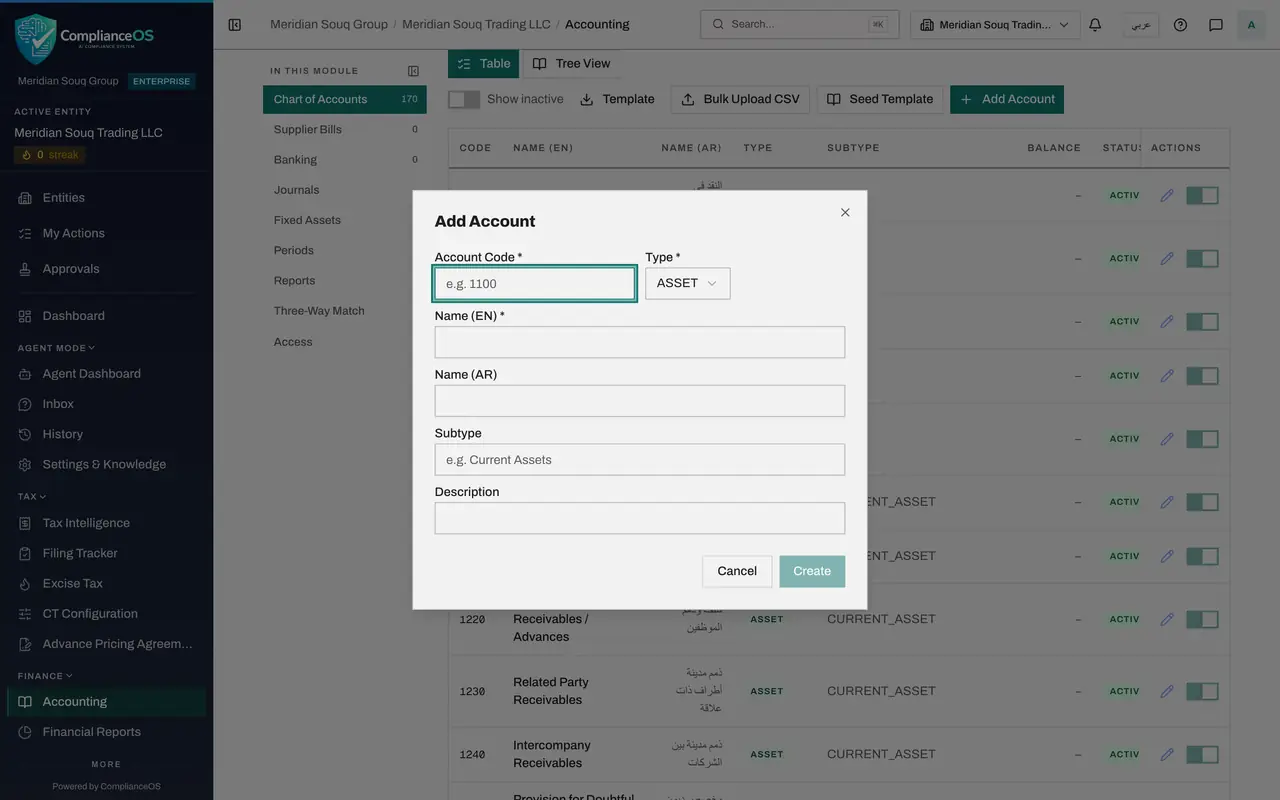
Select Table, then Add Account. Use this when the template has no account for something you want on its own line. Meridian Souq wants to see the fees that online marketplaces charge on each sale.
- Select Table
- Select Add Account
- 8
Enter the code and the type
In Account Code type a number that is not used yet and sits beside similar accounts. Marketing costs are in the 6300s, so type 6315. In Type choose Expense. A code can be used only once, and it cannot be changed after the account is created.
- Type e.g. 1100:
6315 - Select Type *
- Choose EXPENSE
- Type e.g. 1100:
- 9
Enter the names and the subtype
Type the name in English. This is the name shown on reports. Add the Arabic name if you have it. Subtype groups the account in reports: type MARKETING_EXPENSE, the same subtype as the other marketing accounts in the list. If you leave Subtype empty the account still works but is not grouped.
- Type Name (EN) *:
Online marketplace fees - Type Name (AR):
رسوم الأسواق الإلكترونية - Type e.g. Current Assets:
MARKETING_EXPENSE
- Type Name (EN) *:
- 10
Choose the supply type and describe the account
Supply Type appears for income and cost accounts. It tells the tax engine whether the account holds goods or services. A marketplace fee is a service, so choose Services. In Description say what belongs in the account, so that colleagues post to it consistently.
- Choose Supply Type:
Services - Type Description:
Commission and listing fees charged by online marketplaces
- Choose Supply Type:
- 11
Select Create
Select Create. A message confirms Account created, and the account can be used straight away on bills and journal entries. Scroll down the list to find it between the other marketing accounts.
- Select Create
- 12
Select the pencil and correct the description
Because you added this account yourself, its pencil works. Select it. You can change the two names, the subtype, the description and whether the account is active; the code and the type are fixed. Add to Description so that it also covers payment processing fees, then select Save Changes.
- Select Edit account
- Type Description:
Commission and listing fees charged by online marketplaces and their p… - Select Save Changes
- 13
Switch the account off
The switch beside the pencil makes an account inactive, so that it can no longer be chosen for new entries. Select it. A message confirms Account deactivated, and the account leaves the list, which shows active accounts only. An account with a balance, or one that a posting role uses, is refused with the reason.
- Select Deactivate account 6315
- 14
Show inactive accounts and reactivate it
Select the switch Show inactive above the list. Inactive accounts are listed again, marked Inactive, each with a Reactivate button. Select Reactivate on account 6315. It is Active again, because the later lessons use it. Switch Show inactive off again.
- Select Show inactive
- Select Reactivate account 6315
- Select Show inactive
How to check it worked
Chart of Accounts lists 170 accounts: 169 from the UAE Trading template and your own account 6315, Online marketplace fees, with the status Active.
Common mistakes
- Seeding a second template to see what it contains. Seeding adds every account of the template that is missing, so the list grows and cannot be trimmed back.
- Trying to rename a template account. Accounts that came from the template are locked: their pencil and switch are greyed out. Add an account of your own beside it instead.
- Looking for an inactive account in the list. Inactive accounts are hidden until you turn on Show inactive; from there Reactivate brings one back.
- Leaving Supply Type empty on an income or cost account. Supply Type tells the tax engine whether the account holds goods or services, which changes the VAT treatment of imports and exports.
Check your understanding
1. You need a separate line for the fees that online marketplaces charge. What do you do?
- A.Rename the template account Marketing and Advertising
- B.Add an account with a free code near similar accounts, such as 6315
- C.Seed the template again
- D.Post the fees to the suspense account
Show answer
Answer: B. Add an account with a free code near similar accounts, such as 6315
Template accounts are locked. A new account with a code that sits beside similar accounts keeps the reports tidy and can be edited later.
2. What does the switch at the end of an account's row do?
- A.Deletes the account and its entries
- B.Makes the account inactive, so it can no longer be chosen for new entries
- C.Locks the accounting period
- D.Hides the account from the trial balance for ever
Show answer
Answer: B. Makes the account inactive, so it can no longer be chosen for new entries
An account is never deleted once it exists. Switching it off stops new postings to it; Show inactive and Reactivate bring it back.