Lesson 20 of 25
Post tax activity to the ledger
What you will be able to do
This lesson is for the accountant. A transaction typed or imported directly into the Tax module is a single amount recorded for tax, with no journal entry, so it is not in the financial statements. The reports list such activity separately, with a button called Post to ledger. You will choose the transactions, say what they were settled against, read the entries that will be created, and send them for approval.
Before you start
- The tax manager has added two transactions directly in Tax, a cash sale at a market and the stall rental, and their classification is approved. Only classified and reviewed transactions can be posted.
- You are signed in with the Accountant role, which holds the right to create journal entries.
Steps
- 1
Generate the trial balance
In the left menu select Financial Reports and select Generate. Scroll to the amber panel under the report: Tax-module activity not in the ledger. It counts two transactions that are not posted. The same panel and the same button appear under the profit and loss and the balance sheet.
- Select Financial Reports
- Select Generate
- 2
Select Post to ledger
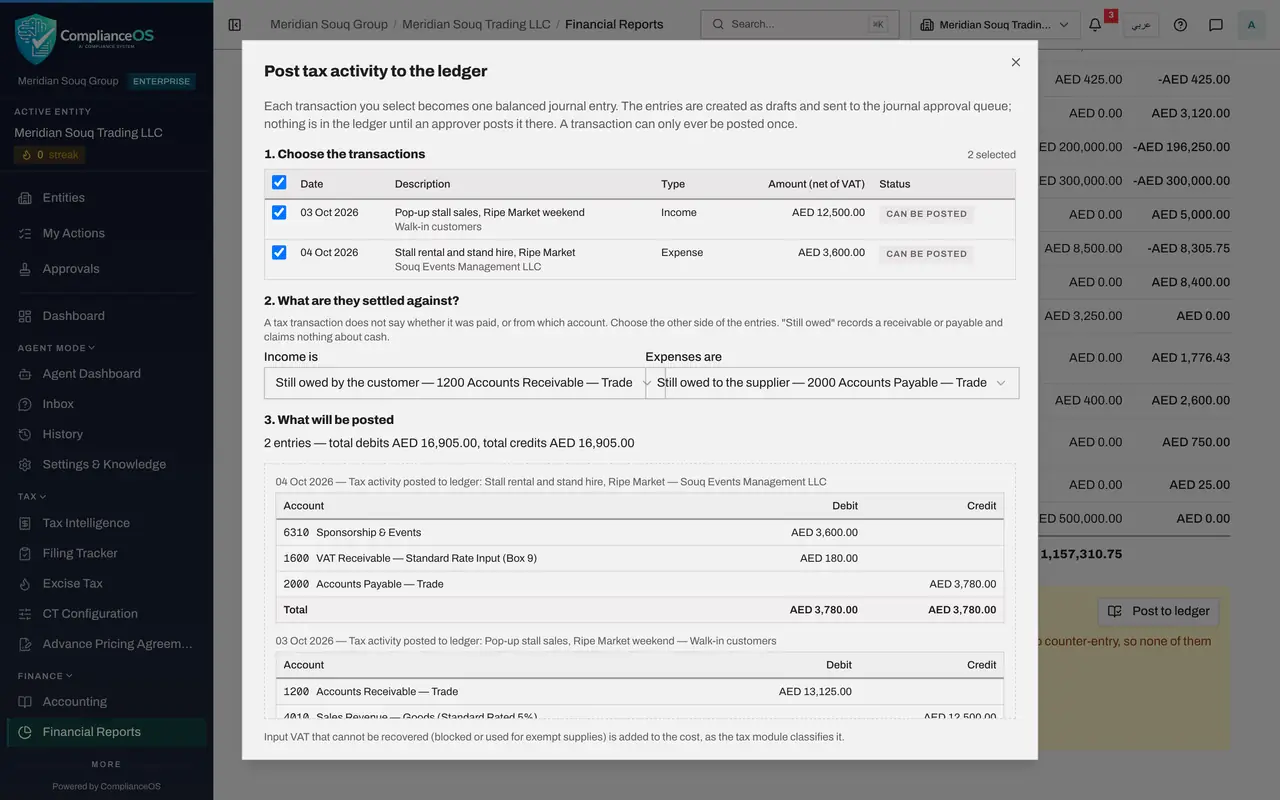
Select Post to ledger. The window explains the rules: each transaction you select becomes one balanced journal entry; the entries are created as drafts and sent to the journal approval queue; and a transaction can only ever be posted once. Step one lists the transactions, each with a status. Both read Can be posted.
- Select Post to ledger
- 3
Tick the transactions
Tick the box in the heading row to select every transaction on the page that can be posted, or tick them one at a time. The count above the list reads 2 selected, and two more steps appear below.
- 4
Say what the income was settled against
A tax transaction does not say whether it was paid, or from which account, so step two asks for the other side of the entries. Open Income is. The choices are Still owed by the customer, which uses Accounts Receivable; Paid through the bank; and Settled by the owner personally. The market organiser has not paid over the card takings yet, so keep Still owed by the customer.
- 5
Say what the expenses were settled against
Expenses are has the matching choices: Still owed to the supplier, which uses Accounts Payable; Paid through the bank; and Settled by the owner personally. The stall rental has not been paid, so keep Still owed to the supplier.
- 6
Read what will be posted
Step three shows the entries before anything is created. The sale debits Accounts Receivable 13,125 and credits sales revenue 12,500 and output VAT 625. The rental debits its cost account 3,600 and input VAT 180, and credits Accounts Payable 3,780. The VAT comes from the classification made in Tax.
- 7
Select Send 2 entries for approval
Select Send 2 entries for approval. A message confirms that the entries were sent. Nothing is in the ledger yet: the panel now reads Not posted: 0 and Awaiting approval: 2.
- Select Send 2 entries for approval
- 8
Find the entries in the Approval Queue
In the left menu select Accounting, then Journals, and select the Hide navigation icon. Select Approval Queue. Two entries described as Tax activity posted to ledger are listed with the status Pending approval. They wait for the finance manager, like any entry you submit.
- Select Accounting
- Select Journals
- Select Hide navigation
- Select Approval Queue
How to check it worked
The panel under the trial balance reads Not posted: 0, Awaiting approval: 2. In Accounting, Journals, the Approval Queue lists two entries described as Tax activity posted to ledger.
Common mistakes
- Choosing Paid through the bank when the money has not gone through the bank account. The choice decides the other side of the entry. Still owed records a receivable or a payable and claims nothing about cash.
- Expecting the figures to change as soon as you send the entries. They are drafts in the approval queue; nothing is in the ledger until an approver posts them.
- Trying to post a transaction that Tax has not classified or reviewed. Its line cannot be ticked and says why. Ask the tax manager to classify and review it first.
Check your understanding
1. Why is a transaction typed into Tax not in the profit and loss?
- A.Because of a delay of one day
- B.Because it is a single amount with no journal entry, and the statements are built from posted journals only
- C.Because Tax and Accounting belong to different companies
- D.Because it is in another currency
Show answer
Answer: B. Because it is a single amount with no journal entry, and the statements are built from posted journals only
A tax transaction has no counter-entry. Post to ledger turns it into a balanced journal entry, which then goes through approval like any manual entry.
2. What happens after you select Send entries for approval?
- A.The entries are posted at once
- B.Draft entries are created and placed in the journal approval queue for a second person
- C.The tax transactions are deleted
- D.The VAT return is filed
Show answer
Answer: B. Draft entries are created and placed in the journal approval queue for a second person
Each selected transaction becomes one balanced entry, awaiting approval. A transaction can only ever be posted once.