Lesson 12 of 25
Prepare journal entries and submit them for approval
What you will be able to do
This lesson is for the accountant who prepares adjustments. Most entries are posted for you by bills, payments and bank lines. A manual journal entry is for everything else. It is saved as a draft, submitted, and posted only when a second person approves it. You will prepare two entries: one that clears the 500,000 dirhams waiting in the suspense account, and one accrual. Then you will submit both.
Before you start
- The chart of accounts has been set up, and the capital received on 1 October is in the suspense account, as in the lesson on bank categories.
- You know the split of the 500,000 dirhams: 300,000 of share capital from the owner and a bank loan of 200,000.
- You are signed in with the Accountant role for the entity.
Steps
- 1
Open Journals
In the left menu select Accounting, then Journals, and select the Hide navigation icon for more room. Every entry in the books is listed with its number, date, description, type, amounts and status. The entries so far were posted by bills, payments and bank lines.
- Select Accounting
- Select Journals
- Select Hide navigation
- 2
Select New Entry and set the date and type
Select New Entry. Date is the day the entry takes effect in the books. It is filled in with today, the day you clear the suspense account, which is right here; change it when an entry belongs to another day. Open Type: Manual is the general choice, Year End is for closing entries, Accrual for costs or income recognised before the document arrives, and Correction for fixing an earlier entry. Keep Manual.
- Select New Entry
- Select Type
- Choose Manual
- 3
Describe the entry
In Description say what the entry is and why, in words an auditor will understand a year from now. The description is shown in the list, in the approval window and in the audit log.
- Type Description *:
Owner capital and bank loan received on 1 October
- Type Description *:
- 4
Choose the first account and type the debit
Each line has an account, a debit and a credit. Select Choose an account on the first line, type 9000 in the search box and select Suspense Account. The picker searches by code or name and only offers active accounts from your chart. Type 500000 in Debit: this takes the money out of suspense.
- Select Choose an account
- Type Search by code or name…:
9000 - Choose 9000 — Suspense Account
- Type Debit amount, line 1:
500000
- 5
Add the first credit
On the second line choose account 3000, Share Capital, and type 300000 in Credit. The footer of the table now reads Unbalanced, because the debits are 500,000 and the credits only 300,000. Create Entry stays grey while the entry is unbalanced.
- Select Choose an account
- Type Search by code or name…:
3000 - Choose 3000 — Share Capital
- Type Credit amount, line 2:
300000
- 6
Add a third line for the loan
Select Add Line. On the new line choose account 2500, Loans and Borrowings, and type 200000 in Credit. The footer changes to Balanced, with 500,000 on each side.
- Select Add Line
- Select Choose an account
- Type Search by code or name…:
2500 - Choose 2500 — Loans and Borrowings — Long-Term
- Type Credit amount, line 3:
200000
- 7
Select Create Entry
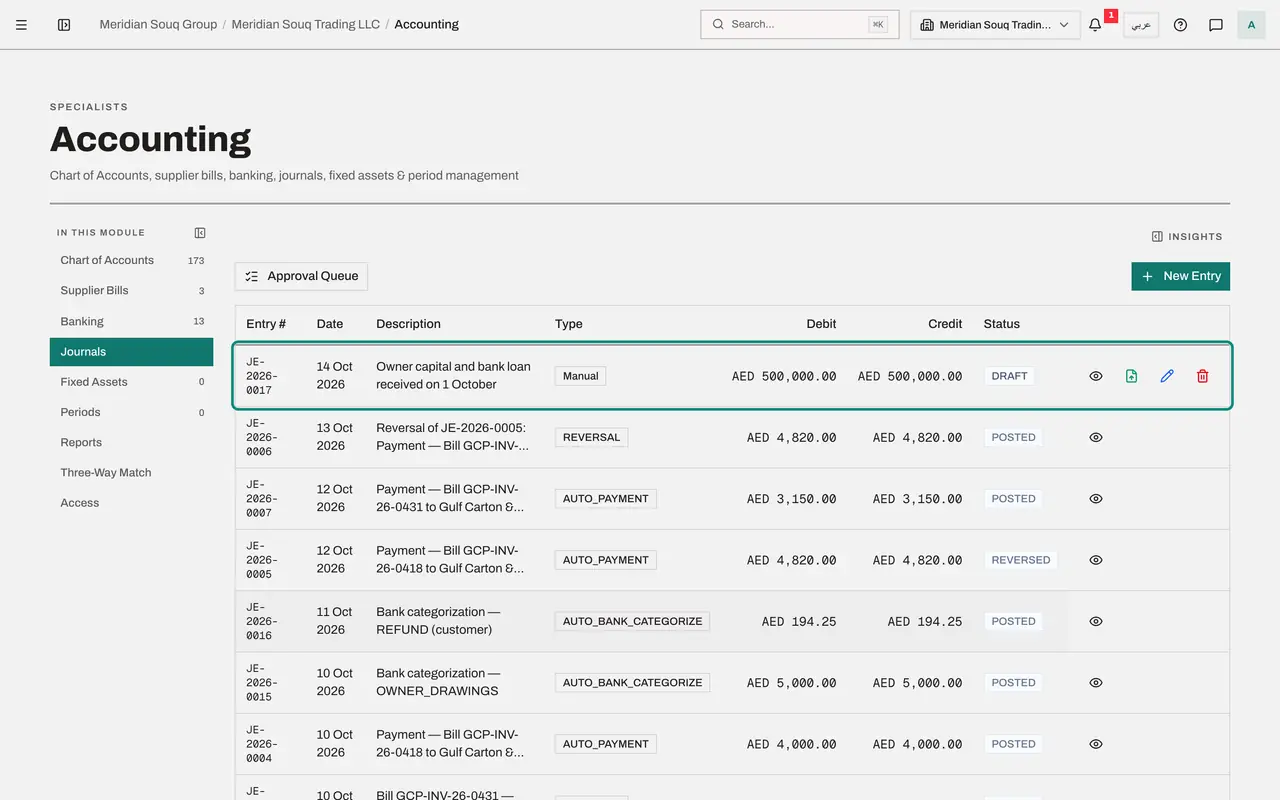
Select Create Entry. A message says the entry was saved as a draft and should be submitted when it is ready. It is listed with the status Draft and four icons: an eye to view it, a paper plane to submit it for approval, a pencil to edit it and a bin to delete it.
- Select Create Entry
- 8
Edit the draft
While an entry is a draft you can still change it. Select the pencil, Edit draft. The same form opens. Add the lender's name to the description and select Save Changes.
- Select Edit draft
- Type Description *:
Owner capital and bank loan received on 1 October, loan from Al Waha C… - Select Save Changes
- 9
Start a second entry, an accrual
Online marketplaces have charged fees for October, but their invoice has not arrived. Select New Entry again. Leave the date on today, choose the type Accrual, and describe the entry.
- Select New Entry
- Select Type
- Choose Accrual
- Type Description *:
Accrual: online marketplace fees for October
- 10
Enter the two lines and create it
Debit account 6315, Online marketplace fees, the account you added to the chart, with 3250. Credit account 2100, Accrued Expenses, with 3250. The entry is balanced. Select Create Entry.
- Select Choose an account
- Type Search by code or name…:
6315 - Choose 6315 — Online marketplace fees
- Type Debit amount, line 1:
3250 - Select Choose an account
- Type Search by code or name…:
2100 - Choose 2100 — Accrued Expenses
- Type Credit amount, line 2:
3250 - Select Create Entry
- 11
Submit the first entry for approval
A draft is not in the ledger and nobody is asked to approve it until you submit it. On the capital entry select the paper plane, Submit for approval. Its status changes to Pending approval, and the icons are replaced by Withdraw to draft.
- Select Submit for approval
- 12
Submit the second entry
Submit the accrual in the same way. Both entries now wait for a second person. Withdraw to draft takes an entry back if you spot a mistake; any approvals already given are cancelled.
- Select Submit for approval
- 13
Look at the Approval Queue
Select Approval Queue. Only entries that their preparer has submitted are listed; drafts are not. As the accountant who prepared them you can view and withdraw them, but there is no approve button on your screen. The finance manager approves them in the next lesson. Select All Entries to return to the full list.
- Select Approval Queue
How to check it worked
Journals shows two manual entries with the status Pending approval, each with a Withdraw to draft button, and Approval Queue lists the same two entries.
Common mistakes
- Expecting a draft to appear in the reports. A draft and an entry awaiting approval are not in the ledger. Only a posted entry counts.
- Saving an entry whose debits and credits differ. The form shows Unbalanced and the difference, and Create Entry stays grey until the two sides are equal.
- Typing an account from memory. Choose it from the list: the picker only offers active accounts from your chart, so an entry cannot be posted to an account that does not exist.
Check your understanding
1. You have created a manual journal entry. When does it reach the ledger?
- A.As soon as it is created
- B.When you submit it
- C.When a second person approves it from the approval queue
- D.At the end of the month
Show answer
Answer: C. When a second person approves it from the approval queue
A manual entry goes draft, pending approval, posted. The preparer cannot approve; approval by someone with that right is what posts it.
2. What does Withdraw to draft do?
- A.Deletes the entry
- B.Takes a submitted entry back for changes and cancels any approvals given so far
- C.Posts the entry
- D.Reverses a posted entry
Show answer
Answer: B. Takes a submitted entry back for changes and cancels any approvals given so far
While an entry is pending you can pull it back, correct it and submit it again. Approvals already given are cancelled, so approvers always see the final version.