Lesson 18 of 25
Run the trial balance, the profit and loss and the balance sheet
What you will be able to do
This lesson is for the finance manager, and for anyone who reads the company's figures. The financial statements are built from posted journal entries only. You will run the trial balance and check that it balances, read the panel that lists tax activity that is not in the ledger, download the report, and then run the profit and loss and the balance sheet.
Before you start
- The earlier lessons have posted bills, payments, bank lines, journal entries and an asset.
- For this example the tax manager, Fatima Noor, added two transactions directly in the Tax module beforehand, a cash sale at a market and the stall rental, and approved their classification. Transactions typed into Tax like this have no journal entry.
- You are signed in with the Finance manager role for the entity.
Steps
- 1
Open Financial Reports
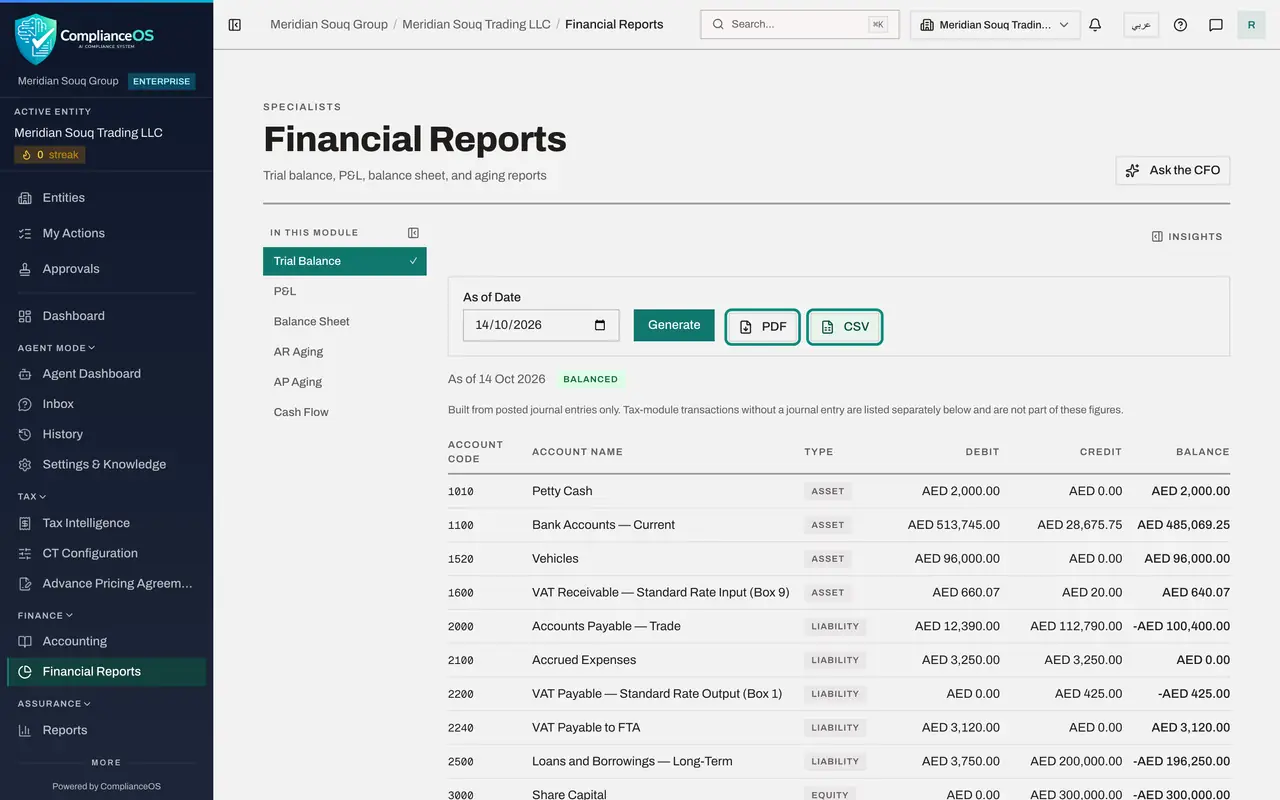
In the left menu, under Finance, select Financial Reports. The reports are listed on the left: Trial Balance, P and L, which is the profit and loss, Balance Sheet, AR Aging, AP Aging and Cash Flow. Trial Balance is selected. As of Date is today; change it to see the books as they stood on an earlier date.
- Select Financial Reports
- 2
Select Generate
Select Generate. Every account that has been posted to is listed with its code, name, type, total debits, total credits and balance. Beside the date, the tag reads Balanced: total debits equal total credits. The line under it says the report is built from posted journal entries only.
- Select Generate
- 3
Read the accounts
Read down the list. The bank account holds the receipts less the payments. Accounts Payable shows what is still owed to suppliers, including the dealer who sold the van. The suspense account shows the same amount in debit and credit: it was cleared by the approved journal entry.
- 4
Check the totals
Scroll to the Totals line at the bottom. The two totals are equal. If they were not, the tag would read Out of Balance and a red box would explain why, naming the entries or accounts responsible.
- 5
Read the panel about tax activity
Below the report is an amber panel: Tax-module activity not in the ledger. It says that two tax-module transactions have no journal entry, and that none of them is included in the figures above. It gives their income and expense totals and counts how many are not posted, awaiting approval and posted from here.
- 6
Select Show by account
Select Show by account. The panel lists the unposted amounts by account and by type: one income transaction of 12,500 dirhams and one expense of 3,600. These are the cash sale and the stall rental that the tax manager typed into Tax. A later lesson posts them to the ledger with the Post to ledger button.
- Select Show by account
- 7
Download the trial balance
Scroll back up. Two buttons download the report. Select PDF for a file to print or sign off. Select CSV for a file that opens in Excel with one row for each account. Both are saved to your browser's downloads folder.
- Select PDF
- Select CSV
- 8
Select P and L and set the period
Select P and L in the list on the left. A profit and loss covers a span of time. Set Period Start to 1 January 2026 and check that Period End is today. Tick Compare to prior period if you want the previous period beside it.
- Select P&L
- Type Period Start:
2026-01-01
- 9
Generate the profit and loss
Select Generate. The tiles show Revenue, Gross Profit with its margin, and Net Profit. Below them the report lists revenue, then the cost of goods sold, then the operating expenses, each account on its own line, down to the net profit. Revenue is shown as a positive figure.
- Select Generate
- 10
Read the lines and download
Scroll down the report. Each cost sits on the account it was posted to: the cartons under cost of goods sold, the uploaded bill under Other Operating Expenses, the electricity under utilities. The same amber panel about tax activity appears below. Select PDF to download the profit and loss.
- Select PDF
- 11
Select Balance Sheet and generate it
Select Balance Sheet, check As of Date, and select Generate. The balance sheet shows what the company owns, its assets, what it owes, its liabilities, and the owners' share, its equity, on that date. It carries the same Balanced tag: total assets equal total liabilities plus equity.
- Select Balance Sheet
- Select Generate
- 12
Read the balance sheet
Assets are split into current assets, such as the bank, petty cash and recoverable VAT, and non-current assets, here the van. Liabilities show what is owed to suppliers, the VAT accounts and the bank loan. Equity shows the share capital, the owner's drawings and a line called Current Year Earnings, which is the net profit from the profit and loss.
- 13
Download the balance sheet
Scroll up and select PDF to download the balance sheet. Tick Compare to prior year before generating when you want last year's figures beside this year's.
- Select PDF
How to check it worked
The trial balance shows the tag Balanced, with equal totals of debits and credits. Under it, a panel says that two tax-module transactions have no journal entry. The balance sheet also shows Balanced.
Common mistakes
- Expecting a transaction typed into Tax to appear in the profit and loss. The statements show posted journals only. Tax activity without a journal is listed in the panel under the report until it is posted to the ledger.
- Reading the profit and loss for the wrong dates. Check Period Start and Period End before you select Generate; the start date offered by default can be the last day of the previous year.
- Treating Out of Balance as a display problem. If the tag ever reads Out of Balance, the report explains why underneath: read the explanation and fix the entries it names before you rely on any figure.
Check your understanding
1. What are the financial statements built from?
- A.Every transaction in every module
- B.Posted journal entries only
- C.The bank statement
- D.Draft and posted journal entries
Show answer
Answer: B. Posted journal entries only
Each report says so under its date line. Drafts, entries awaiting approval and tax transactions without a journal are not in the figures.
2. The trial balance shows the tag Balanced. What does that tell you?
- A.The company made a profit
- B.Total debits equal total credits across all posted entries
- C.The bank is reconciled
- D.The period is closed
Show answer
Answer: B. Total debits equal total credits across all posted entries
Balanced is a check on the double entry: every posted entry has equal debits and credits, so the totals agree. It does not by itself prove that entries are in the right accounts.