Lesson 25 of 25
How this connects: the journal behind a bill and the audit trail
What you will be able to do
This lesson is for auditors, and for the finance team who will be asked the auditor's questions. Every figure in the books can be followed back to a document and to a person. As a read-only auditor you will go from a supplier bill to its journal entry, see that you cannot change anything, and then read the audit log, which shows who created, submitted, approved, reversed, closed and locked each record.
Before you start
- The bills, journals, payments and periods from the earlier lessons exist.
- You are signed in with the read-only Auditor role for the entity.
Steps
- 1
Open Supplier Bills as an auditor
In the left menu select Accounting, then Supplier Bills. As a read-only auditor you see every bill, its status and its journal entry number. Manual Entry and the icons to verify or pay a bill are not offered to you.
- Select Accounting
- Select Supplier Bills
- 2
Follow the bill to its journal entry
On the bill with the number ending 0418, select the journal entry number beside Verified. Accounting moves to Journals and opens the entry: Cost of Goods Sold and input VAT are debited, and Accounts Payable is credited 8,820 dirhams. This is the entry that verifying the bill posted.
- Select JE-2026-0001
- 3
See that Journals is read-only for you
Select Close. The journal list shows every entry with its type and status. There is no New Entry button and no Reverse button on your screen: an auditor reads the books and cannot change them.
- Select Close
- 4
Open the Audit log
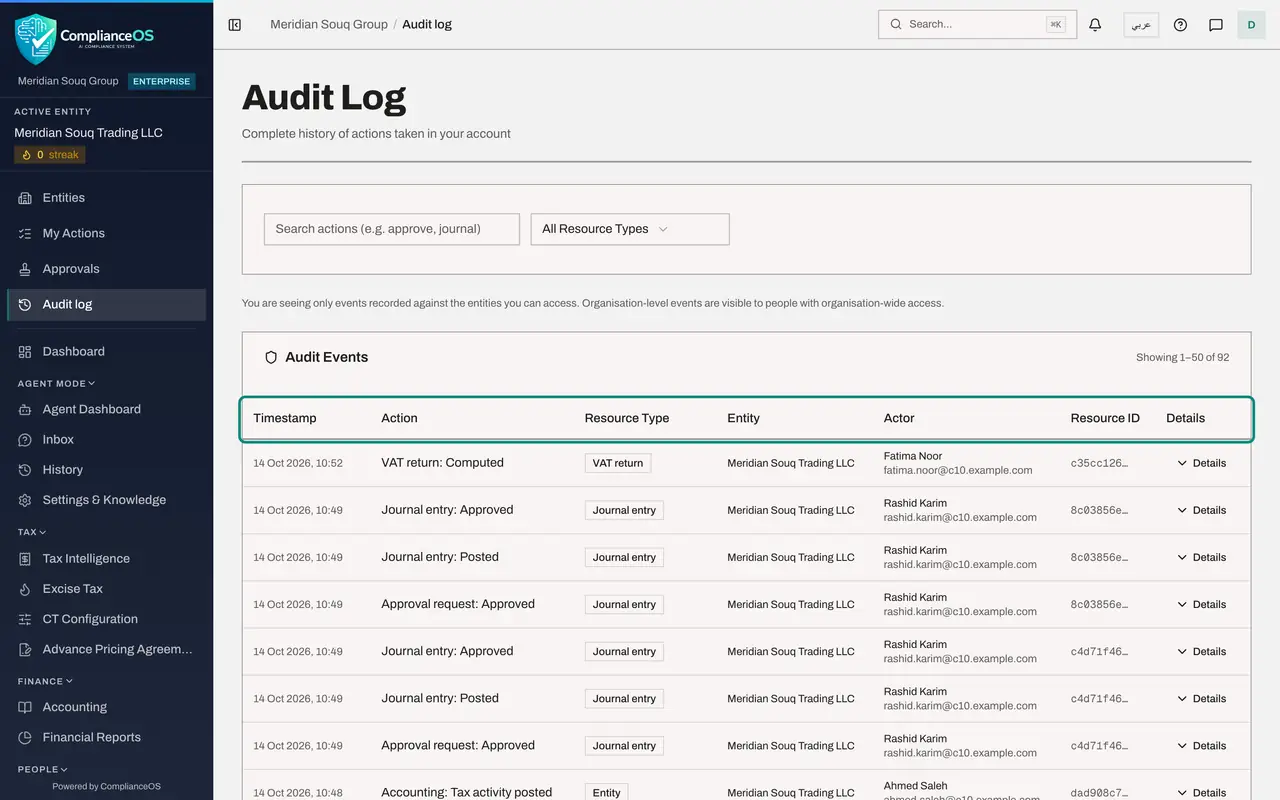
In the left menu select Audit log. It lists what was done, newest first. Each line shows the time, the action, the kind of record, the entity, the actor by name and sign-in email, and a Details button.
- Select Audit log
- 5
Find the journal entries
Type journal in the search box. The list narrows to the actions on journal entries: created and submitted by Ahmed Saleh, the accountant, and approved by Rashid Karim, the finance manager. The preparer and the approver are different people, as the approval policy requires.
- Type Search by action name:
journal
- Type Search by action name:
- 6
Open the details of an action
Select Details on a line that reads Journal entry: Approved. The line opens to show what was recorded for that action: here the entry's new status, Posted, and the reference of the approval request. Show raw displays the full record. Select Hide to fold it again.
- Select Details
- 7
Find the period actions
Replace the search with period. The log shows the accounting period being closed, reopened, closed again and locked, each by Rashid Karim, with the time of each action.
- Type Search by action name:
period
- Type Search by action name:
- 8
Search for the bank actions
Replace the search with bank. The log lists the bank work as well: the account added, the statement imported, and lines matched, categorised and excluded, each with the person who did it and the time.
- Type Search by action name:
bank
- Type Search by action name:
How to check it worked
You can open the journal entry behind a bill from the bill itself, and you can find in the audit log who verified the bill and who approved a journal entry.
Common mistakes
- Asking the finance team for screenshots as evidence of who approved an entry. The audit log already records the action, the record, the person and the time, and it cannot be edited.
- Searching the audit log by a person's first name only. Search matches the action name; use the Details button to read the record, and scan the Actor column for the person.
- Expecting to see other companies' events. The log shows events for the entities you can access.
Check your understanding
1. How do you get from a verified supplier bill to its journal entry?
- A.You cannot; ask the accountant
- B.Select the journal entry number shown beside the bill's Verified status
- C.Search the trial balance
- D.Open the bank statement
Show answer
Answer: B. Select the journal entry number shown beside the bill's Verified status
Every document that posted shows its journal entry number as a link. Selecting it opens Journals on that entry.
2. What does the audit log record for a journal approval?
- A.Only the amount
- B.The action, the record, the person who did it and the time
- C.Nothing, approvals are not logged
- D.Only the entity
Show answer
Answer: B. The action, the record, the person who did it and the time
Each line names the action, the kind of record, the entity, the actor by name and sign-in email, and the time. Details shows what else was recorded for the action.