Lesson 3 of 25
Add accounts from a file and check the posting accounts
What you will be able to do
This lesson is for the finance manager. You will add several accounts at once from a spreadsheet file, then read and check the posting accounts, which are the accounts that automatic postings use, such as the bank, the payable, the default expense and the suspense account. You will also see which accounts can be switched off, and look at the foreign exchange settings.
Before you start
- The chart of accounts has been seeded from a template, as in the previous lesson.
- You are signed in with the Finance manager role for the entity.
- You have a file of the accounts to add, saved as CSV, which is plain text with commas between the columns.
Steps
- 1
Open Accounting and find the buttons above the list
In the left menu select Accounting. Scroll to the buttons above the list of accounts. Template downloads a sample file, and Bulk Upload CSV reads a file of accounts.
- Select Accounting
- 2
Select Template to download a sample file
Select Template. A sample file called chart_of_accounts_template.csv is downloaded. Its first line holds the seven column headings, which are listed under Common mistakes, and the lines below it are examples. Replace the examples with your own accounts, one account on each line, and save the file as CSV.
- Select Template
- 3
Select Bulk Upload CSV and choose the file
Select Bulk Upload CSV and choose your file, here meridian-extra-accounts.csv. It holds two accounts: 6595, Packaging and shipping supplies, an expense account for goods, and 1115, Al Waha savings account, an asset account. A message reports how many accounts were created and how many were updated.
- Upload Choose a file:
meridian-extra-accounts.csv
- Upload Choose a file:
- 4
Find the new accounts in the list
The two accounts are in the list in code order, each Active. An account whose code already exists is updated instead of added, so the same file can be corrected and uploaded again.
- 5
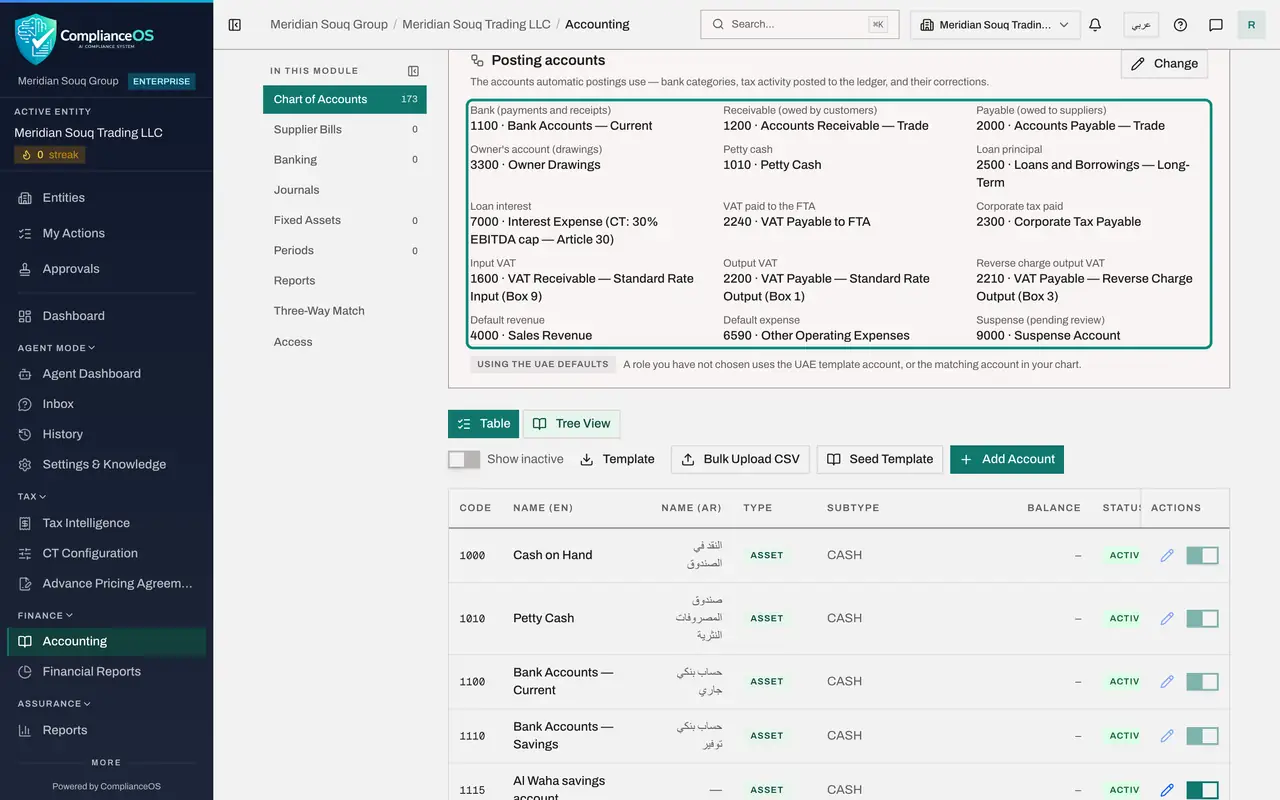
Read the Posting accounts card
Scroll back up to the card called Posting accounts. Each line is a role and the account that automatic postings use for it: bank, receivable, payable, owner's account, petty cash, loan principal and interest, the VAT and corporate tax accounts, default revenue, default expense and suspense. Default expense is 6590, Other Operating Expenses, from the template. Using the UAE defaults means nothing has been changed yet.
- 6
Select Change and look at a role's choices
Select Change. Every role becomes a list. Open Default expense. Each list only offers accounts of the right type, so a liability role cannot be pointed at an expense account. The first choice, Default, keeps the automatic lookup. Keep 6590.
- Select Change
- Select Default (6590)
- 7
Select Cancel
The defaults suit this company, so select Cancel under the lists. When you do change a role, Save keeps it, the card shows the word chosen beside it, and the date of the change is shown.
- Select Cancel
- 8
Know which accounts can be switched off
Scroll to account 6590 in the list. Like every template account, its switch is greyed out. For accounts you add yourself, switching one off is refused, with the reason, while a posting role uses it or while it still has a balance: choose another posting account first, or move the balance with a journal entry.
- 9
Open the foreign exchange settings
Scroll up to the card Foreign exchange on payments, which matters when you pay a bill in another currency. Select Edit. It names the account for exchange gains, the account for exchange losses, and a tolerance: a bank payment within that percentage of a foreign bill's balance settles the bill in full.
- Select Edit
- 10
Leave the defaults and select Cancel
The gain account must be a revenue account and the loss account an expense account. The UAE defaults, 4350 and 7600, with a tolerance of two percent, suit most companies. Select Cancel to leave them unchanged.
- Select Cancel
How to check it worked
The list contains accounts 1115 and 6595, and the Posting accounts card shows 6590, Other Operating Expenses, beside Default expense.
Common mistakes
- Uploading a file with different column headings. The first line must name the columns exactly: account_code, account_name, account_type, account_subtype, supply_type, parent_account_code and description.
- Changing a posting account in the middle of a month without telling the team. The change applies to postings made from then on; entries already posted stay where they are.
- Trying to switch off an account that a posting role uses, or that has a balance. It is refused, with the reason. Choose another posting account first, or move the balance with a journal entry.
Check your understanding
1. What is a posting account?
- A.An account that only administrators can see
- B.The account an automatic posting uses for a given role, such as bank, payable or default expense
- C.A bank account that has been reconciled
- D.An account that has been switched off
Show answer
Answer: B. The account an automatic posting uses for a given role, such as bank, payable or default expense
When the system posts an entry for you, for example from a bank category or a bill with no category, it looks up the account for each role in this card.
2. A bank line categorised as Other is posted to which account?
- A.Default expense
- B.Sales revenue
- C.The suspense account, until someone identifies it
- D.Owner drawings
Show answer
Answer: C. The suspense account, until someone identifies it
Other is not treated as a cost. It waits in the suspense account, shown on this card, until it is moved to the right account with a journal entry.