Lesson 8 of 25
Add a bank account and import a statement
What you will be able to do
This lesson is for the accountant who reconciles the bank. You will register one of the company's bank accounts, look at the settings behind it, and bring in the October statement from a file, so that each line can be tied to a bill or a category in the lessons that follow.
Before you start
- You are signed in with the Accountant role for the entity.
- You have downloaded the statement from your online banking as a file. CSV, Excel, PDF, MT940, OFX and CAMT.053 files are accepted.
- You know the last four digits of the account number. Full account numbers are never typed here.
Steps
- 1
Open Accounting and select Banking
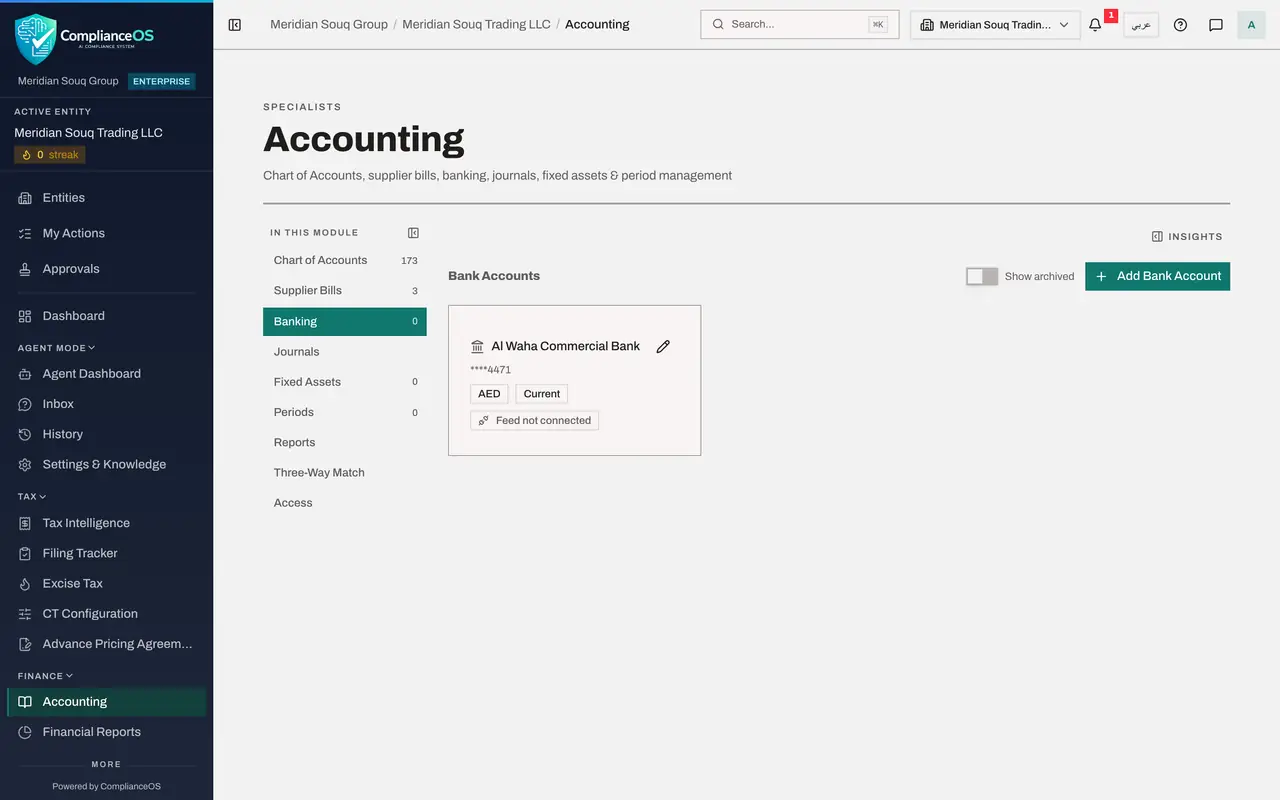
In the left menu select Accounting, then Banking. Each bank account the company uses gets a card here. None has been added yet. Show archived brings back accounts that were archived earlier.
- Select Accounting
- Select Banking
- 2
Select Add Bank Account and identify the account
Select Add Bank Account. In Bank Name type the bank's name. Type the account number and the IBAN in masked form: stars, with only the last four digits. Never type full account numbers here.
- Select Add Bank Account
- Type Bank Name *:
Al Waha Commercial Bank - Type Account Number (masked) *:
****4471 - Type IBAN (masked):
AE**0330****4471
- 3
Check the currency and the account type
Currency is the currency the account is held in: dirhams, US dollars, euros, pounds or Saudi riyals. It cannot be changed once the account has transactions. Open Account Type: Current, Savings, Fixed deposit, Credit card or Petty cash. Keep Current.
- Select Account Type
- Choose Current
- 4
Select Add Account
Select Add Account. A card for the account appears, with its masked number, its currency and its type. Feed not connected means statements are brought in by file, not by a live link to the bank.
- Select Add Account
- 5
Select Manage account
On the card select the small gear, called Manage account. The window has four tabs. Details lets you correct the bank name, the masked numbers and the account type. Currency is fixed once the account has transactions.
- Select Manage account
- 6
Look at Bank feed
Select the Bank feed tab. A feed is a live link to the bank through an open-banking provider. It needs the provider to be chosen and the provider's own account id, which you receive when the bank's consent is complete. Until then Provider stays on None, statement import only.
- Select Bank feed
- 7
Look at Delete or archive, then close
Select the last tab, Delete or archive. An account with no transactions is deleted. An account with transactions is archived instead: it disappears from the list and stops syncing, and its transactions and reconciliation stay intact. The tab called Demo data only concerns sample rows from an old demonstration feed. Close the window without changing anything.
- Select Delete / archive
- Select Close
- 8
Select the account card
Select the card itself. The account's transactions open below it, empty for now. Above the list are a status filter and three buttons: Import Statement, Not connected, configure, which opens the feed settings you just saw, and Auto-Match.
- Select Al Waha Commercial Bank
- 9
Select Import Statement and choose the file
Select Import Statement and choose the statement file you downloaded from the bank, here al-waha-statement-october-2026.csv. You can also drag the file onto the page. A banner shows the progress and then reports Import complete, with the number of transactions imported: thirteen.
- Upload Choose a file:
al-waha-statement-october-2026.csv
- Upload Choose a file:
- 10
Read the imported lines
Each statement line is now a row with its date, description, amount and the bank's reference. Money in is shown as a positive amount and money out as a negative one. Match Status starts at Unmatched for every line. The three icons under Actions are Manual match, Categorize and Exclude.
- 11
Read the tiles
The tiles above the list count the work to do: 13 transactions in total, none matched yet, 13 unmatched with their value, and the totals of money in and money out for the statement.
- 12
Open the status filter
The list above the transactions filters them by match status: Unmatched, Suggested, Matched, Categorized or Excluded. Suggested lines are ones the system has paired with a document and is waiting for you to confirm. Keep All statuses for now.
- Select All statuses
- Choose All statuses
- 13
Import the same file again to see duplicates skipped
If you are not sure whether a statement was already imported, import it again. Choose the same file with Import Statement. The banner reports that nothing new was imported and that the lines already on file were skipped. The list still holds 13 transactions.
- Upload Choose a file:
al-waha-statement-october-2026.csv
- Upload Choose a file:
How to check it worked
Banking shows a card for Al Waha Commercial Bank. Selecting it lists 13 transactions from the October statement, all with the match status Unmatched.
Common mistakes
- Typing the full account number or IBAN. Only a masked version is kept, for example four stars and the last four digits, so that bank details are not exposed on screen.
- Worrying about importing the same statement twice. Lines that are already there are recognised and skipped, and the banner tells you how many.
- Selecting Delete or archive to tidy up. An account with transactions is archived, not deleted: it leaves the list and stops syncing. Use it only for an account the company has closed.
Check your understanding
1. What should you type in Account Number when adding a bank account?
- A.The full account number
- B.A masked number, such as four stars and the last four digits
- C.The bank's SWIFT code
- D.Your online banking user name
Show answer
Answer: B. A masked number, such as four stars and the last four digits
The field is labelled masked because only enough digits to recognise the account should be stored.
2. The card says Feed not connected. What does that mean?
- A.The account is closed
- B.Statements are brought in by file, because no live link to the bank has been set up
- C.The statement could not be read
- D.The account is in another currency
Show answer
Answer: B. Statements are brought in by file, because no live link to the bank has been set up
A feed is a live link through an open-banking provider, set up after the bank's consent. Without it, Import Statement does the same job from a file.