Lesson 5 of 25
Upload a supplier bill and a supplier credit memo
What you will be able to do
This lesson is for the accountant who handles purchases. Instead of typing a bill, you can upload the supplier's document and let the system read it. You will upload a supplier's tax invoice, check what was read, and verify it. Then you will upload a credit memo, which is a supplier's credit note, and see that it posts the opposite way: it reduces the cost and what you owe.
Before you start
- The first bill from Gulf Carton and Packaging Supplies has been verified, as in the previous lesson.
- You have the supplier's documents as PDF files, or as PNG, JPG or TIFF pictures.
- You are signed in with the Accountant role for the entity.
Steps
- 1
Open Supplier Bills and select Upload Document
In the left menu select Accounting, then Supplier Bills. Select the Hide navigation icon for more room, then Upload Document. The window asks what kind of document it is: Supplier Bill, Expense Receipt, Credit Memo, Debit Memo or Purchase Order. A purchase order is not an accounting entry; it is kept so that orders, bills and payments can be compared.
- Select Accounting
- Select Supplier Bills
- Select Hide navigation
- Select Upload Document
- 2
Choose Supplier Bill and select the file
Select Supplier Bill, then Select File, and choose the supplier's invoice, here the PDF file gulf-carton-invoice-GCP-INV-26-0431. PDF files and PNG, JPG and TIFF pictures are accepted. A message says the document was uploaded and that reading is in progress.
- Select Supplier Bill
- Select Select File
- Upload Choose a file:
gulf-carton-invoice-GCP-INV-26-0431.pdf
- 3
Wait for the document to be read
The new row first shows the status Pending and no details. Reading takes up to about a minute. Select another section and come back to Supplier Bills to refresh the list. When the status is Extracted, the supplier, the invoice number, the date, the amount and the VAT have been filled in from the document.
- Select Banking
- Select Supplier Bills
- Select Supplier Bills
- Select Banking
- Select Banking
- Select Supplier Bills
- Select Supplier Bills
- 4
Check what was read
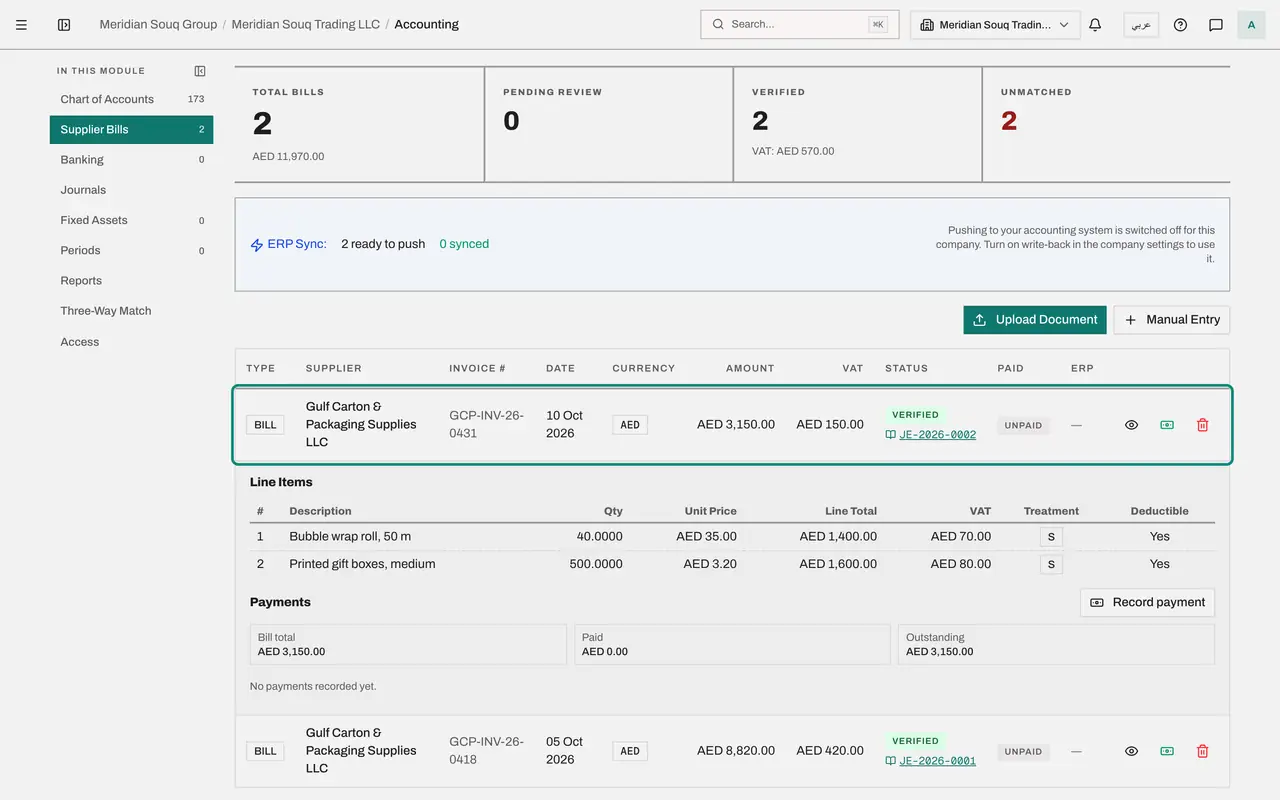
Select the eye on the row. The lines of the invoice were read too: bubble wrap and printed gift boxes, with quantities, unit prices and VAT. Compare everything with the document: supplier, number, date, 3,000 dirhams before VAT, 150 of VAT and a total of 3,150. You are the control on the reading.
- Select View line items
- 5
Select Review posting and verify
Select Review posting and verify. The window shows the entry that will be posted: the cost account debited 3,000, the input VAT account debited 150, and Accounts Payable credited 3,150. When an uploaded bill has no category, the cost goes to the default expense account from Posting accounts, 6590, Other Operating Expenses. Check that this is right before you verify.
- Select Review posting and verify
- 6
Select Verify and post
Select Verify and post. The bill's status changes to Verified, with its journal entry number beside it.
- Select Verify and post
- 7
Upload the credit memo
The supplier has sent a credit note for cartons that arrived damaged. Scroll up and select Upload Document again. This time select Credit Memo, described as a vendor credit note reducing the amount owed, then Select File, and choose the credit note PDF.
- Select Upload Document
- Select Credit Memo
- Select Select File
- Upload Choose a file:
gulf-carton-credit-note-GCP-CN-26-0031.pdf
- 8
Wait for the credit memo to be read
As before, the row shows Pending, then Extracted. Its Type reads Credit Memo, and it shows the supplier's credit note number, the date, and an amount of 420 dirhams including 20 of VAT.
- Select Banking
- Select Supplier Bills
- Select Supplier Bills
- Select Banking
- Select Banking
- Select Supplier Bills
- Select Supplier Bills
- 9
Review the posting of the credit memo
Select the green tick on the credit memo's row, called Verify and post bill. Read the preview: it runs the opposite way to a bill. The expense account is credited 400, the input VAT account is credited 20, and Accounts Payable is debited 420. The credit reduces the cost, the VAT you can recover and what you owe.
- Select Verify and post bill
- 10
Select Verify and post
Select Verify and post. The credit memo is Verified and has its own journal entry. Its transaction in Tax is negative, so the input VAT claimed for the period goes down by 20 dirhams.
- Select Verify and post
- 11
Read the list and the tiles
Scroll to the top. The list holds three documents from the supplier, all Verified: two bills and one credit memo. Total Bills counts three, Pending Review is zero, and Unmatched counts the documents that no bank payment has been matched to yet. The red bin at the end of a row deletes a document that was entered by mistake.
How to check it worked
Supplier Bills lists three documents from Gulf Carton and Packaging Supplies, all Verified, each with a journal entry number: two bills and one credit memo of 420 dirhams.
Common mistakes
- Choosing Supplier Bill for a supplier's credit note. The document type decides the direction of the posting. A credit note uploaded as a bill would increase the cost instead of reducing it.
- Verifying without reading what was extracted. The reading is usually right, but you are the control: check the supplier, the number, the date, the amounts and the VAT against the document before you verify.
- Uploading the same document twice. A second copy of the same supplier and number is recognised as a duplicate. If you are not sure, look in the list first.
Check your understanding
1. Which way does a supplier credit memo post when it is verified?
- A.Like a bill: it debits the cost and credits Accounts Payable
- B.The opposite way: it credits the cost and the input VAT, and debits Accounts Payable
- C.It posts nothing
- D.It credits the bank account
Show answer
Answer: B. The opposite way: it credits the cost and the input VAT, and debits Accounts Payable
A credit memo reduces the cost, the VAT you can recover and what you owe the supplier. The posting preview shows this before you verify.
2. A document you uploaded shows the status Pending for a few seconds. What is happening?
- A.It was rejected
- B.The system is reading the document; the details fill in when the status becomes Extracted
- C.It is waiting for the finance manager
- D.It is being emailed to the supplier
Show answer
Answer: B. The system is reading the document; the details fill in when the status becomes Extracted
Reading takes up to about a minute. The supplier, number, date, amounts and lines appear when it is done; then you check and verify.