Lesson 2 of 26
See who can work on audits, and give one more person read access
What you will be able to do
This lesson is for the administrator who manages access. You will open the Access section of the Audit Hub, read who can view, create, edit and approve audits for this entity, and give the legal counsel read-only access to audits until the fieldwork is over.
Before you start
- You are signed in as an administrator who manages access. Here that is Layla Hassan.
- You know who needs access and why. Here the legal counsel, Noura Salem, wants to follow this year's audit without being able to change it.
Steps
- 1
Open Audit Hub and select Access
Open Audit Hub from the left menu and select Access under In this module. As an administrator you see the access table for this module and this entity.
- Select Access
- 2
Read the access table
The table has one column for each right: View, Create, Edit and Approve. Each number counts the people who hold that right for audits of this entity. Approve matters most in the Audit Hub: it is the right to confirm the checklist, send out requests, accept answers and complete the audit.
- 3
Select a number to see the names
Select the number under View. A list opens below the table with each person, the role that gives them the right, where the role applies and until when. Here four people can view audits: the two administrators, the compliance officer and the internal auditor.
- Select 4 people can View: All record types
- 4
Read the role grants
Further down, Role grants covering this entity lists every assignment that reaches this entity and includes the Audit Hub: the person, the role, where it applies, whether it has a time limit and who granted it.
- 5
Select Grant access for this module
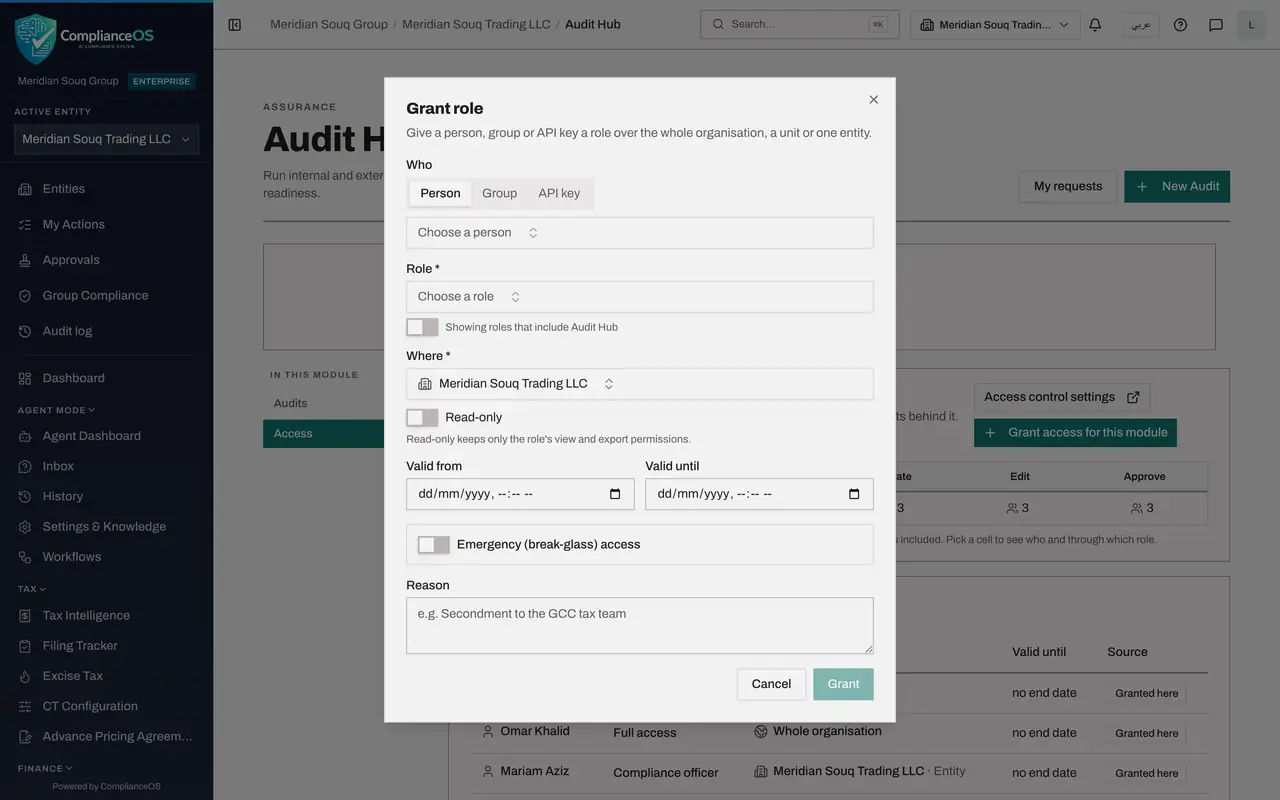
Go back to the top of the section and select Grant access for this module. The Grant role box opens. It is the same box as in Settings, Access control, but the list of roles is already narrowed to roles that include the Audit Hub.
- Select Grant access for this module
- 6
Choose the person
Under Who, keep Person selected. Select Choose a person, type part of the name in the search box, and select Noura Salem.
- Select Choose a person
- Type Search people…:
Noura
- 7
Choose the role
Open Role and choose Auditor (read-only). The list shows only roles that include the Audit Hub. Auditor (read-only) lets a person read audits and download the evidence pack, and nothing else.
- Select Choose a role
- 8
Check where the role applies
Where is already set to Meridian Souq Trading LLC, the entity you came from, so the role does not reach any other entity. The Read-only switch below it is for roles that can also change things. This role is read-only already, so leave the switch off.
- 9
Set an end date and a reason
Leave Valid from empty so the access starts now. In Valid until, enter the day the access should end, here 28 Dec 2026. Leave Emergency access off. In Reason, write why the access is given. The reason is kept with the grant.
- Type Valid until:
2026-12-28T18:00 - Type Reason:
Legal counsel follows the FY2025 internal audit of store cash and stoc…
- Type Valid until:
- 10
Select Grant
Select Grant. The box closes, the numbers in the table are counted again, and Noura Salem appears under Role grants covering this entity with the role Auditor (read-only) and the end date. She can now open the Audit Hub and read every audit of this entity.
- Select Grant
How to check it worked
The View column of the table has gone up by one, and under Role grants covering this entity there is a row for Noura Salem with the role Auditor (read-only) and an end date.
Common mistakes
- Giving Compliance officer or Full access when the person only needs to read. Those roles can create, edit and approve audits. Auditor (read-only) can view and export only.
- Leaving Valid until empty for temporary access. Without an end date the role stays until someone removes it.
- Thinking a person needs an Audit Hub role to answer an audit request. They do not: anyone who can open the entity can be assigned a request and answers it from My audit requests.
Check your understanding
1. Noura only needs to read audits for the next two months. Which choice fits?
- A.Full access with no end date
- B.Compliance officer with no end date
- C.Auditor (read-only) with a Valid until date
- D.No role: everyone can read audits
Show answer
Answer: C. Auditor (read-only) with a Valid until date
Auditor (read-only) allows viewing and exporting only, and Valid until ends the access automatically on the date you choose.
2. What does a number in the Approve column of the Access table tell you?
- A.How many audits are waiting for approval
- B.How many people can approve Audit Hub actions for this entity
- C.How many approvals were given this year
- D.How many auditors were invited
Show answer
Answer: B. How many people can approve Audit Hub actions for this entity
Each cell counts the people who hold that right here. Selecting the cell lists them and the role that gives them the right.