Lesson 1 of 26
Find your way around the Audit Hub
What you will be able to do
This lesson is for the person who runs audits. You will open the Audit Hub, read what it shows before any audit exists, and find the three places you will use most: the list of audits, the New Audit button and My requests.
Before you start
- You are signed in with a role that includes the Audit Hub. Here that is Mariam Aziz, the compliance officer of Meridian Souq Trading LLC.
- No audit has been started yet, so the screens in this lesson are empty.
Steps
- 1
Select Audit Hub in the left menu
In the left menu, under Assurance, select Audit Hub. This is where an audit is run from start to finish: the scope, the checklist, the requests for proof, the review of answers, the findings and the final evidence pack.
- Select Audit Hub
- 2
Read the summary at the top
The box under the title shows the number of active audits, which is zero for now. Once an audit has a readiness score, this box shows the readiness of the whole entity as a percentage instead.
- 3
Read the empty list
With no audits, the page says No audits yet. The text explains the idea: you start an audit, upload your policies and checklists, and ComplianceOS turns them into a checklist with requests for evidence. Start your first audit and New Audit at the top right both open the same setup.
- 4
Select My requests
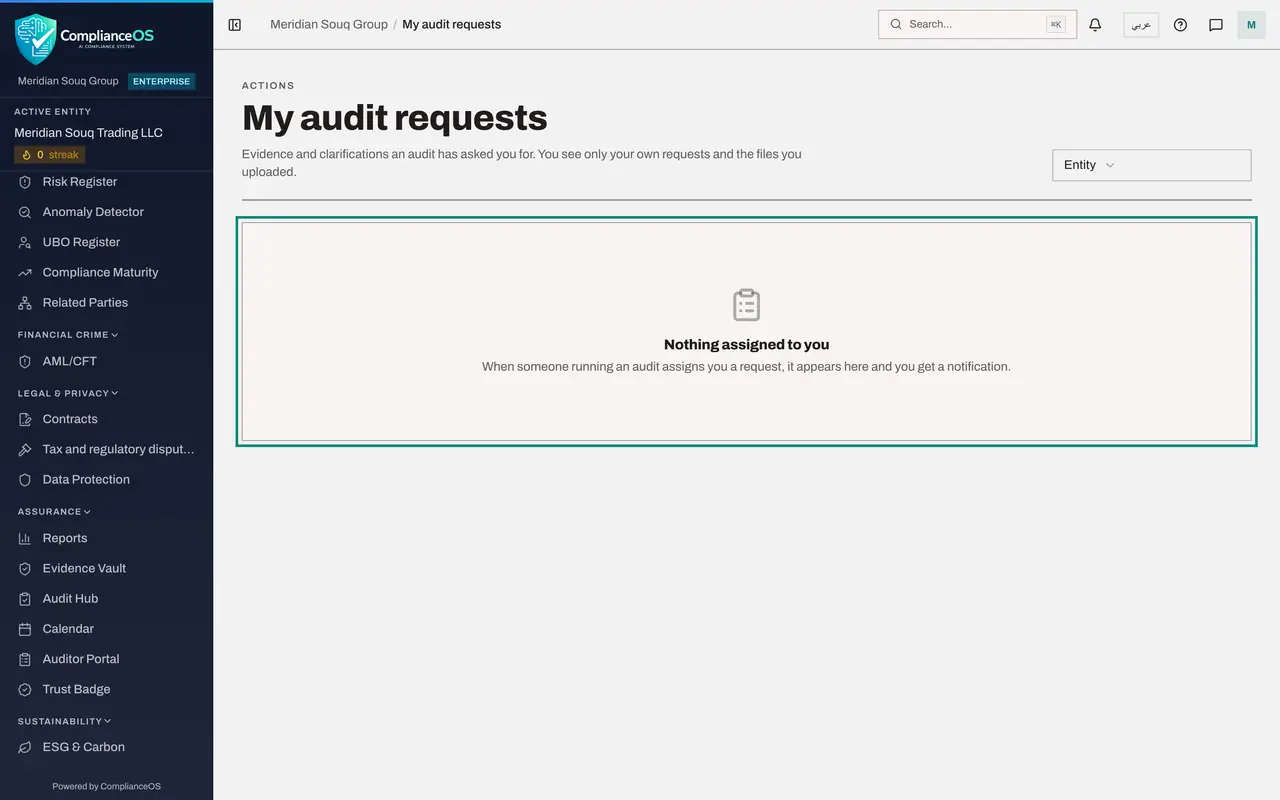
Select My requests at the top right. It opens My audit requests, the page every person uses to answer the audit requests assigned to them. Nothing is assigned to you yet, so it says Nothing assigned to you.
- Select My requests
- 5
Go back to the Audit Hub
Select Audit Hub in the left menu again to return to the list of audits.
- Select Audit Hub
- 6
Select Access
Under In this module there are two sections. Audits is the list. Select Access to see who can work on audits for this entity. Only people who administer access can see the names, so as a compliance officer you see a note that tells you to ask your security administrator. The next lesson shows this section as an administrator.
- Select Access
- 7
Return to Audits
Select Audits to go back to the list. The number beside Audits counts every audit of this entity, whatever its status.
- Select Audits0
How to check it worked
You can open Audit Hub from the left menu, you see No audits yet with the button Start your first audit, and you know that My requests opens your own list of audit requests.
Common mistakes
- Looking for audit requests that were sent to you inside the list of audits. Requests sent to you are under My requests, not in the list.
- Expecting the Access section to show names when you are not an access administrator. It tells you to ask your security administrator instead.
- Confusing the Audit Hub with the Audit log. The Audit Hub is where you run an audit. The Audit log is the record of who did what in ComplianceOS.
Check your understanding
1. Before any audit exists, what does the Audit Hub show in the middle of the page?
- A.A list of last year's audits
- B.The message No audits yet with the button Start your first audit
- C.An error
- D.The Evidence Vault
Show answer
Answer: B. The message No audits yet with the button Start your first audit
With no audits the page shows No audits yet, a short explanation and the button Start your first audit.
2. Where do you answer an audit request that was assigned to you?
- A.In the Audit log
- B.In the list of audits
- C.In My requests
- D.In Access
Show answer
Answer: C. In My requests
My requests opens the page My audit requests, which lists only the requests assigned to you.