Lesson 11 of 26
Accept an improved answer, try platform data, and waive or reopen a request
What you will be able to do
This lesson is for the person who runs the audit. You will accept the answer that was improved after you sent it back, try to answer an open request from data ComplianceOS already holds, for one request and for all of them, and waive a request and reopen it.
Before you start
- The human resources director has resubmitted the training request with the training register.
- One request, about the safe key register, has not been answered.
Steps
- 1
Accept the improved answer
On the Validate step, open the training request. The human resources director has added the training register, and the automatic check has read it again. Check the file yourself, then select Accept and vault. You can accept whatever the automatic check says, because the decision is yours.
- Select Accept & vault
- 2
Open a request that has no answer
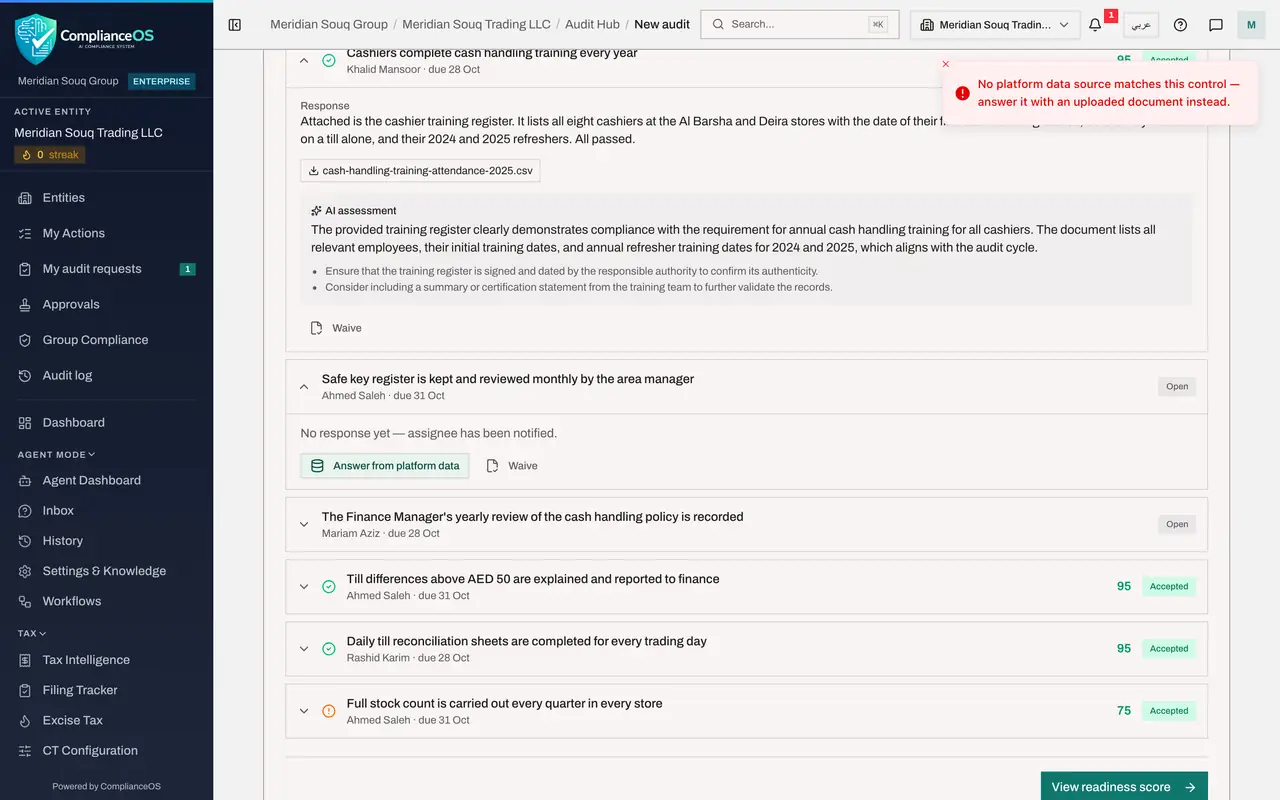
Open the request about the safe key register. Nobody has answered, so it says No response yet, the assignee has been notified. Two buttons are offered: Answer from platform data and Waive.
- 3
Try Answer from platform data
Select Answer from platform data. ComplianceOS looks for records it already holds that prove this check. A paper key register is not something it holds, so a message says that no platform data source matches this control, and the request stays open.
- Select Answer from platform data
- 4
Try it for all open requests at once
Above the list, Auto-answer from platform data does the same for every open request in one go. Select it. This company holds no matching records, so the message says that no open control could be answered from platform data. When records do match, the message counts the requests that were answered.
- Select Auto-answer from platform data
- 5
Waive a request
Open the safe key register request again if it has closed, and select Waive. The status changes to Waived. A waived request is left out of the readiness score and is shown to the auditor as waived.
- Select Waive
- 6
Reopen it
The key register does apply to this audit, so select Reopen. The request is Open again and the assignee can still answer it.
- Select Reopen
How to check it worked
The training request shows Accepted, and the safe key register request is Open again after being waived and reopened.
Common mistakes
- Waiving a request because the evidence is hard to get. A waived request is left out of the score, and an auditor will ask why. Waive only what truly does not apply.
- Expecting platform data to answer every check. It works only where ComplianceOS already holds matching records. A paper register is not one of them.
- Forgetting to reopen a request you waived by mistake. While it is waived, the assignee can no longer answer it.
Check your understanding
1. What does Auto-answer from platform data do?
- A.It accepts every answer
- B.It tries to answer every open request from records ComplianceOS already holds, and reports how many it could answer
- C.It sends reminders to assignees
- D.It deletes open requests
Show answer
Answer: B. It tries to answer every open request from records ComplianceOS already holds, and reports how many it could answer
It matches each open check against the platform's own data. Where nothing matches, the request simply stays open.
2. You waived a request by mistake. What can you do?
- A.Nothing
- B.Delete the audit
- C.Open the request and select Reopen
- D.Ask the assignee to answer twice
Show answer
Answer: C. Open the request and select Reopen
A waived request shows Reopen in place of Waive. Reopening sets it back to Open.