Lesson 9 of 26
Review answers: accept good proof and ask for changes
What you will be able to do
This lesson is for the person who runs the audit. On the Validate step you will read the numbers and filters, open an answer, download its file, read the AI assessment, accept good proof so that it is sealed in the Evidence Vault, and send a weak answer back with a note that tells the assignee what to fix.
Before you start
- Requests were dispatched and several people have answered. Here the finance manager, the accountant and the human resources director have submitted answers.
- Your role can approve in the Audit Hub. Accepting and sending back both need that right. The compliance officer has it.
Steps
- 1
Open the audit at the Validate step
Open the audit from the Audit Hub. It resumes at step 5, Validate. The four boxes at the top show how many requests have been answered, how many passed the AI check or were accepted, how many need more, and the average AI score.
- 2
Filter the list
The buttons above the list filter it by status: All, Open, Awaiting AI, Needs more, Validated and Waived. Select Needs more to see only the answers the automatic check found incomplete. The number on each button counts the requests in that state.
- Select Needs more (3)
- 3
Show all requests again
Select All to return to the full list. Each line shows the question, the assignee and due date, the AI score when there is one, and the status.
- Select All
- 4
Open an answer
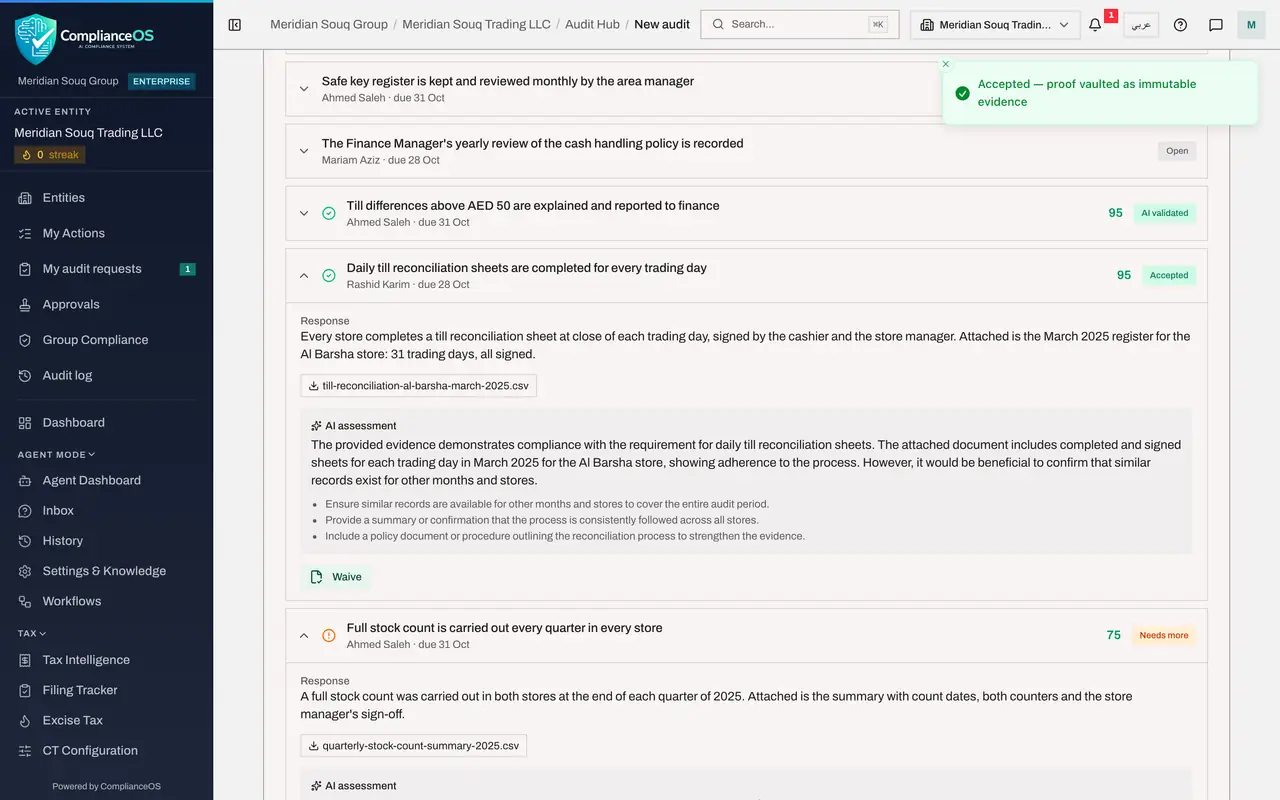
Select the line about daily till reconciliation sheets. It opens and shows the response the finance manager wrote, the file he attached, and the AI assessment with its comments.
- 5
Download the attached file
Select the file name, till-reconciliation-al-barsha-march-2025.csv, to download it, and open it to check what it really contains. The AI assessment is advice, not a decision.
- Select till-reconciliation-al-barsha-march-2025.csv
- 6
Select Accept & vault
The file covers all 31 trading days and every line is signed, so select Accept and vault. A message confirms that the proof was vaulted as immutable evidence, which means it can no longer be changed. The status becomes Accepted.
- Select Accept & vault
- 7
Accept the other complete answers
Review the answers about till differences and the quarterly stock count in the same way: open the line, check the file, and select Accept and vault on each.
- Select Accept & vault
- Select Accept & vault
- 8
Read a weak answer
Now the request about cashier training. It is already open because its status is Needs more. The response is one sentence with no file, the score is low, and the AI assessment lists what is missing.
- 9
Run the AI check again if you want a second reading
Re-run AI check sends the same answer through the automatic check again. A message says AI validation queued, and the assessment is refreshed within a minute. Use it after the assignee adds a file, or when you doubt the first reading.
- Select Re-run AI check
- 10
Select Request changes
Select Request changes. A box asks: What should the assignee add or fix? Your note is sent with the notification, so be specific.
- Select Request changes
- Type Your answer:
Please attach the 2025 training attendance record for all cashiers, wi…
- 11
Select Confirm
Select Confirm. A message says Sent back to the assignee. The request keeps the status Needs more, and the human resources director is notified with your note. The next lesson shows his side.
- Select Confirm
- 12
Check the numbers at the top
Go back to the top. The boxes now count the accepted answers under AI validated and one request under Needs more. View readiness score at the bottom opens the last step, which a later lesson covers.
How to check it worked
The accepted requests show the green label Accepted, the request you sent back shows Needs more, and the box AI validated at the top has gone up.
Common mistakes
- Accepting on the AI score alone. The score is advice. Open the file and check that it really covers the period and the store.
- Sending an answer back with a vague note such as please fix. The note is shown to the assignee and sent with the notification, so say exactly what is missing.
- Expecting to undo an acceptance. Accept and vault seals the proof in the Evidence Vault, where it cannot be changed.
Check your understanding
1. What happens when you select Accept and vault?
- A.The answer is deleted
- B.The request is marked Accepted and its proof is stored in the Evidence Vault as a sealed record
- C.The assignee is asked to answer again
- D.The audit is completed
Show answer
Answer: B. The request is marked Accepted and its proof is stored in the Evidence Vault as a sealed record
Accepting marks the request Accepted, counts it fully in the readiness score and vaults the proof as evidence that cannot be changed.
2. Who sees the note you type under Request changes?
- A.Nobody
- B.Only administrators
- C.The assignee, on the request and in the notification
- D.The external auditor only
Show answer
Answer: C. The assignee, on the request and in the notification
The note is sent with the notification and shown on the request as Note from the reviewer, so the assignee knows what to add.