Lesson 6 of 26
Review what the AI found, correct it and confirm the checklist
What you will be able to do
This lesson is for the person who runs the audit. You will review the auditable points the AI mapper took from the policy, change a risk level, reword, confirm and dismiss points, tidy the checklist, read the gaps, and then confirm the mapping so the checklist is locked and the requests can be assigned.
Before you start
- The AI mapping from the previous lesson has finished. The audit shows the status In review in the Audit Hub.
- You know the policy well enough to judge whether each point is right. The mapper proposes; you decide.
Steps
- 1
Open the audit
In the Audit Hub the audit now has the status In review. Select it. The setup opens at step 3, AI Mapping. The four numbers at the top count the auditable points, the checklist items, the document gaps and the clarifications.
- 2
Read an auditable point
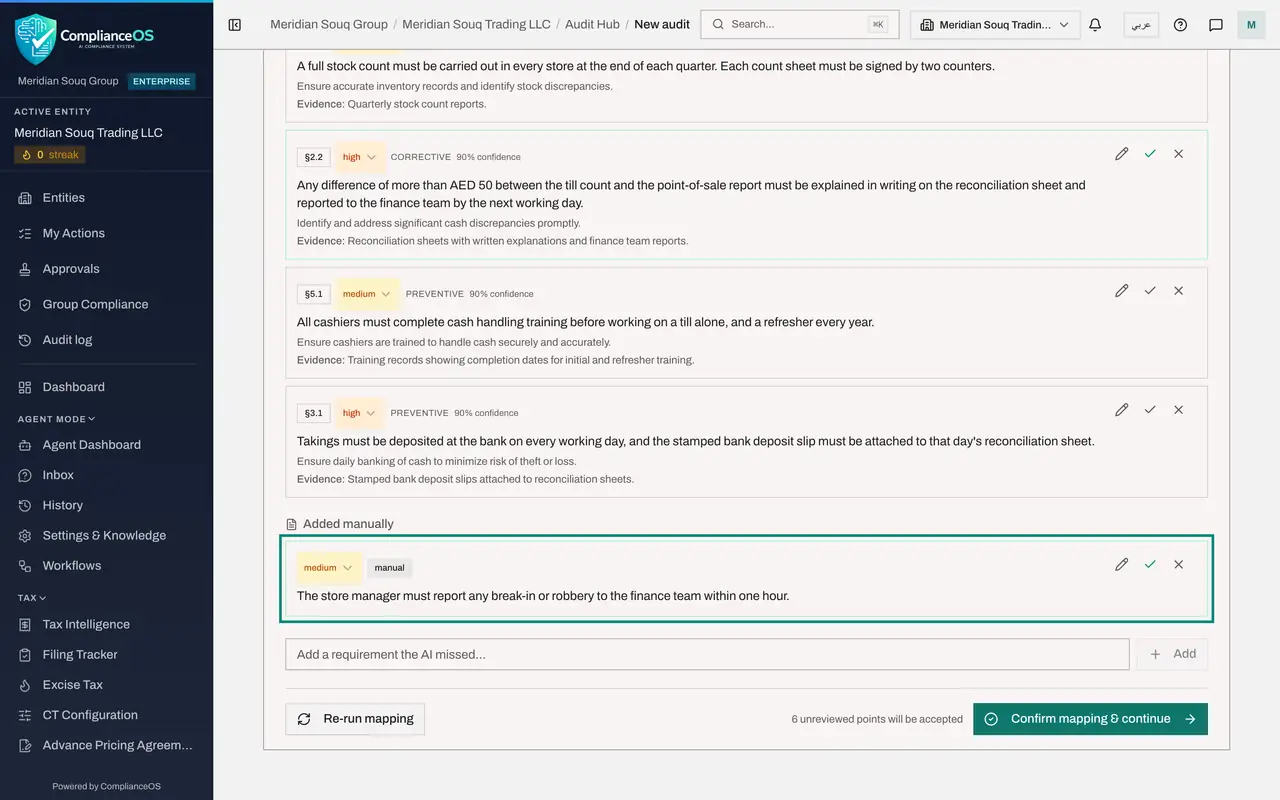
The first tab, Auditable points, lists each requirement the mapper found, grouped by document. A point shows the clause it came from, a risk level, the kind of control, how confident the mapper is, the requirement itself, what the control is for, and the evidence that would prove it. Find the point about till differences of more than 50 dirhams.
- 3
Change a risk level
The risk level decides how much a point weighs in the readiness score and the priority of its request. Find the point about the safe keys, open its risk level and choose critical. The choices are critical, high, medium and low.
- Select high
- Choose critical
- 4
Reword a requirement
If the wording is not quite what the policy means, correct it. On the point about the full stock count, select the pencil, Edit requirement. Add the words: Each count sheet must be signed by two counters. Then select the tick beside the text to save. The cross cancels the edit.
- Select Edit requirement
- Select Confirm
- 5
Confirm a point
When a point is right, select the tick at the end of its line, Confirm point. The point gets a green border, which shows you have reviewed it. Confirm the point about till differences.
- Select Confirm point
- 6
Dismiss a point
A point that should not be audited can be dismissed. Find the point that says two members of staff must be present when the safe is opened. It cannot be proved from documents, so select the cross, Dismiss point. The point turns grey with a line through it, and Restore brings it back if you change your mind.
- Select Dismiss point
- 7
Add a requirement the AI missed
At the bottom of the list there is a box that says Add a requirement the AI missed. Type the requirement and select Add. It appears under Added manually with the label manual.
- Type Add a requirement the AI missed…:
The store manager must report any break-in or robbery to the finance t… - Select Add
- Type Add a requirement the AI missed…:
- 8
Select the Checklist tab
Go back to the top and select the Checklist tab. Each check is a question that will become one request for proof. The label shows where it came from: Matched from your checklist for lines of the file you uploaded, and AI-generated for checks the mapper wrote. Tests, under the check, names the requirement it proves.
- Select Checklist (8)
- 9
Reword a check
Select the pencil on the check about the full stock count and add the words: in every store. Select the tick to save. The person who receives the request will read exactly this text.
- Select Edit
- Select Confirm
- 10
Delete the checks you will not use
Select the bin on each check you do not want to send out. Here we remove every check labelled AI-generated and keep the six checks from our own checklist. A check is deleted straight away, without a confirmation.
- Select Delete
- Select Delete
- 11
Add a check of your own
Below the list, type a new check in the box that says Add a checklist item, and select Add. Here we add a check that the yearly review of the policy is recorded. It joins the list with the label Manual.
- Type Add a checklist item…:
The Finance Manager's yearly review of the cash handling policy is rec… - Select Add
- Type Add a checklist item…:
- 12
Read the gaps and clarifications
Select the third tab, Gaps and clarifications. Document gaps are weaknesses the mapper found in the policy itself, such as a requirement with no named owner. Clarifications are questions for the audit team. Nothing here has to be answered on screen, but each one is worth raising with the policy owner.
- Select Gaps & clarifications (7)
- 13
Select Confirm mapping and continue
At the bottom, Re-run mapping reads the documents again and replaces the result, so use it only after you change the documents. A note says how many unreviewed points will be accepted. Select Confirm mapping and continue. The message Checklist locked in appears, the policy documents are sealed in the Evidence Vault, and the setup moves to step 4, Assign, with one request for each check.
- Select Confirm mapping & continue
How to check it worked
After Confirm mapping and continue, the message Checklist locked in appears and the setup shows step 4, Assign, with one request for each check you kept.
Common mistakes
- Confirming without reading. Every point you have not reviewed is accepted when you confirm, and each check becomes a request that someone must answer.
- Selecting Re-run mapping after making changes by hand. The mapper reads the documents again and builds a fresh result.
- Deleting a check when you meant to dismiss a point, or the other way round. Dismissing a point leaves its check in the checklist, so remove the check on the Checklist tab as well.
Check your understanding
1. What happens to points you have not reviewed when you select Confirm mapping and continue?
- A.They are deleted
- B.They are accepted as they are
- C.They are sent back to the AI
- D.The button stays switched off
Show answer
Answer: B. They are accepted as they are
The note beside the button says how many unreviewed points will be accepted. Confirming accepts them, so dismiss what you do not want first.
2. A check has the label Matched from your checklist. What does that tell you?
- A.The AI wrote the check itself
- B.The check came from the checklist you uploaded and was matched to a requirement in the policy
- C.The check was added by hand on this screen
- D.The check has already been answered
Show answer
Answer: B. The check came from the checklist you uploaded and was matched to a requirement in the policy
Checks from your own file are labelled Matched from your checklist. Checks the mapper wrote are labelled AI-generated, and checks typed here are labelled Manual.