Lesson 8 of 26
As an assignee: answer an audit request and attach a file
What you will be able to do
This lesson is for anyone who is asked for audit evidence. As Rashid Karim, the finance manager, you will find the request in your notifications and in My Actions, open it, write your answer, attach the file that proves it, submit, and read the result of the automatic check.
Before you start
- An audit request has been sent to you. Here it asks whether daily till reconciliation sheets are completed for every trading day.
- You have the proof as a file. Here it is till-reconciliation-al-barsha-march-2025.csv, the March 2025 register for the Al Barsha store, invented for this course.
- You do not need an Audit Hub role. Rashid has none.
Steps
- 1
Notice the new entry in the left menu
When an audit request is assigned to you, an entry named My audit requests appears in the left menu, with the number of requests waiting for you. It stays hidden while you have none.
- 2
Open your notifications
You were also notified. In the left menu, open Tools and select Notifications. The newest line reads Audit request, with the name of the audit and the question you are asked.
- Select Tools
- Select Notifications
- 3
Select My Actions
Select My Actions in the left menu. This page lists all open work assigned to you, from every module. The audit request is there with its type, Audit request, the module it came from, Audit Hub, its priority and its due date.
- Select My Actions
- 4
Select Open on the request
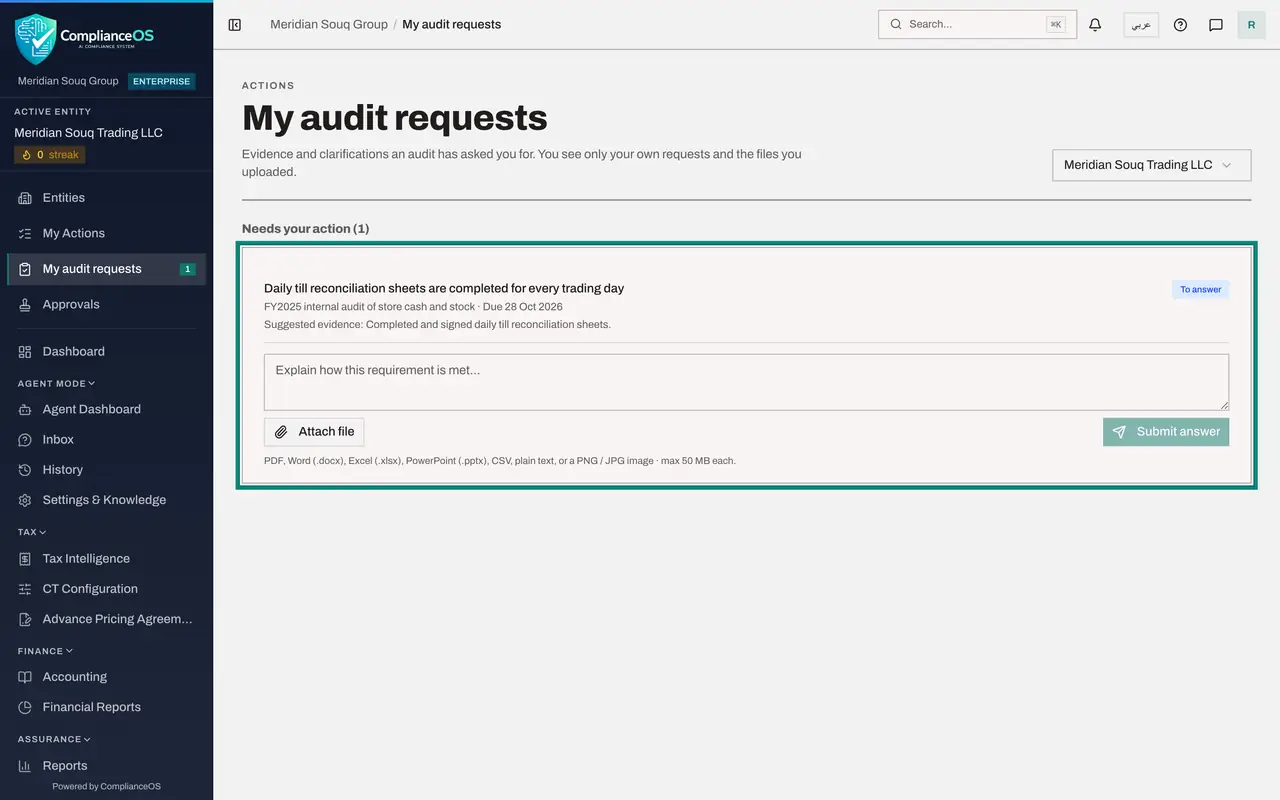
Select Open at the end of the line. The page My audit requests opens with this request outlined. You reach the same page from My audit requests in the left menu. You see only your own requests here, nothing else from the audit.
- Select Open
- 5
Read what is asked
The request shows the question, the audit it belongs to, the due date and the evidence that is suggested. The label To answer means nothing has been submitted yet.
- 6
Write your answer
In the box that says Explain how this requirement is met, write a short, factual answer: what is done, by whom, and what the attached file contains.
- Type Your answer:
Every store completes a till reconciliation sheet at close of each tra…
- Type Your answer:
- 7
Attach the file
Select Attach file and choose the file from your computer, here till-reconciliation-al-barsha-march-2025.csv. Its name appears above the buttons, with a small cross to remove it again. You can attach more than one file.
- Upload Choose a file:
till-reconciliation-al-barsha-march-2025.csv
- Upload Choose a file:
- 8
Select Submit answer
Select Submit answer. A message says the answer is being checked, and the request moves under Submitted with the label Being checked. ComplianceOS now compares your answer and file with what was asked.
- Select Submit answer
- 9
Read the result of the automatic check
After about a minute the label changes. Awaiting review means the automatic check is done and the person running the audit will now decide. The coloured box shows the AI check score out of 100 and its comments. If the label says More needed instead, add what is missing and submit again.
How to check it worked
On My audit requests the request has moved under Submitted with the status Awaiting review, your answer and your file are shown, and an AI check score appears.
Common mistakes
- Writing an answer with no file when the request asks for records. The automatic check marks it More needed and the reviewer will send it back.
- Attaching a file that covers a different period or store from the one in your answer. Say in the answer exactly what the file contains.
- Waiting for an email. The request arrives as a notification inside ComplianceOS, in My Actions and under My audit requests in the left menu.
Check your understanding
1. Rashid has no Audit Hub role. Can he answer the request?
- A.No, he must be given the compliance officer role first
- B.Yes, from My audit requests, where he sees only his own requests and uploads
- C.Only by email
- D.Only if an administrator answers for him
Show answer
Answer: B. Yes, from My audit requests, where he sees only his own requests and uploads
Anyone who can open the entity can be assigned a request. My audit requests needs no Audit Hub permission and shows nothing else from the audit.
2. What does the status Awaiting review mean?
- A.The answer was rejected
- B.The answer has passed the automatic check and now waits for the person running the audit to accept it or ask for changes
- C.The answer was not sent
- D.The audit is complete
Show answer
Answer: B. The answer has passed the automatic check and now waits for the person running the audit to accept it or ask for changes
After you submit, the answer is checked automatically. Awaiting review means a person will now decide. More needed means the check found the answer incomplete.