Lesson 5 of 26
Add your policy and checklist, then start the AI mapping
What you will be able to do
This lesson is for the person who runs the audit. You will open the draft audit, add the policy that is being audited and the checklist you already use, remove a file added by mistake, and select Finish setup so that ComplianceOS reads the documents and builds the list of auditable points.
Before you start
- The draft audit from the previous lesson exists.
- You have the documents as files. Here they are store-cash-handling-policy.txt, the store cash handling policy, and store-audit-checklist.csv, the checklist the finance team already uses. Both are invented for this course.
Steps
- 1
Open the draft audit
In the Audit Hub, select the draft audit in the list. The setup opens where you left it, at step 2, Documents.
- 2
Choose the document type
Document type tells ComplianceOS what kind of document you are about to add. The list is grouped: governance, procedures, checklists and registers, prior audit material, operational records and more. Open it and choose Policy document.
- Select Auto-detect from filename
- Choose Policy document
- 3
Add the policy
Select the box that says Drop files here or click to browse, and choose store-cash-handling-policy.txt. You can also drag the file onto the box. Accepted files are PDF, Word, Excel, PowerPoint, CSV, plain text and PNG or JPG images, up to 50 megabytes each. The file appears in the list with its size, your name and the type Policy document.
- Upload Choose a file:
store-cash-handling-policy.txt
- Upload Choose a file:
- 4
Let ComplianceOS detect the type of the next file
Open Document type again and choose Auto-detect from filename. ComplianceOS will then suggest the type from the name of each file you add.
- Select Policy document
- Choose Auto-detect from filename
- 5
Add your existing checklist
Select the upload box again and choose store-audit-checklist.csv. From the file name, ComplianceOS marks it as Existing audit checklist. The mapper will match its lines to the policy, so the checks you already use are kept.
- Upload Choose a file:
store-audit-checklist.csv
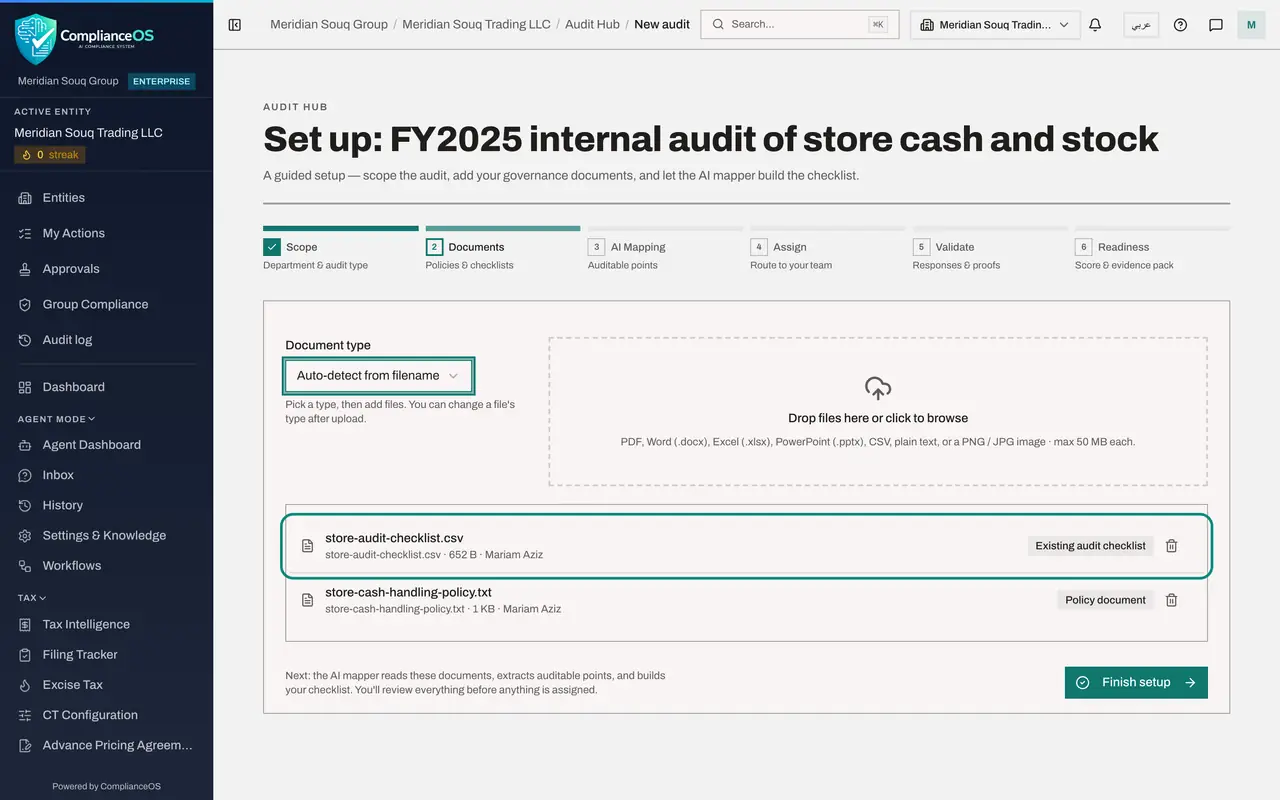
- Upload Choose a file:
- 6
Add a file by mistake
Now suppose you add the wrong file, here staff-rota-al-barsha-week-41.csv, a staff rota that has nothing to do with the audit. It is uploaded and listed like the others.
- Upload Choose a file:
staff-rota-al-barsha-week-41.csv
- Upload Choose a file:
- 7
Remove the wrong file
Select the bin icon at the end of the wrong file's line. The file is removed from the audit straight away, without a confirmation, so check the name first.
- Select Remove staff-rota-al-barsha-week-41.csv
- 8
Select Finish setup
Two documents remain: the policy and the checklist. Select Finish setup. The setup moves to step 3 and shows AI mapping in progress while the documents are read. This usually takes a minute or two, and you may leave the page and come back.
- Select Finish setup
- 9
Wait for the result
When the mapping has finished, four numbers appear at the top: the auditable points found in the policy, the checklist items built from them, the gaps found in the documents, and the clarifications the mapper asks the audit team. The next lesson reviews each of them.
How to check it worked
The setup has moved to step 3, AI Mapping, and shows four numbers: auditable points, checklist items, document gaps and clarifications.
Common mistakes
- Uploading only a checklist. The mapper needs the policy too: the policy says what must happen, and the checklist says how you test it.
- Uploading scanned pages that cannot be read. The mapper lists files it could not read, and nothing is taken from them.
- Selecting Finish setup before the uploads have finished. The button is switched off while a file is still uploading.
Check your understanding
1. What does Auto-detect from filename do?
- A.It renames your file
- B.It suggests the document type from the file's name, such as Policy document or Existing audit checklist
- C.It checks the file for viruses
- D.It deletes duplicate files
Show answer
Answer: B. It suggests the document type from the file's name, such as Policy document or Existing audit checklist
With Auto-detect, ComplianceOS proposes a type from the file name. You can also pick the type yourself before you add the file.
2. What happens when you select Finish setup?
- A.The audit is completed
- B.Requests are sent to your team
- C.The AI mapper reads the documents and builds auditable points and a checklist for you to review
- D.The documents are deleted
Show answer
Answer: C. The AI mapper reads the documents and builds auditable points and a checklist for you to review
Finish setup starts the AI mapping. Nothing is assigned or sent until you have reviewed and confirmed the result.