Lesson 4 of 26
Create an audit: every field of the Scope step
What you will be able to do
This lesson is for the person who runs the audit. You will start a new audit and fill in the Scope step field by field: the name, the type, the department, the period, how often it repeats, and notes for the team.
Before you start
- Your role can create audits. The compliance officer can.
- You know what is being audited and for which period. Here it is an internal audit of store cash and stock for the year 2025.
Steps
- 1
Select New Audit
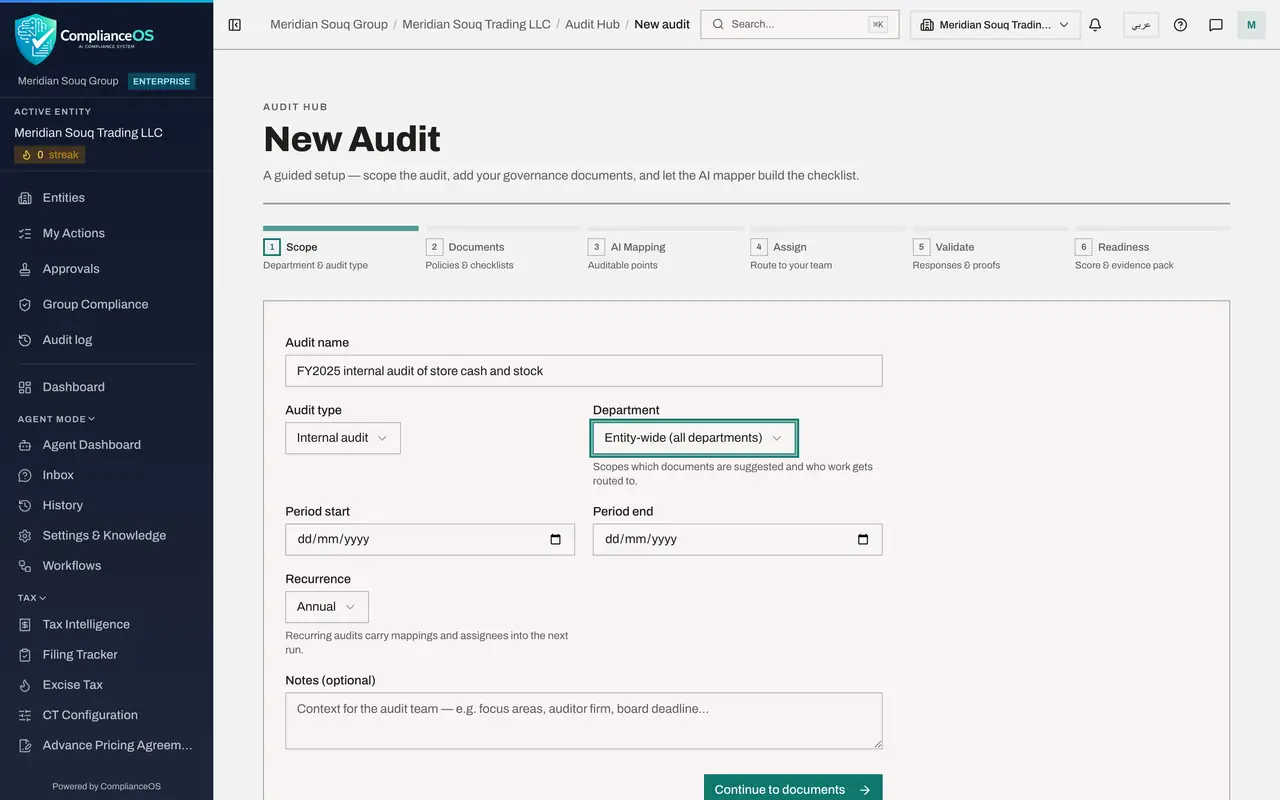
In the Audit Hub, select New Audit at the top right. The setup opens. It is a guided path of six steps, shown in the bar at the top.
- Select New Audit
- 2
Read the six steps
The bar names the steps in order. Scope says what is audited. Documents takes your policies and checklists. AI Mapping turns them into auditable points and a checklist. Assign routes the requests for proof to your team. Validate is where you review the answers. Readiness shows the score, the findings and the evidence pack.
- 3
Type the audit name
In Audit name, type a name that tells everyone which audit this is: the year, the kind of audit and the area. This is the only field that must be filled. The name appears on every request that is sent out.
- Type Audit name:
FY2025 internal audit of store cash and stock
- Type Audit name:
- 4
Choose the audit type
Open Audit type. There are four choices: Internal audit for your own review, External or statutory audit for the yearly audit by an audit firm, ISO certification audit, and Regulator inspection. Choose Internal audit. If you do not touch the field it stays on Internal audit.
- Select Audit type
- Choose Internal audit
- 5
Choose the department
Open Department. It limits the audit to one team and decides which documents are suggested and who the work is routed to. This company has no departments set up, so the only choice is Entity-wide, all departments. Choose it. Departments appear here once an administrator has created them for the entity.
- Select Department
- Choose Entity-wide (all departments)
- 6
Enter the period
In Period start and Period end, enter the first and the last day the audit covers. Here that is 1 January 2025 to 31 December 2025. The end date cannot be earlier than the start date. If you leave the period empty, the list of audits shows a dash.
- Type Period start:
2025-01-01 - Type Period end:
2025-12-31
- Type Period start:
- 7
Choose how often the audit repeats
Open Recurrence. The choices are One-off, Annual, Every 6 months and Quarterly. Choose Annual. A recurring audit can be rolled forward later, so next year's audit starts with this year's checklist and assignees.
- Select Recurrence
- Choose Annual
- 8
Add notes for the audit team
Notes is optional. Use it for what the team should know: the areas to focus on, the audit firm and the deadline. Notes stay with the audit and can be changed later.
- Type Notes (optional):
Focus on the Al Barsha and Deira stores. Results go to the audit commi…
- Type Notes (optional):
- 9
Select Continue to documents
Select Continue to documents. The audit is saved as a draft, and the setup moves to step 2, Documents. The title now reads Set up, followed by the audit name.
- Select Continue to documents
- 10
See the draft in the Audit Hub
You can stop here and continue later. Select Audit Hub in the left menu. The audit is in the list with the status Draft, and a reminder at the top says Finish setting up, with the step you reached. Selecting the reminder or the row takes you back into the setup.
- Select Audit Hub
How to check it worked
The Audit Hub lists the audit with the status Draft, the type Internal audit, the period 1 January to 31 December 2025, and a reminder at the top to finish setting it up.
Common mistakes
- Giving the audit a vague name such as Audit 1. Every person who is asked for proof sees the name, so say the year, the kind of audit and the area.
- Leaving the period empty. The audit is still created, but the list shows a dash for the period and nobody can tell which year the evidence must cover.
- Choosing One-off for an audit that comes back every year. Only a recurring audit can be rolled forward with its checklist and assignees.
Check your understanding
1. Which field must be filled before Continue to documents can be selected?
- A.Notes
- B.Period end
- C.Audit name
- D.Department
Show answer
Answer: C. Audit name
Only the audit name is required. The other fields have a default or may stay empty, but the period should be filled so people know which year is audited.
2. What does Recurrence set to Annual give you next year?
- A.Nothing, it is only a label
- B.The audit is deleted after one year
- C.You can roll the audit forward and start from this year's checklist and assignees
- D.The auditor is invited automatically
Show answer
Answer: C. You can roll the audit forward and start from this year's checklist and assignees
A recurring audit carries its mappings and assignees into the next run, so you do not start from an empty checklist.