Lesson 26 of 26
Audit findings in the Risk Register, audit dates in the Calendar
What you will be able to do
This lesson is for the person who runs the audit and for whoever keeps the Risk Register and the Compliance Calendar. The Audit Hub feeds both by itself: every finding is listed as a risk while it is open, and the end of the audit period and each finding's due date are listed as deadlines. You will find them, read where they came from, and see how they follow the finding.
Before you start
- The audit from this course is completed. One finding is still open; the finance manager owns it.
- You are signed in as the compliance officer, whose menu includes the Risk Register and the Calendar.
Steps
- 1
Open the Risk Register
Select Risk Register in the left menu. The register gathers the organisation's risks: those typed in by hand and those other modules report. Sync Modules, at the top right, brings in what the other modules have found.
- Select Risk Register
- 2
Select Sync Modules
Select Sync Modules. A message says how many risks were new, updated and closed. The Audit Hub is one of the modules it reads: every open finding of an audit that is not cancelled is listed as a risk. The same sync also runs whenever a finding is raised or changed, and every night.
- Select Sync Modules
- 3
Find the audit finding
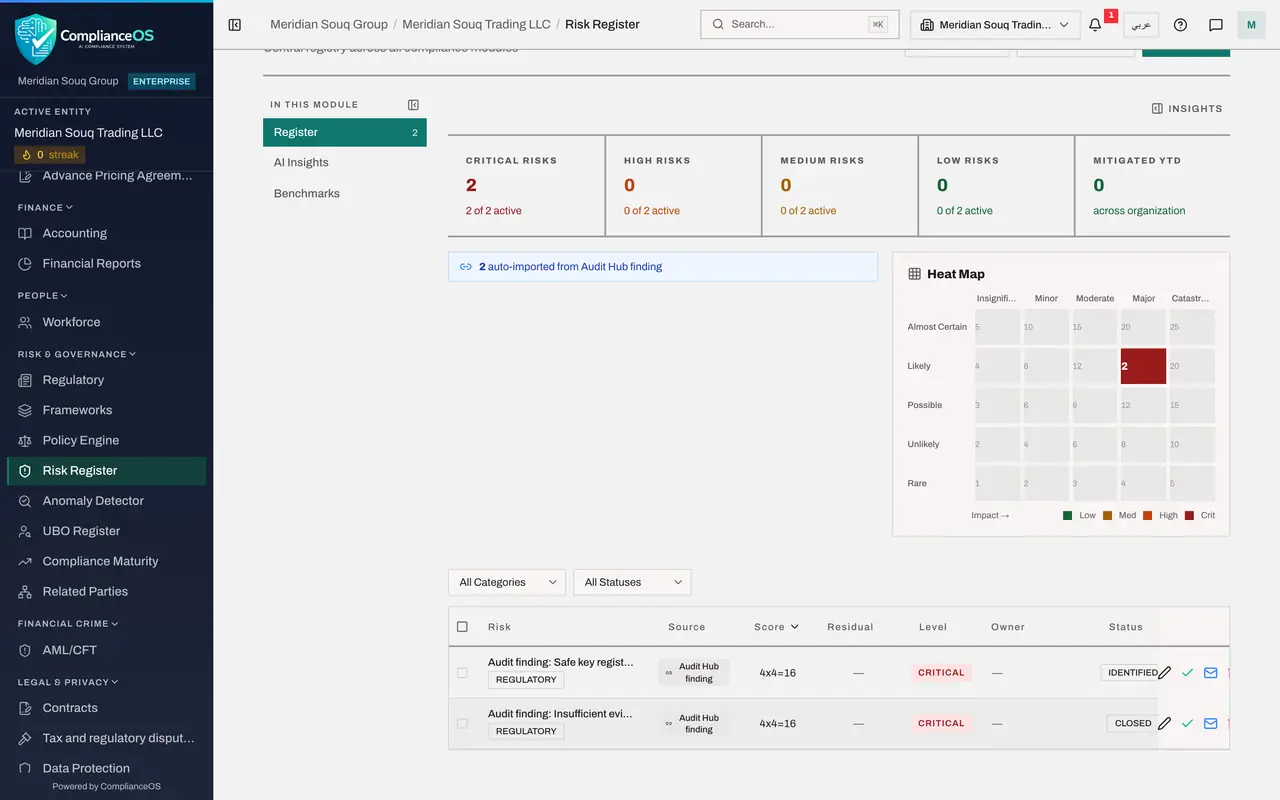
The blue line above the heat map says the register holds risks auto-imported from Audit Hub findings. In the list, each finding of the audit has its own risk: the title starts with Audit finding, followed by the finding's title, and Source reads Audit Hub finding. The score comes from the finding's severity: a high finding scores four by four, 16, which is Critical. The finding about the safe key register is still open, so its risk is Identified. The other finding was resolved by its owner, so its risk is Closed.
- 4
Open the risk
Select the pencil on the open finding's row. The Edit Risk form shows the title, and a description that names the audit, the finding's severity and its due date, 22 November 2026. Likelihood and impact are both four, an inherent risk of 16, Critical. Owner Name and Owner Email are empty: fill them in if the risk needs an owner in the register as well as in the Audit Hub. Treatment Plan takes the finding's corrective action once one is recorded on the finding.
- Select Edit
- 5
Close the form without saving
Select Cancel. The risk is worked through its finding: when the owner resolves the finding in the Audit Hub, the next sync closes the risk.
- Select Cancel
- 6
Open the Calendar
Now the dates. Select Calendar in the left menu. The Compliance Calendar gathers deadlines from every module, and Sync Deadlines at the top right brings them up to date.
- Select Calendar
- 7
Select Sync Deadlines
Select Sync Deadlines. A message says how many deadlines were synced. From the Audit Hub the calendar takes two kinds of date: the end of each audit's period, and the due date of each finding.
- Select Sync Deadlines
- 8
Find the finding's due date
Under Upcoming Deadlines, Audit finding due, followed by the finding's title, sits on 22 November, the due date its owner was given, 33 days away, with the status Pending. It stays pending while the finding is open, and is marked completed when the finding is resolved.
- 9
Open it and select View Source
Select the deadline. The detail box shows its status, kind and due date. Select View Source: the Audit Hub opens, where the finding is worked. The end of the audit period of FY2025 internal audit of store cash and stock, 31 December 2025, is listed the same way, as Audit period ends, in that month of the calendar, marked completed because the audit is completed.
- Select View Source
How to check it worked
The Risk Register lists the open finding as a risk with the source Audit Hub finding, and the Compliance Calendar lists the audit's dates: the end of the audit period and the open finding's due date.
Common mistakes
- Typing an audit finding into the Risk Register by hand. The sync already lists it; a second, manual risk would stay open after the finding is resolved.
- Closing the risk instead of the finding. The risk follows the finding: when the finding is resolved, accepted as a risk or closed in the Audit Hub, the risk is closed at the next sync. Work the finding in the Audit Hub.
- Adding audit deadlines to the calendar by hand. The audit's period end and every finding's due date are added by the Calendar's sync, and they are marked completed when the audit is completed or the finding is no longer open.
Check your understanding
1. An audit finding is still open. Where else in ComplianceOS does it appear by itself?
- A.Nowhere: only in the Audit Hub
- B.In the Risk Register as a risk with the source Audit Hub finding, and in the Compliance Calendar on its due date
- C.In the VAT return
- D.In the Evidence Vault as a draft
Show answer
Answer: B. In the Risk Register as a risk with the source Audit Hub finding, and in the Compliance Calendar on its due date
The Risk Register and the Calendar both read the Audit Hub when they sync: open findings become risks, and due dates and the audit period end become deadlines.
2. The finding's owner resolves it in the Audit Hub. What happens to its risk?
- A.Nothing; you must close it by hand
- B.It is deleted with no trace
- C.It is closed at the next sync, because the finding is no longer open
- D.It is escalated
Show answer
Answer: C. It is closed at the next sync, because the finding is no longer open
A resolved, risk-accepted or closed finding closes its risk. The risk stays in the register as a record, marked closed.