Lesson 20 of 26
Share one piece of evidence by a time-limited link, and take the link back
What you will be able to do
This lesson is for the person who looks after evidence. Sometimes an outside party needs one file and nothing else. You will create a share link for one record in the Evidence Vault, limit how long and how often it works, see the page the receiver gets, check that the download was counted, and revoke the link.
Before you start
- The file is in the Evidence Vault. Here it is cash-in-transit-insurance-certificate-2025.pdf, which the auditor asked for outside the audit's checklist.
- You have a safe way to send the link, such as your company email. ComplianceOS creates the link but does not send it.
Steps
- 1
Find the file in the Evidence Vault
Open Evidence Vault from the left menu and type part of the file name in the search box. The record is listed with the label Sealed.
- Type Search by file name, original document, hash, or record ID...:
insurance
- Type Search by file name, original document, hash, or record ID...:
- 2
Open the record and select the Share tab
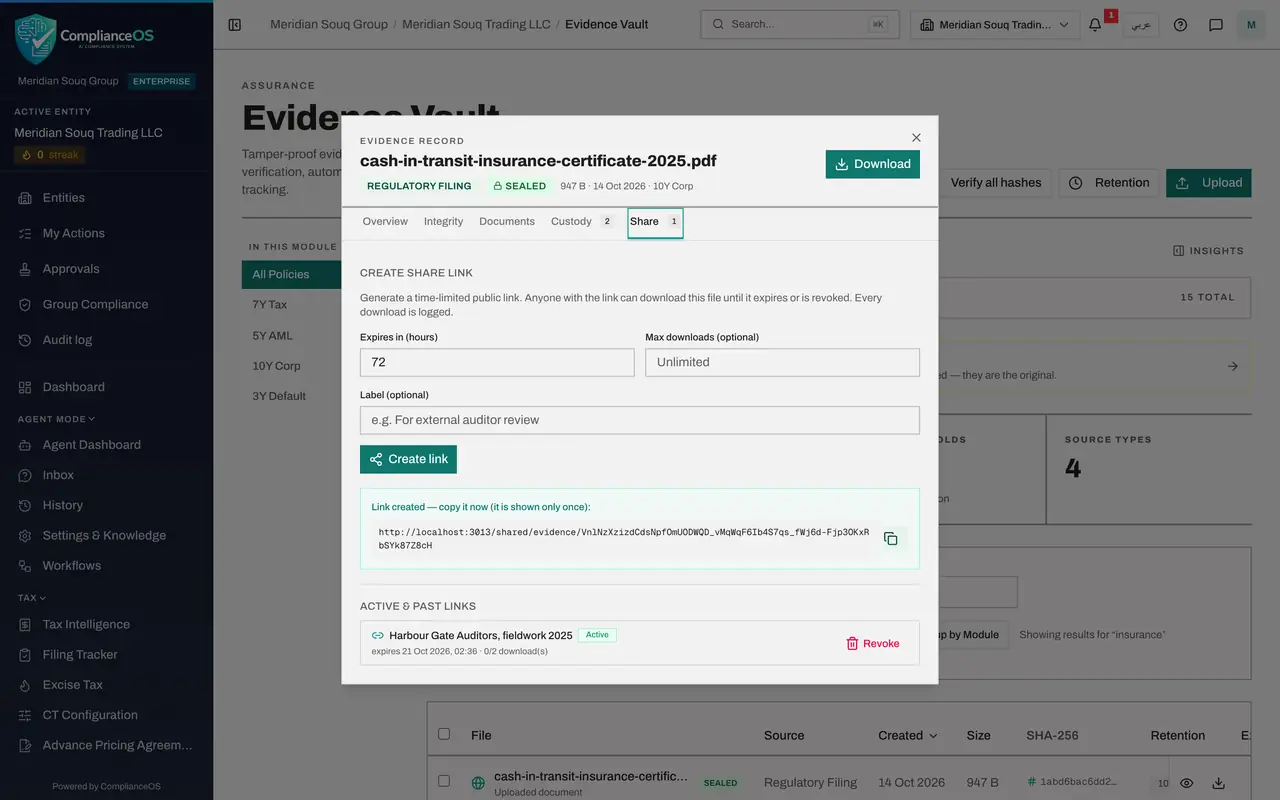
Select the file name to open the record, then select the Share tab. Create share link makes a public link to this one file. Anyone with the link can download the file until it expires or is revoked, and every download is logged.
- Select Share
- 3
Set the expiry, the download limit and a label
Expires in starts at 72 hours. Enter 168 for one week. In Max downloads enter 2, so the link stops working after two downloads. If you leave it empty the number is unlimited. In Label, write who the link is for, so you recognise it later.
- Type Expires in (hours):
168 - Type Max downloads (optional):
2 - Type Label (optional):
Harbour Gate Auditors, fieldwork 2025
- Type Expires in (hours):
- 4
Select Create link
Select Create link. A box shows the new link with the words Link created, copy it now, it is shown only once.
- Select Create link
- 5
Copy the link
Select the copy button beside the link and paste the link into a message to the receiver from your own company email.
- Select Copy
- 6
See what the receiver sees
This is the page the receiver gets when they open the link. No sign-in is needed. It shows the file's name, its SHA-256 integrity hash, when the link expires and how many downloads have been used. Opening the page is not counted as a download.
- 7
Download the file as the receiver
The receiver selects Download file. The file is saved, the page says Download started, and the download is logged on your side.
- Select Download file
- 8
Check the link's use
Back in the Evidence Vault, open the record and its Share tab again. Under Active and past links the link is listed with your label, the status Active, its expiry date and one download.
- Type Search by file name, original document, hash, or record ID...:
insurance - Select Share1
- Type Search by file name, original document, hash, or record ID...:
- 9
Select Revoke
The receiver has the file, so take the link back. Select Revoke on its line. A message says Share link revoked, and the status changes to Revoked. The link stays in the list as a record of what was shared.
- Select Revoke
- 10
Confirm the link no longer works
Open the link once more. The page now says Link unavailable and tells the receiver to ask for a new link.
How to check it worked
Under Active and past links the link is listed with your label and the status Revoked, and opening the link shows Link unavailable.
Common mistakes
- Closing the record before copying the link. The full link is shown only once. If you lose it, revoke it and create a new one.
- Leaving Max downloads empty for a sensitive file. Empty means unlimited until the link expires.
- Using a share link when the auditor should see the whole audit. For that, invite the auditor to the audit instead.
Check your understanding
1. Who can download the file through a share link?
- A.Only people with a ComplianceOS account
- B.Anyone who has the link, until it expires, reaches its download limit or is revoked
- C.Only the person named in the label
- D.Only administrators
Show answer
Answer: B. Anyone who has the link, until it expires, reaches its download limit or is revoked
The link is public. The label is only a note for you. That is why you set an expiry and a download limit and send it to one person.
2. How can the receiver confirm that the downloaded file is the sealed original?
- A.By its file name
- B.By comparing the file's SHA-256 with the integrity hash shown on the share page
- C.By its size alone
- D.They cannot
Show answer
Answer: B. By comparing the file's SHA-256 with the integrity hash shown on the share page
The share page shows the SHA-256 integrity hash of the sealed record. A file with the same hash is unchanged.