Lesson 19 of 26
Follow what the auditor did, answer her finding and revoke her access
What you will be able to do
This lesson is for the person who runs the audit. On the Auditor Portal page you will see the invitation and when it was last used, read the auditor's access log, acknowledge the finding she submitted, and, when the fieldwork is over, revoke her access so that the link stops working.
Before you start
- The auditor opened her invitation link and submitted a finding, as shown in the previous lesson.
- The fieldwork is finished, so her access is no longer needed.
Steps
- 1
Select Auditor Portal in the left menu
In the left menu, under Assurance, select Auditor Portal. This page is the company's side of the portal. The boxes at the top count the active auditors, the invitations, and the findings auditors have sent.
- Select Auditor Portal
- 2
Read the invitation
Under Auditor invitations, the auditor you invited is listed with her address, the status Active, the scope One audit only with the audit's name, the dates the invitation was issued and expires, and when she last used it.
- 3
Open her access log
Select the arrow at the start of the line. The access log opens under it and shows each thing the auditor did through the portal, with the time: opening the audit, listing the evidence, downloading a record and submitting a finding.
- Select Show access log for Helena Marsh
- 4
Select Findings
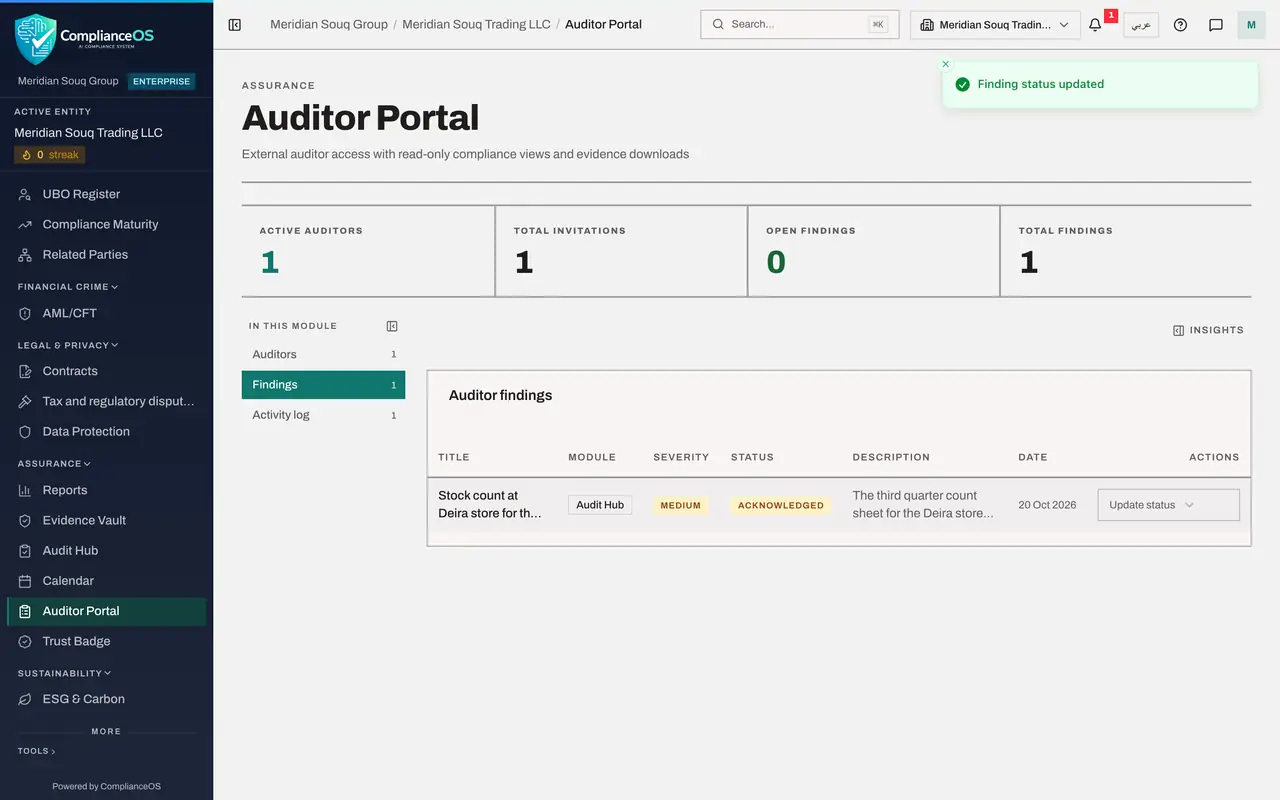
Under In this module, select Findings. The finding the auditor submitted is listed with its module, severity, status, description and date. Its status is Open.
- Select Findings1 (1)
- 5
Acknowledge the finding
Open Update status at the end of the line and choose Acknowledge. This tells the auditor you have seen the finding. A message confirms the change, and the auditor sees the new status under My Findings in the portal. When the problem is fixed, choose Mark remediated here.
- Choose Acknowledge
- 6
Select Activity log
Select Activity log under In this module, then the auditor's name under Quick select an auditor. The same access log is shown in full, with the time, the action, the resource and the internet address it came from.
- Select Activity log1 (1)
- 7
Open the invitation from the Audit Hub
The fieldwork is over, so end the access. Select Audit Hub in the left menu and select the invite button on the audit's line. Under Invited auditors, her invitation is still Active.
- Select Audit Hub
- Select Invite an external auditor
- 8
Select Revoke
Select Revoke on her line. A box asks you to confirm and names the auditor: Revoke Helena Marsh's access to this audit? Their link stops working immediately.
- Select Revoke
- 9
Select Confirm
Select Confirm. A message says Access revoked, and the label on her line changes from Active to Revoked. The invitation stays in the list as a record.
- Select Confirm
- 10
Check that the link is dead
Open her link yourself to check. The portal no longer shows the audit. Instead a page says This invitation was revoked: the company revoked the audit invitation, so the link no longer gives access, and the auditor should ask her contact for a new invitation if she still needs it. Anyone who opens the link sees the same page, signed in or not.
How to check it worked
The auditor's finding shows the status Acknowledged, her invitation shows Revoked, and opening her link shows a page saying the invitation was revoked.
Common mistakes
- Leaving an invitation active after the audit. It ends by itself on its expiry date, but revoke it as soon as the work is done.
- Ignoring the auditor's findings because they are not in the audit's own list. Findings sent through the portal are listed on the Auditor Portal page, under Findings.
- Revoking the wrong person. The confirmation names the auditor. Read it before you confirm.
Check your understanding
1. Where do you see a finding that the invited auditor submitted through the portal?
- A.On the Readiness step only
- B.On the Auditor Portal page, in the Findings section
- C.In the Evidence Vault
- D.It is emailed only
Show answer
Answer: B. On the Auditor Portal page, in the Findings section
The Auditor Portal page lists auditors' findings with their severity and status, and lets you acknowledge them and mark them remediated.
2. What happens to the invitation link when you revoke the invitation?
- A.It keeps working until the expiry date
- B.It stops working immediately
- C.It is emailed again
- D.It becomes an account
Show answer
Answer: B. It stops working immediately
The confirmation says the link stops working immediately. The invitation stays in the list with the label Revoked.