Lesson 25 of 26
How the Audit Hub connects to the rest of ComplianceOS
What you will be able to do
This lesson is for everyone who took part in the audit. You will follow the audit's traces through three other parts of ComplianceOS: the Evidence Vault, where its proof is sealed, My Actions, where requests and findings reach their owners, and the Audit log, which records who did what. The next lesson follows the other two: the Risk Register and the Compliance Calendar.
Before you start
- The audit from this course is completed, with accepted proof, two findings and one request that was left open.
Steps
- 1
Open the Evidence Vault
Select Evidence Vault in the left menu. Beside the documents you uploaded yourself, the audit has left its own sealed records: one for each accepted answer, named after its request followed by accepted answer, one for each document the checklist was built on, under the policy's own name, and the record of the completed audit, named after the audit.
- Select Evidence Vault
- 2
Open an accepted proof
Select the name of an accepted answer; Accepted audit response is written under it. The content preview holds what was sealed: the question, the answer, the AI score and the attached files. Linked record points back to the audit request, Performed by names the person who accepted it, and the record is kept for seven years.
- 3
Read the custody history
Select the Custody tab. It lists what has happened to this record: when the Audit Hub vaulted it, and each time it was included in an evidence pack, with the person who did it. Close the record when you have read it.
- Select Custody7
- 4
Open My Actions
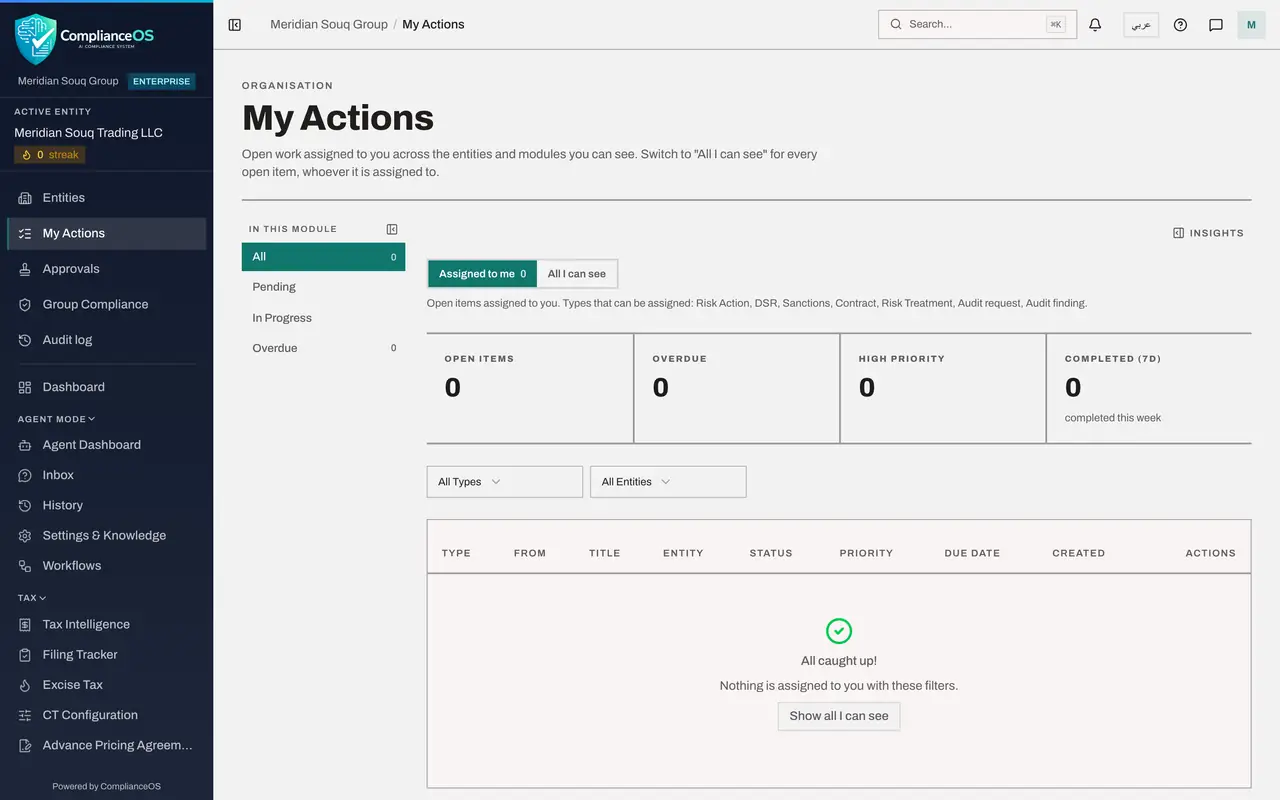
Close the record and select My Actions in the left menu. Assigned to me lists your own open work. While the audit ran, each request and each finding was listed here for its owner, as the lessons for the finance manager and the accountant showed. The request you answered yourself was accepted with your written reason, as the approval policy allows, so nothing from the audit is waiting for you.
- Select Close
- Select My Actions
- 5
Select All I can see
Select All I can see. Audit requests and findings are personal: they appear only in the list of the person they are assigned to. So the finding that the finance manager still owns is not shown to you here. He sees it in his own My Actions, and you follow it on the Readiness step of the audit.
- Select All I can see
- 6
Open the Audit log
Select Audit log in the left menu. Every action in the Audit Hub was recorded here with the time and the person: requests sent out, responses submitted, accepted or sent back, findings created, the evidence pack exported, the auditor invited, and the audit completed, copied forward, cancelled and deleted.
- Select Audit log
- 7
Filter the log to the audit itself
Open the list that says All Resource Types and choose Audit cycle. The table now shows only the events recorded on audits themselves: readiness computed, completed, copied forward, cancelled and deleted. Other choices in the list, such as Audit request and Audit finding, show the events on those records.
- Select Resource Type
- Choose Audit cycle
- 8
Open the details of one event
Select Details on a line to see what was recorded, such as the name of the audit and the internal name of the action. Together, the Audit Hub, the Evidence Vault, My Actions and the Audit log give you the whole story of an audit: what was asked, who answered, what was accepted, and what is still open.
- Select Details
How to check it worked
You found the audit's sealed records in the Evidence Vault with their custody history, and the audit's events in the Audit log.
Common mistakes
- Adding the audit's dates to the Compliance Calendar by hand. The Audit Hub puts them there itself: the end of the audit period and each finding's due date. The next lesson shows them.
- Copying open findings into the Risk Register by hand. Each open finding is already listed there as a risk with the source Audit Hub finding, and it is closed when the finding is resolved. The next lesson shows it.
- Treating the Audit log as the audit. The Audit log is the record of actions in ComplianceOS. The audit itself lives in the Audit Hub.
Check your understanding
1. Where is the proof of an accepted answer kept?
- A.In the assignee's inbox
- B.In the Evidence Vault, as a sealed record named after the request with the words accepted answer
- C.In the Audit log
- D.In the Compliance Calendar
Show answer
Answer: B. In the Evidence Vault, as a sealed record named after the request with the words accepted answer
Accept and vault stores the proof in the Evidence Vault. The vault also holds the frozen policy documents and the completed audit record.
2. How does the owner of an audit finding learn about it?
- A.Only from the Compliance Calendar
- B.From My Actions, where it is listed as an Audit finding, and from the page My audit requests
- C.From the auditor's portal
- D.Only if someone tells them
Show answer
Answer: B. From My Actions, where it is listed as an Audit finding, and from the page My audit requests
Findings and requests both appear in the owner's My Actions and on My audit requests, whatever the person's role.