Lesson 17 of 26
Invite an external auditor to one audit with a link
What you will be able to do
This lesson is for the person who runs the audit. You will invite an outside auditor to read this one audit and its evidence, without giving her an account. You will fill in every field of the invitation, take the link to send yourself, and set the longest access the entity allows.
Before you start
- The audit is in progress, so there is something for the auditor to read.
- You know the auditor's name and email address. Here she is Helena Marsh of Harbour Gate Auditors, an invented firm.
- You have a safe way to send her the link, such as your company email.
Steps
- 1
Find the invite button on the audit's line
In the Audit Hub, each audit that is under way has two small buttons at the end of its line. The first, a person with a plus sign, is Invite an external auditor. The second, a circle with a line through it, is Cancel audit.
- 2
Select Invite an external auditor
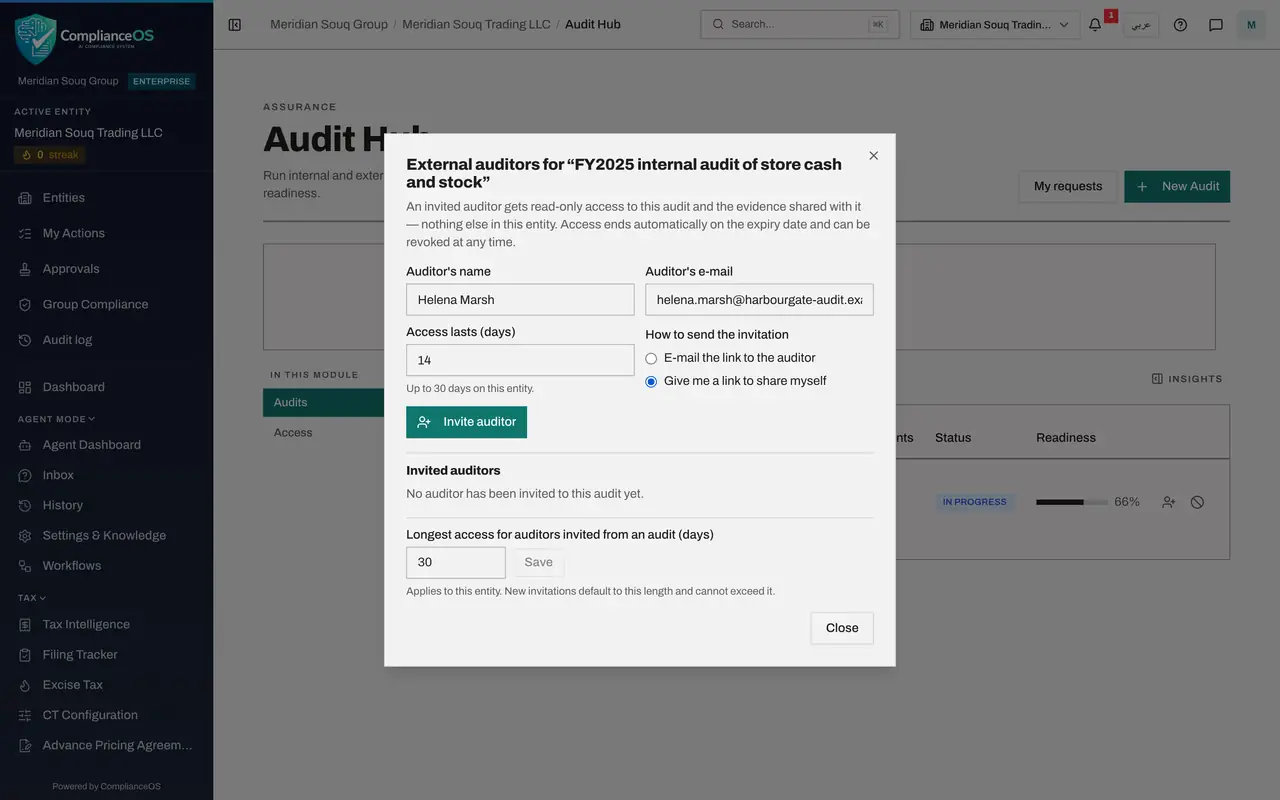
Select the invite button. A box opens named External auditors, with the name of the audit. The text explains the rule: an invited auditor gets read-only access to this audit and the evidence shared with it, and nothing else in the entity.
- Select Invite an external auditor
- 3
Type the auditor's name and e-mail
In Auditor's name, type the person's full name. In Auditor's e-mail, type her work address. Both are required: the Invite auditor button stays switched off until the name has at least two letters and the address is valid.
- Type Auditor's name:
Helena Marsh - Type Auditor's e-mail:
helena.marsh@harbourgate-audit.example
- Type Auditor's name:
- 4
Set how long the access lasts
In Access lasts, enter the number of days, here 14, enough for the fieldwork. The note under the field shows the most this entity allows. If you leave the field empty, that limit is used.
- Type Access lasts (days):
14
- Type Access lasts (days):
- 5
Choose how to send the invitation
Under How to send the invitation there are two choices. E-mail the link to the auditor lets ComplianceOS send it. Give me a link to share myself sends nothing and shows you the link. Choose Give me a link to share myself.
- Select Give me a link to share myself
- 6
Select Invite auditor
Select Invite auditor. A green box appears at the top with the invitation link. Read the line under it: the link is shown only once, and anyone holding it can read this audit until the date shown.
- Select Invite auditor
- 7
Select Copy link
Select Copy link, then paste the link into a message to the auditor from your own company email. Treat it like a key.
- Select Copy link
- 8
Check the list of invited auditors
Lower in the box, Invited auditors lists everyone invited to this audit: the name, the address, the date the access ends, and a label that says Active, Expired or Revoked. The new invitation is Active. Revoke ends the access at once.
- 9
Set the longest access the entity allows
At the bottom is a setting for the whole entity: Longest access for auditors invited from an audit, in days. New invitations use this length unless you enter fewer days, and can never exceed it. Changing it needs the approve right. Enter 21 and select Save.
- Type Longest access for auditors invited from an audit (days):
21 - Select Save
- Type Longest access for auditors invited from an audit (days):
- 10
Select Close
Select Close at the bottom of the box. The invitation stays active until its end date or until you revoke it. The next lesson shows what the auditor sees when she opens the link.
- Select Close
How to check it worked
Under Invited auditors the auditor is listed with the label Active and the date her access ends.
Common mistakes
- Closing the box before copying the link. The link is shown only once. If you lose it, revoke the invitation and create a new one.
- Posting the link where others can read it. Anyone who holds the link can read the audit until it expires.
- Asking for more days than the entity allows. The number may not be higher than the limit shown under the field.
Check your understanding
1. What can an auditor invited from an audit see?
- A.Everything in the entity
- B.This one audit and the evidence shared with it, read-only, until the access expires
- C.Only the audit log
- D.All audits of the organisation
Show answer
Answer: B. This one audit and the evidence shared with it, read-only, until the access expires
The invitation is limited to one audit. It ends automatically on the expiry date and can be revoked at any time.
2. You chose Give me a link to share myself. Who sends the link to the auditor?
- A.ComplianceOS, by email
- B.You, by your own means
- C.The administrator
- D.Nobody, the auditor finds it
Show answer
Answer: B. You, by your own means
With that choice no email is sent. The link is shown once for you to copy and send yourself.