Lesson 21 of 26
As an auditor with an account: read an audit without being able to change it
What you will be able to do
This lesson is for an internal auditor or reviewer who has the Auditor (read-only) role. As Daniel Brooks you will open the Audit Hub, walk through each step of an audit, see which controls are missing or switched off for a read-only role, and download the evidence pack.
Before you start
- You are signed in with the role Auditor (read-only) on this entity. The role can view and export, and nothing else.
- An audit is in progress.
Steps
- 1
Open the Audit Hub
Select Audit Hub in the left menu. You see the same list of audits as the compliance officer, with status and readiness, but there is no New Audit button and no buttons at the end of the line. My requests is still there, because anyone can be assigned a request.
- 2
Open the audit
Select the audit's line. It opens at the step the company has reached. There is no Cancel audit button at the top.
- 3
Look at the Documents step
Select Documents in the bar at the top. You can see which policy and checklist the audit is built on. The upload box says you have read-only access, and there is no bin on the files.
- 4
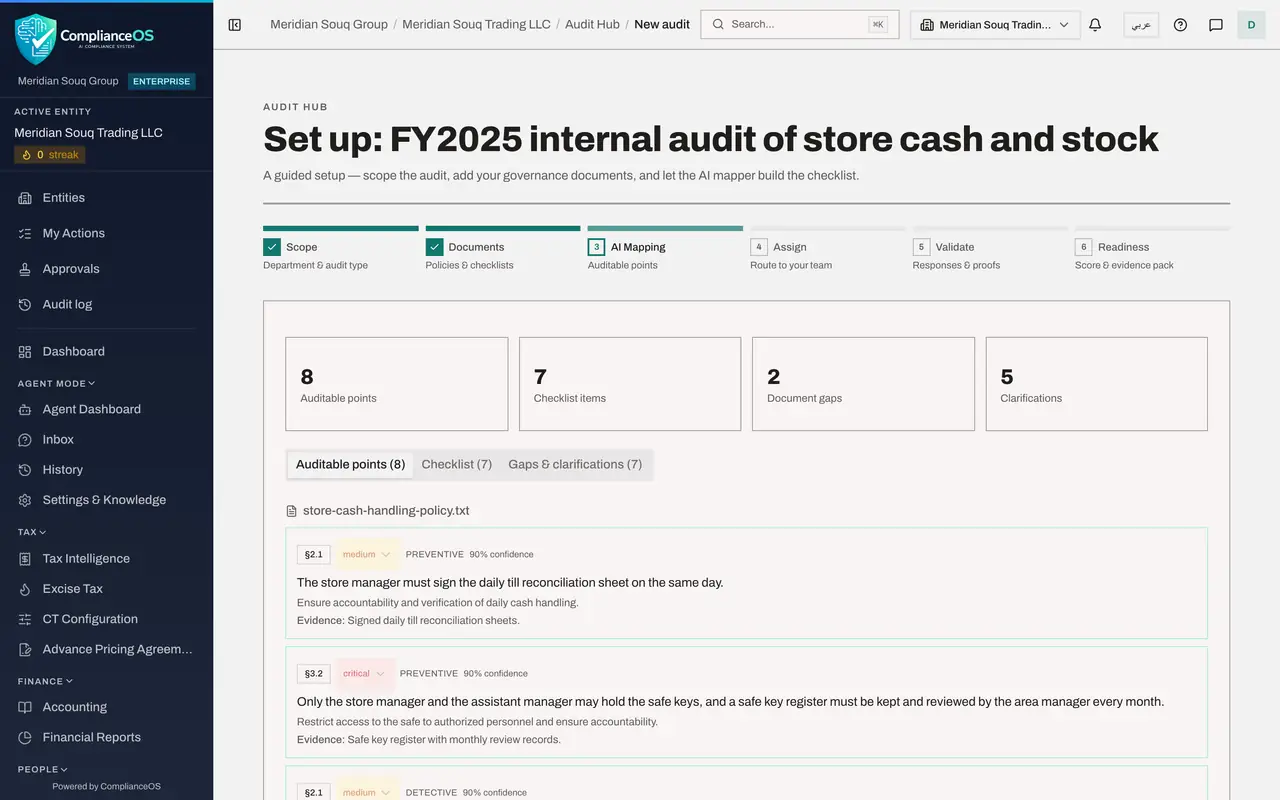
Look at the AI Mapping step
Select AI Mapping. You can read every auditable point, the checklist and the gaps. The pencil, tick and cross on each point are hidden, and the buttons at the bottom are switched off.
- 5
Look at the Assign step
Select Assign. A note says you can see who each request is assigned to, but assigning needs the edit permission. The person and date on each line are locked.
- 6
Read an answer on the Validate step
Select Validate and open a request. You can read the response, download the attached file and read the AI assessment. The buttons Accept and vault, Request changes and Waive are not shown.
- 7
Open the Readiness step
Select View readiness score at the bottom. You see the score, the coverage by risk level, what needs attention and the findings with their owners. Recompute is switched off and the status of a finding cannot be changed.
- Select View readiness score
- 8
Download the evidence pack
Scroll to Evidence pack and select Download ZIP. Exporting is allowed for your role, so the file is saved to your downloads folder. Where the compliance officer has the Complete audit button, you see a note that names the permission that is needed.
- Select Download ZIP
How to check it worked
You have opened every step of the audit, nothing has changed, and the evidence pack ZIP is in your downloads folder.
Common mistakes
- Reporting a missing button as a fault. With a read-only role the buttons to create, assign, accept and complete are hidden or switched off on purpose.
- Asking the company for files one by one. Download ZIP on the Readiness step gives you the sealed records in one file.
- Expecting to see who can access what under Access. That section is for people who administer access.
Check your understanding
1. Which of these can a person with the Auditor (read-only) role do in the Audit Hub?
- A.Start a new audit
- B.Accept an answer
- C.Download the evidence pack
- D.Complete the audit
Show answer
Answer: C. Download the evidence pack
The role holds view and export. Downloading the evidence pack is an export. Creating, accepting and completing need other rights.
2. On the Assign step, what does a read-only auditor see?
- A.An error page
- B.Who each request is assigned to, with a note that assigning needs the edit permission
- C.Nothing
- D.The same controls as the compliance officer
Show answer
Answer: B. Who each request is assigned to, with a note that assigning needs the edit permission
The step shows the requests with their assignees and dates, locked, and a note that assigning needs the Audit Hub edit permission.