Lesson 14 of 26
Raise findings: from inside a request and on the Readiness step
What you will be able to do
This lesson is for the person who runs the audit. A finding records something an auditor would write up, with an owner and a date to fix it by. You will raise one finding directly from a request whose evidence is incomplete, and a second one by hand on the Readiness step, filling in the title, the severity, the owner and the date.
Before you start
- The accountant answered the request about bank deposits, but his file shows that three deposit slips are missing.
- During fieldwork you saw that the safe key register at the Deira store has not been reviewed since June.
Steps
- 1
Open the request with incomplete evidence
On the Validate step, open the request about banking the takings. The accountant's answer says that the deposit slips for three days could not be found. Better paperwork will not cure this: the control did not work on those days.
- 2
Select Raise finding inside the request
Select Raise finding. A message says Finding raised, see the Readiness step. The finding is linked to this check. Its owner is the request's assignee and its fix-by date is the request's due date.
- Select Raise finding
- 3
Select View readiness score
At the bottom of the Validate step, select View readiness score. The last step, Readiness, opens. Scroll to Findings and corrective actions. The new finding is listed: Insufficient evidence, followed by the question, with Ahmed Saleh as owner and the status Open.
- Select View readiness score
- 4
Select Raise finding on the Readiness step
A finding does not have to come from a request. Select Raise finding at the right of the heading. A line of fields opens: the title, the severity, the owner and the date.
- Select Raise finding
- 5
Type the title
In the title box, say what is wrong in one line, with the place and the period. The Raise button stays switched off until there is a title.
- Type Finding title — e.g. No access reviews performed in Q2:
Safe key register at Deira store not reviewed by the area manager sinc…
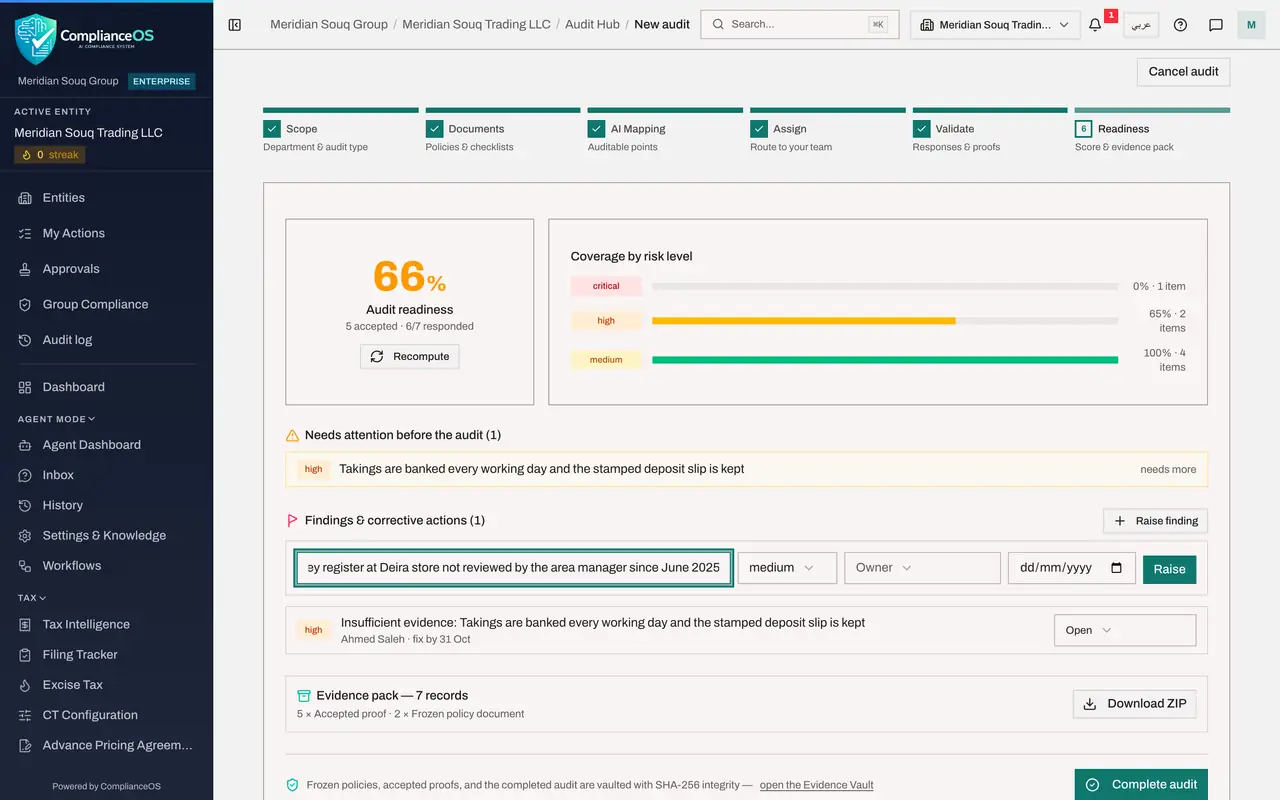
- Type Finding title — e.g. No access reviews performed in Q2:
- 6
Choose the severity
Open the severity list, which starts on medium, and choose high. The choices are critical, high, medium and low. Severity is shown to the owner and to the auditor.
- Select medium
- Choose high
- 7
Choose the owner
Open Owner and choose the person who must fix it, here Rashid Karim, the finance manager. Anyone who can access this entity can own a finding. If you leave it empty the finding shows as Unowned.
- Select Owner
- Choose Rashid Karim
- 8
Enter the fix-by date and select Raise
In the date box, enter the day the fix is due, here about a month from today. Then select Raise. The finding joins the list with its severity, owner and fix-by date.
- Select Raise
- 9
Update the status of a finding
Each finding has a status list at the end of its line: Open, In remediation, Resolved, Risk accepted and Closed. The finance manager has told you the area manager is already catching up on the reviews, so set this finding to In remediation.
- Select Open
- Choose In remediation
How to check it worked
The Readiness step lists two findings under Findings and corrective actions: one that starts with Insufficient evidence, owned by Ahmed Saleh, and one about the safe key register, owned by Rashid Karim, with the status In remediation.
Common mistakes
- Raising a finding with no owner or date. It shows as Unowned and nobody is told to fix it.
- Using Request changes when the problem is real. Request changes asks for better evidence. A finding records that the control itself failed.
- Selecting Raise finding twice on the same request. Each click creates another finding.
Check your understanding
1. You select Raise finding inside a request. Who becomes the owner of the finding?
- A.Nobody
- B.You
- C.The person the request is assigned to
- D.The external auditor
Show answer
Answer: C. The person the request is assigned to
A finding raised from a request takes the request's assignee as owner and its due date as the fix-by date. The title starts with Insufficient evidence and the question.
2. Who can be chosen as the owner of a finding raised on the Readiness step?
- A.Only people with an Audit Hub role
- B.Anyone who can access this entity
- C.Only administrators
- D.Only the compliance officer
Show answer
Answer: B. Anyone who can access this entity
The Owner list holds everyone who can access the entity. The owner sees the finding in My Actions and under My audit requests without needing an Audit Hub role.