Lesson 10 of 26
As an assignee: add what the reviewer asked for
What you will be able to do
This lesson is for an assignee whose answer was sent back. As Khalid Mansoor, the human resources director, you will open the notification, read the reviewer's note and the AI comments, add the missing file and a fuller answer, and submit again.
Before you start
- Your first answer to the request about cashier training was sent back with a note.
- You now have the record the reviewer asked for. Here it is cash-handling-training-attendance-2025.csv, invented for this course.
Steps
- 1
Open your notifications
In the left menu, open Tools and select Notifications. The newest line reads Audit response needs more work, followed by the reviewer's note.
- Select Tools
- Select Notifications
- 2
Select the notification
Select the notification. It opens My audit requests. The request is under Needs your action with the orange label More needed.
- 3
Read the reviewer's note
The request shows your first answer, the AI check with its low score and comments, and below them the Note from the reviewer. The note says exactly what to add.
- 4
Write a fuller answer
In the box that says Add the missing evidence or explanation, write what you are adding and what the file contains.
- Type Your answer:
Attached is the cashier training register. It lists all eight cashiers…
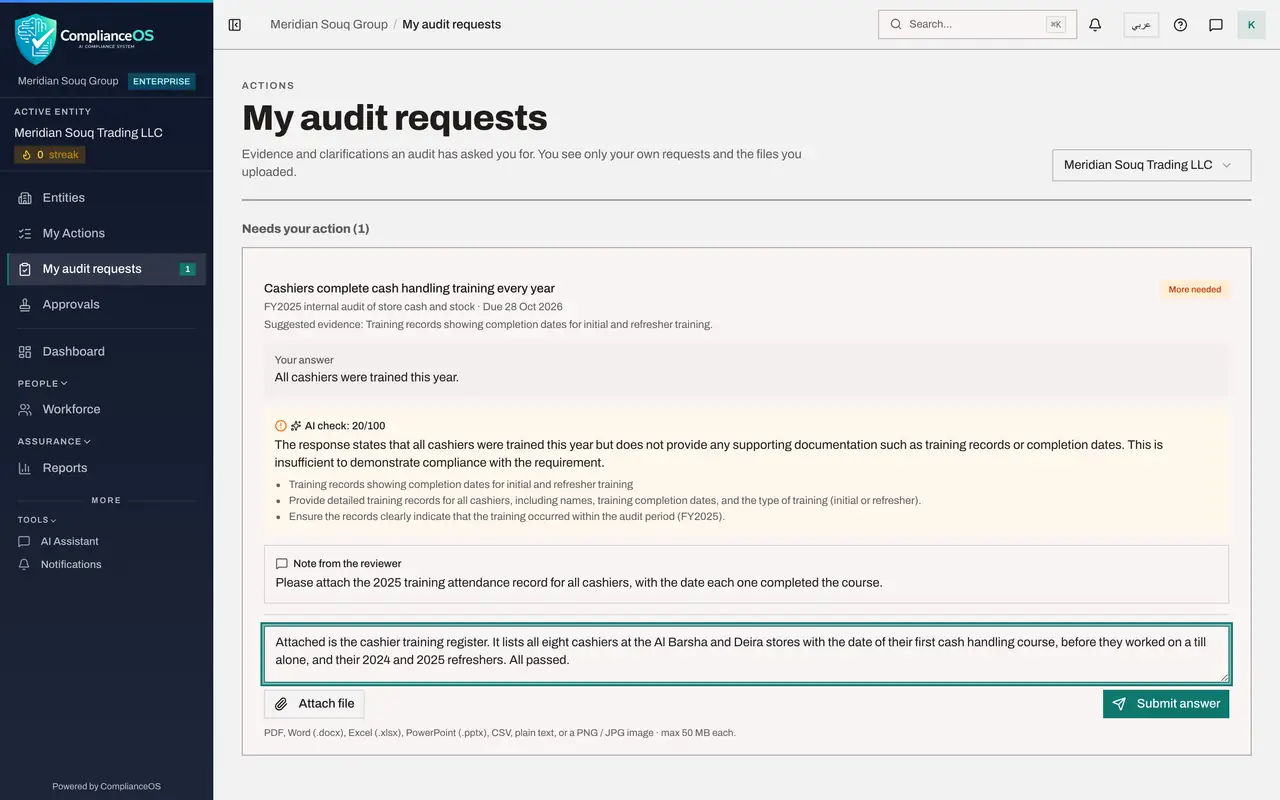
- Type Your answer:
- 5
Attach the record
Select Attach file and choose cash-handling-training-attendance-2025.csv. Its name appears above the buttons.
- Upload Choose a file:
cash-handling-training-attendance-2025.csv
- Upload Choose a file:
- 6
Select Submit answer
Select Submit answer. The request moves under Submitted and is checked again.
- Select Submit answer
- 7
Read the new result
After about a minute the check is done and the AI check shows a new score and new comments. Awaiting review means the automatic check is satisfied. If the label still says More needed, the check would like even more, but your answer and file have reached the reviewer either way, and the reviewer is the one who decides.
How to check it worked
Your new answer and the attached file are shown on the request, with a new AI check score. The status is Awaiting review, or More needed if the automatic check still wants more.
Common mistakes
- Submitting the same sentence again. The reviewer's note says what is missing. Answer that.
- Looking for the request in the Audit Hub. Without an Audit Hub role you cannot open it. Use My audit requests in the left menu.
- Thinking the first answer is lost. The new answer replaces it as your current response, and the reviewer sees the new text and file.
Check your understanding
1. Where do you read what the reviewer wants you to fix?
- A.In the Audit log
- B.On the request, under Note from the reviewer, and in the notification
- C.In the Evidence Vault
- D.It is not shown
Show answer
Answer: B. On the request, under Note from the reviewer, and in the notification
The reviewer's note is shown on the request and is also the text of the notification Audit response needs more work.
2. What does the label More needed on your request mean?
- A.The request was accepted
- B.You must add evidence or explanation and submit again
- C.The request was cancelled
- D.The audit is over
Show answer
Answer: B. You must add evidence or explanation and submit again
More needed puts the request back under Needs your action. The answer box is open again so you can add what is missing.