Lesson 18 of 26
As the invited auditor: read the audit in the Auditor Portal
What you will be able to do
This lesson is for an outside auditor who has received an invitation link. Without signing in, you will open the Auditor Portal, read the audit's status, checklist and findings, download a piece of evidence, and send the company a finding of your own.
Before you start
- The company has sent you an invitation link for one audit. You do not have, and do not need, a ComplianceOS account.
- The link works until the date the company set, or until the company revokes it.
Steps
- 1
Open the link you were sent
Select the invitation link in the company's message. The Auditor Portal opens without a sign-in. The top bar names the company's entity. If you open the portal's address without the link, it asks for an access token instead, which is the last part of your link.
- 2
Read what you were invited to
The first box names the audit, FY2025 internal audit of store cash and stock. The note says you were invited to this audit only, and until which date you can read it. Below are the period that is audited, the status and the company's readiness score.
- 3
Read the checklist
Checklist lists every check the company is testing, with its state on the right: Evidence requested, Answered and awaiting review, More evidence requested, Evidence accepted or Waived. This tells you how far the company is before you start your fieldwork.
- 4
Read the company's findings
Findings raised by the organisation lists the findings the company has recorded on this audit, each with its severity and the date the fix is due.
- 5
Look at the evidence
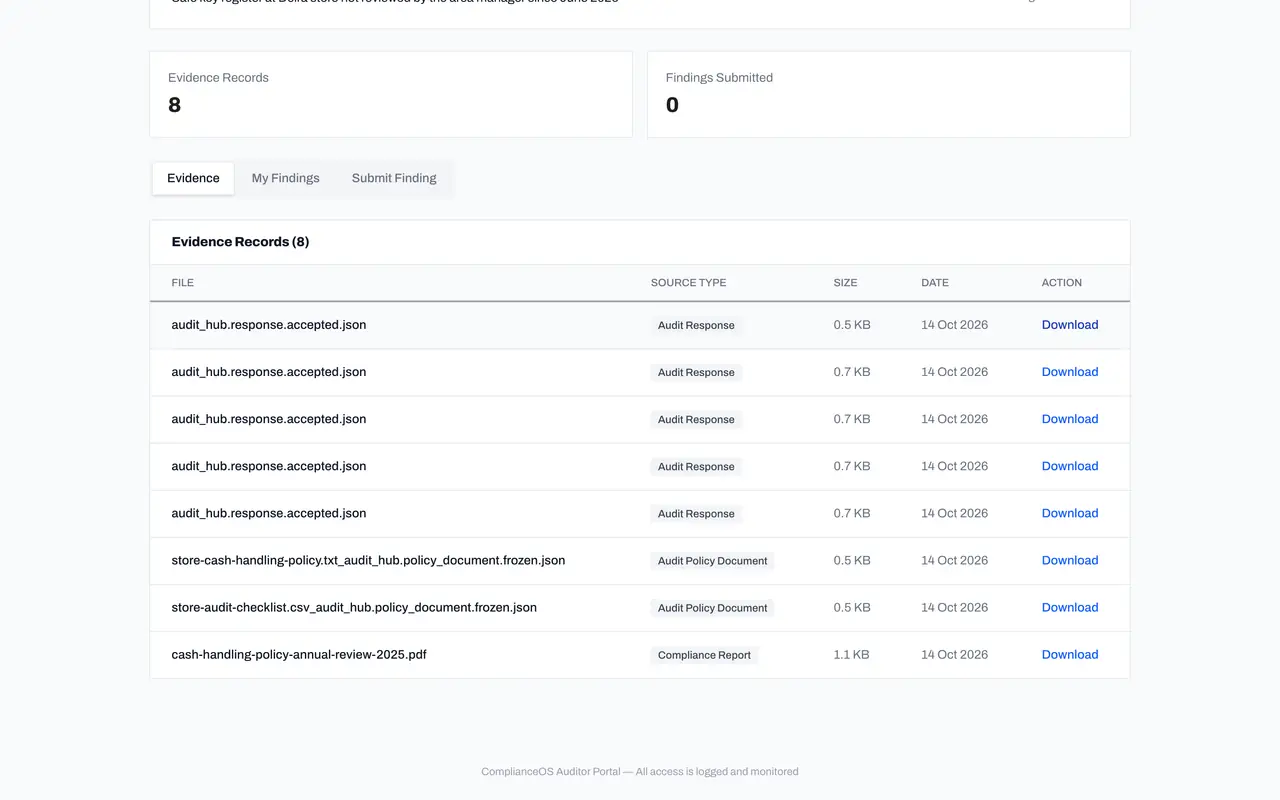
Further down, two boxes count the evidence records and the findings you have submitted. The Evidence tab lists the sealed records shared with this audit: the frozen policy documents and each accepted proof, with the source type, the size and the date.
- Select Evidence
- 6
Download a record
Select Download on a line to save that record to your computer. Every download through the portal is logged on the company's side.
- Select Download
- 7
Select Submit Finding
You cannot change the audit, but you can send the company a finding. Select the Submit Finding tab. Open Module and choose Audit Hub, the only module your invitation covers. Open Severity and choose Medium.
- Select Submit Finding
- 8
Describe the finding
In Title, write the finding in one line. In Description, give the detail and name the evidence you looked at. Recommendation is optional: say what you advise.
- Type Brief description of the finding:
Stock count at Deira store for the third quarter has no second counter… - Type Description:
The third quarter count sheet for the Deira store names only one count… - Type Recommendation (optional):
Recount a sample of lines with a second counter and have both sign the…
- Type Brief description of the finding:
- 9
Send it
Select the Submit Finding button under the form. A message confirms that the finding was submitted, and the company sees it on its Auditor Portal page.
- Select Submit Finding
- 10
Check My Findings
Select the My Findings tab. Your finding is listed with its module, severity, status and date. The company's replies and status changes show here.
- Select My Findings
- 11
Sign out
When you finish, select Sign out at the top right. The portal goes back to the access screen. Your link keeps working until its end date, so you can come back.
- Select Sign out
How to check it worked
The portal shows the audit's name, the note You were invited to this audit only, the checklist with a state for each check, and your finding is listed under My Findings.
Common mistakes
- Forwarding the link to a colleague. The link is personal, every access is logged, and anyone holding it reads as you.
- Looking for buttons to change the audit. The portal is read-only for the audit itself. What you can add is your own finding.
- Keeping the page open on a shared computer. Select Sign out when you finish.
Check your understanding
1. What does an auditor invited to one audit see in the portal?
- A.All modules of the company
- B.That audit only: its period, status, readiness, checklist, the company's findings and the evidence shared with it
- C.The company's bank accounts
- D.Nothing until an account is created
Show answer
Answer: B. That audit only: its period, status, readiness, checklist, the company's findings and the evidence shared with it
The note at the top says it: you were invited to this audit only, and you can read the audit and the evidence shared with it until the end date.
2. What does the state Evidence accepted beside a check mean?
- A.The auditor has approved it
- B.The company's reviewer accepted the proof for that check and it is sealed in the Evidence Vault
- C.The check was waived
- D.Nobody has answered yet
Show answer
Answer: B. The company's reviewer accepted the proof for that check and it is sealed in the Evidence Vault
Each check shows where the company stands: evidence requested, answered and awaiting review, more evidence requested, evidence accepted, or waived.