Lesson 11 of 24
Record salary payments by hand and from a file
What you will be able to do
This lesson is for the HR and payroll team. Not every salary payment comes from a file prepared in ComplianceOS. You will record one employee's payment by hand, load a whole month of results from a file, and correct a single record on the employee's own WPS tab.
Before you start
- You are signed in with an HR role that can add records and may see salaries. In the demo company that is the HR director.
- Last month's salary file is marked as paid. One employee was left out of it and paid by cheque.
- The month before was paid through a file made on the exchange house's own website, so its results are not in ComplianceOS yet. You have them in a spreadsheet, one row per employee.
Steps
- 1
Select Record WPS payment
In Workforce select WPS Payment Records and scroll to the card of the same name at the bottom. Last month shows nine employees, the ones in the salary file. Select Record WPS payment to add the tenth by hand.
- Select WPS Payment Records
- Select Record WPS payment
- 2
Choose the employee
Open Employee and choose the person who was paid. The list shows each current employee with their employee number.
- Select Employee
- Choose Aisha Farouk · MSQ-0101
- 3
Check the month and enter the dates
Month and Year are set to last month. Due date is the day the salary had to be paid by, and Paid date is the day it was paid. Enter both.
- Type Due date:
2026-10-15 - Type Paid date:
2026-10-10
- Type Due date:
- 4
Enter the amount and choose the status
Type the amount paid in dirhams. Then open Status. Pending means not paid yet, On time and Late describe a payment that was made, and Missed means the month went unpaid. A record entered by hand keeps the status you choose, so choose On time.
- Type Amount paid (AED):
14000 - Select Status
- Choose On time
- Type Amount paid (AED):
- 5
Select Save
Select Save. The message WPS record saved appears, and last month now counts ten employees, all compliant.
- Select Save
- 6
Select Import to load a month from a file
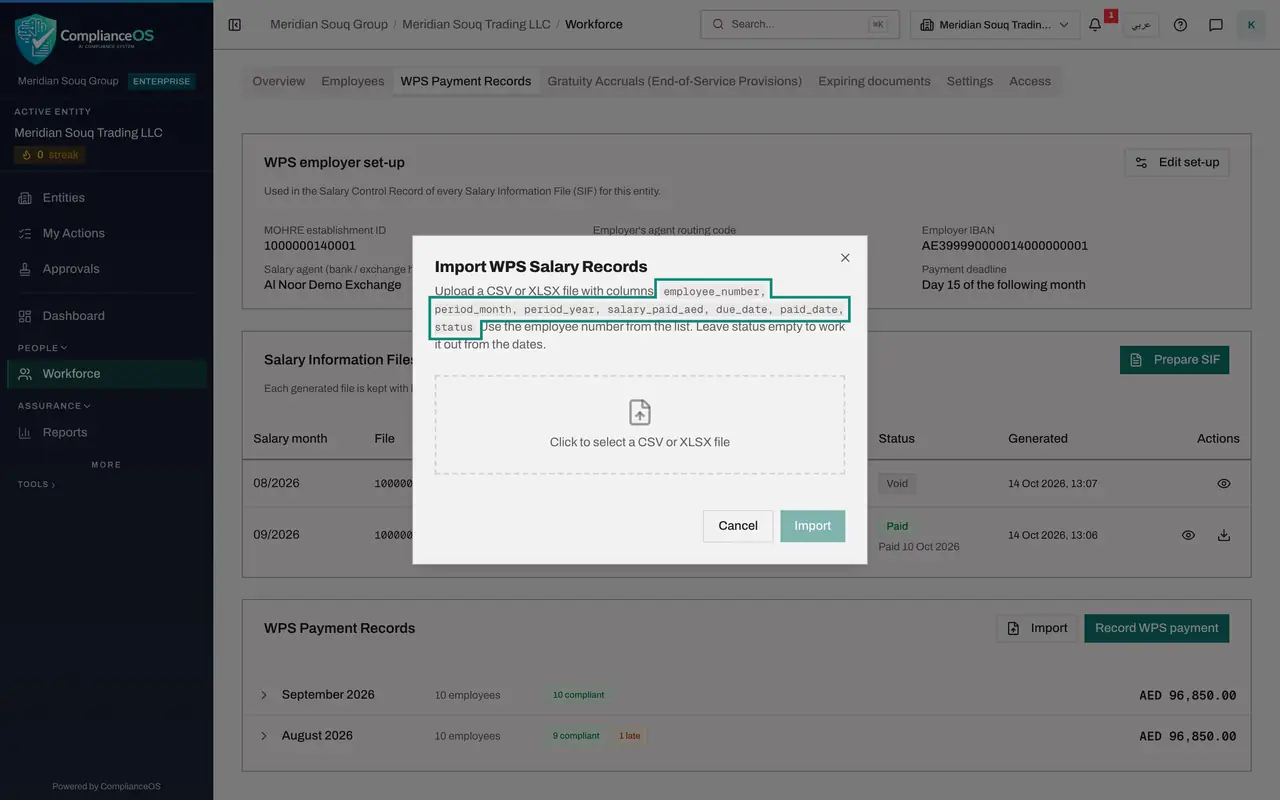
The month before was paid through a file made on the exchange house's website. Its results can be loaded in one go. Select Import on the same card. The window lists the columns the file needs: the employee number, the salary month and year, the amount paid, the due date, the paid date and the status, which is COMPLIANT, LATE, MISSED or PENDING.
- Select Import
- 7
Choose the file and select Import
Select the dotted box and pick the file on your computer; its name then shows in the box. Select Import. The result counts the rows that were imported and skipped, with a reason for any row that was refused. All ten rows went in.
- Select Choose the WPS salary file to import
- Upload Choose a file:
wps-results-previous-month.csv - Select Import
- 8
Close the result and open the imported month
Select Close. The month before is now listed with ten employees: nine compliant and one late. Select the line to open it. Each imported record carries its due date, paid date, amount and status, exactly as in the file.
- Select Close
- 9
Open the employee's own WPS tab
A single record is corrected on the employee's record. Select the Employees tab, open the delivery driver's record and select its WPS tab. Under WPS payment records are his months, newest first, each with a pencil at the end of the row.
- Select Employees
- Select Joselito Ramos
- Select WPS
- 10
Select the pencil and correct the amount
Select the pencil on the late month; its name is Edit WPS record. Month and Year are locked, because they identify the record. The exchange house's file left out his overtime: type the amount he actually received, 4,850 dirhams. Leave the dates and the status Late as they are.
- Select Edit WPS record
- Type Amount paid (AED):
4850
- 11
Select Save
Select Save. The row now shows the corrected amount, still with the status Late.
- Select Save
- 12
See the result on Overview
Select Back to Workforce. The WPS Compliance card on Overview explains its figures in one line under the counts: last month, ten employees enrolled and ten paid on time; over the last three months, one late payment and none missed. The rate itself measures last month only, which is why it reads one hundred per cent.
- Select Back to Workforce
How to check it worked
Under WPS Payment Records, last month counts ten employees and the month before is listed with ten employees, nine on time and one late. On the Overview tab, the WPS Compliance card reports the late payment for the last three months.
Common mistakes
- Leaving the status on Pending for a payment that has been made. A record typed by hand keeps the status you choose; it is not worked out from the dates.
- Typing dates as day, month, year in the import file. Due and paid dates are written year, month, day, like every other date the app imports.
- Recording a second payment for the same month to correct the first. There is one record for each employee and month: saving again replaces it.
Check your understanding
1. An employee was paid by cheque outside the salary file. How does the payment get on record?
- A.It cannot be recorded
- B.With Record WPS payment: choose the employee, the month, the dates, the amount and the status
- C.By generating a second salary file
- D.By editing the salary on the employee's profile
Show answer
Answer: B. With Record WPS payment: choose the employee, the month, the dates, the amount and the status
Record WPS payment adds one record for one employee and month, whatever way the salary was paid.
2. Where can you correct a single payment record?
- A.Only by importing the whole month again
- B.On the employee's record, WPS tab, with the pencil on the month's row
- C.On the Settings tab
- D.Nowhere; records are final
Show answer
Answer: B. On the employee's record, WPS tab, with the pencil on the month's row
The employee's WPS tab lists their records month by month, and the pencil opens the record for correction.