Lesson 9 of 24
Prepare the monthly salary file
What you will be able to do
This lesson is for the HR and payroll team. You will prepare last month's Salary Information File, or SIF: check every employee's line, deal with a line that has something missing, add overtime and unpaid leave, generate the file and download it. Nothing is sent to a bank from ComplianceOS; you upload the file to your bank or exchange house yourself.
Before you start
- You are signed in with an HR role that may see salaries. In the demo company that is the HR director.
- The WPS employer set-up is complete, and the employees have their WPS payment details, as in the previous lesson. One employee's details were left incomplete on purpose.
- You know this month's changes to pay: overtime or bonuses, and days of unpaid leave.
Steps
- 1
Select Prepare SIF
In Workforce select WPS Payment Records. In the card Salary Information Files select Prepare SIF. The window that opens works in three moves: choose the month, check the lines, generate.
- Select WPS Payment Records
- Select Prepare SIF
- 2
Check the month and the year
Month and Year are set to last month, which is the usual case: salaries for a month are paid early in the next one. Change them only to prepare a file for a different month.
- 3
Select Check
Select Check. The app builds one line for every employee who is enrolled in WPS and was employed during the month. Above the table it counts the employees and the total salary, and says how many lines need attention.
- Select Check
- 4
Read a line
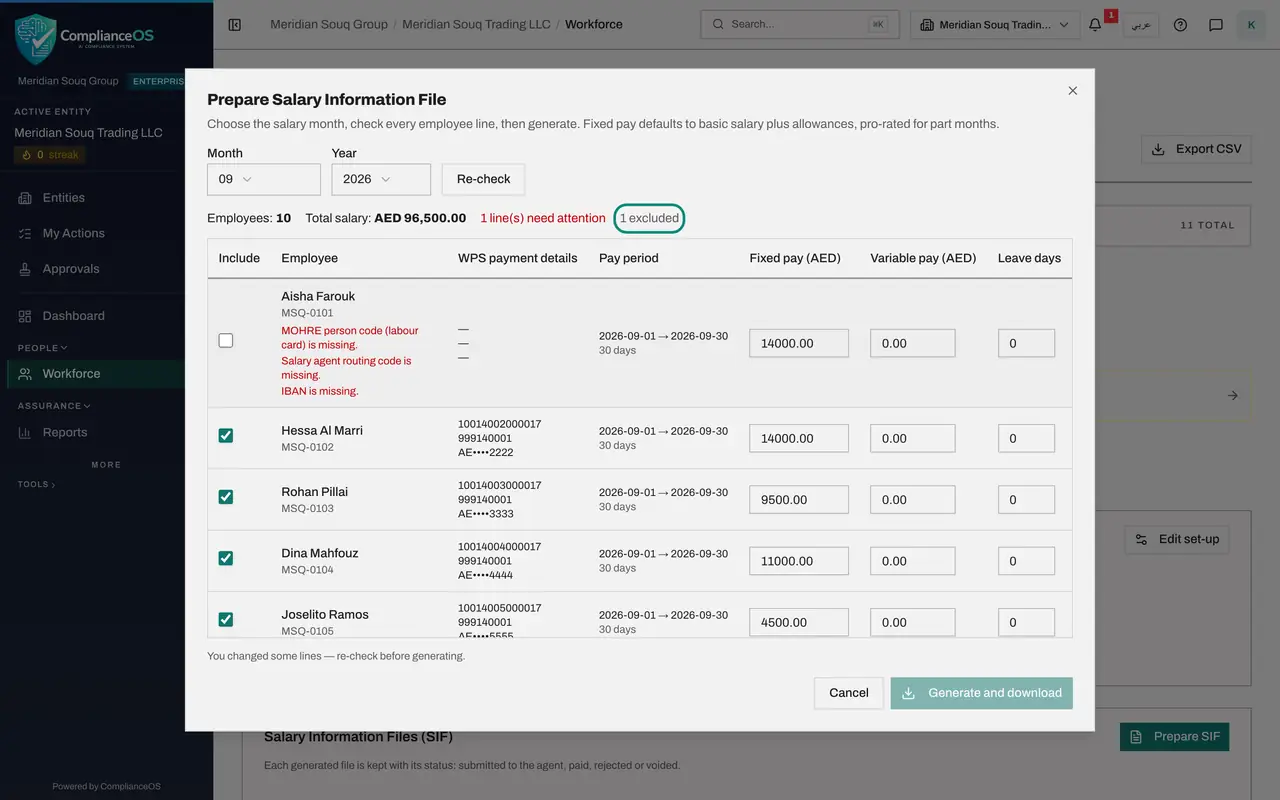
Each line shows the employee, their WPS payment details with the IBAN partly hidden, the pay period and the number of days in it, then three boxes you can change: Fixed pay, Variable pay and Leave days. Fixed pay starts as basic salary plus allowances, reduced for anyone who joined or left part-way through the month.
- 5
Find the line that needs attention
A line with a problem is tinted red and lists what is missing under the name. This customer service agent has no person code, routing code or IBAN. While such a line is included, Generate and download stays greyed out.
- 6
Untick Include to leave the employee out
You have two choices: complete the details on the employee's WPS tab, or leave her out of this file. Her bank account is still being opened and she is paid by cheque this month, so untick the box in the Include column at the start of her line. The summary now says one excluded.
- Select Include Aisha Farouk in the salary file
- 7
Add overtime in Variable pay
Variable pay is anything on top of fixed pay for this month only: overtime, commission or a bonus. The delivery driver worked overtime worth 350 dirhams. Type 350 in the Variable pay box on his line.
- Type Variable pay (AED) for Joselito Ramos:
350
- Type Variable pay (AED) for Joselito Ramos:
- 8
Enter unpaid leave in Leave days
Leave days is the number of days of unpaid leave in the pay period. The file reports it to the ministry beside the amounts. The merchandising buyer took two days: type 2 in the Leave days box on her line. If her pay is reduced for those days, lower her Fixed pay as well.
- Type Leave days for Dina Mahfouz:
2
- Type Leave days for Dina Mahfouz:
- 9
Select Re-check
A note under the table says you changed some lines. Select Re-check. The count drops to nine employees, the total now includes the overtime, and no line needs attention. Generate and download is available.
- Select Re-check
- 10
Select Generate and download
Select Generate and download. The file is saved to your computer and the window closes. Its name starts with the establishment ID and ends in SIF. The file is now listed with its salary month, the number of employees, the total and the status Generated.
- Select Generate and download
- 11
Select the eye icon to view the lines
The eye icon on the file's row is called View lines. It shows what went into the file: each employee with fixed pay, variable pay and leave days, and above them a long code, the file's fingerprint. If anyone changes the file afterwards, the fingerprint no longer matches.
- Select View lines
- 12
Close the window and download the file again
Close the window with the cross at its top right. The arrow icon beside the eye is Download: it saves the same file again whenever you need it. Upload the file on your bank's or exchange house's own website; ComplianceOS does not send it anywhere.
- Select Close
- Select Download
How to check it worked
The new file is listed under Salary Information Files with last month as the salary month, the number of employees, the total salary and the status Generated, and the file is in your downloads folder.
Common mistakes
- Selecting Generate and download after changing a line without selecting Re-check. Re-check first, so that the totals and any errors reflect your changes.
- Leaving a flagged line ticked. The file cannot be generated while a line that needs attention is included: complete the employee's details or untick Include.
- Editing the downloaded file by hand. The app keeps a fingerprint of the file it generated; a file changed afterwards no longer matches the record.
Check your understanding
1. Where does the Fixed pay figure on each line come from?
- A.It is always typed by hand
- B.Basic salary plus allowances from the employee's record, reduced for a part month
- C.The previous month's file
- D.The bank
Show answer
Answer: B. Basic salary plus allowances from the employee's record, reduced for a part month
Fixed pay starts as basic salary plus allowances and is pro-rated when the person joined or left during the month. You can overtype it.
2. One employee's line says the IBAN is missing. How can you still produce the file today?
- A.You cannot; wait until next month
- B.Untick Include on that line and select Re-check, or complete the details on the employee's WPS tab
- C.Select Generate and download twice
- D.Type the IBAN in the Variable pay box
Show answer
Answer: B. Untick Include on that line and select Re-check, or complete the details on the employee's WPS tab
A line with errors blocks the file. Either fix the employee's details or leave that employee out of this file and pay them another way.