Lesson 5 of 24
Complete and correct an employee record
What you will be able to do
This lesson is for the HR team. You will open an employee's record, read the Profile tab, and use Edit Employee to fill in what is missing, set the line manager, look at the linked login and record a pay rise. Every field of the form is explained.
Before you start
- You are signed in with an HR role that can edit employees. In the demo company that is the HR director.
- The employee is already on the register. Here it is the customer service agent who was set up with the company, whose record holds only a name, a start date and a salary.
- You have the details to enter: employee number, contract type, nationality, job title, department, manager and the new salary.
Steps
- 1
Open the employee's record
In Workforce select Employees, then select the employee's name. Every name in the list is a link to that person's record.
- Select Employees
- Select Aisha Farouk
- 2
Read the Profile tab
The record has four tabs: Profile, Gratuity, Documents and WPS. Profile opens first, with Personal Information above and Employment Details below. A dash marks anything not yet recorded: this record has no nationality, job title, department, employee number or contract type.
- 3
Select Edit Employee
Select Edit Employee at the top right. The form opens with the saved values. Its first three fields are Full Name, Employment Date and Employee Number. Change the name or the date only to correct a typing mistake: the note underneath says such changes are recorded in the audit log.
- Select Edit Employee
- 4
Enter the employee number and the contract type
Type the payroll reference in Employee Number. It must not be used by anyone else. Then open Contract type and choose the kind of contract; this employee is on an Unlimited contract.
- Type Employee Number:
MSQ-0101 - Select Not set
- Choose Unlimited
- Type Employee Number:
- 5
Enter nationality, job title and department
Fill in Nationality, Job Title and Department, typed the same way as for colleagues so that the filters on the Employees list group them together.
- Type Nationality:
Egypt - Type Job Title:
Customer Service Agent - Type Department:
Customer Care
- Type Nationality:
- 6
Choose the line manager
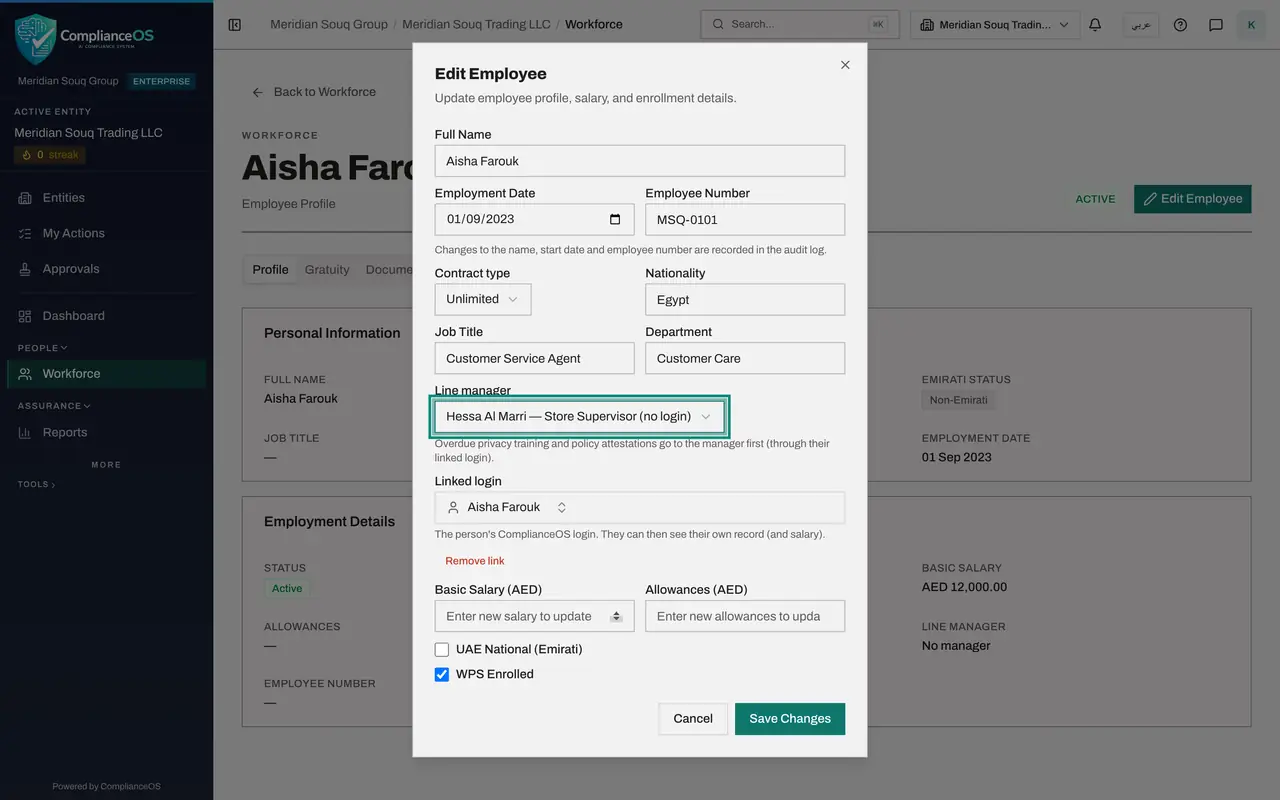
Open Line manager and choose the person this employee reports to. The words no login after a name mean that manager cannot sign in, so reminders about this employee's overdue privacy training would skip them and go to the next people in line.
- Select No manager
- Choose Hessa Al Marri — Store Supervisor (no login)
- 7
Look at Linked login and Remove link
Linked login already shows this employee's own sign-in, which is why she can see her own record. Remove link, just below it, breaks that connection. Select it to see what happens: a warning says the link will be removed when you save.
- Select Remove link
- 8
Select Undo to keep the link
Nothing has been saved yet. Select Undo and the login is shown again. Only remove a link when the wrong person was linked or the employee should no longer see the record.
- Select Undo
- 9
Enter the new salary and the allowances
Basic Salary and Allowances are empty on purpose: type in them only when the amount changes. Enter the new basic salary after this employee's pay rise, and her monthly allowances. Basic salary drives gratuity; basic plus allowances is the fixed pay proposed in the monthly salary file.
- Type Basic Salary (AED):
12500 - Type Allowances (AED):
1500
- Type Basic Salary (AED):
- 10
Check the two tick boxes
UAE National counts the person towards the Emiratisation rate, and WPS Enrolled puts them in the monthly salary file. Both are correct for this employee, so leave them as they are.
- 11
Select Save Changes
Select Save Changes. The message Employee saved appears and the form closes. The heading now carries the job title and department, and Employment Details shows the new salary, the allowances, the manager, the employee number and the contract type straight away.
- Select Save Changes
How to check it worked
The record's heading shows the job title and department, Employment Details shows the new basic salary, the allowances, the line manager and the employee number, and the message Employee saved appeared.
Common mistakes
- Typing the old salary again in Basic Salary. The two pay fields are for new amounts only; leave them empty to keep what is on record.
- Selecting Remove link by accident and saving. The employee then loses sight of their own record until the login is linked again.
- Changing the employment date to correct a job change. The date is the start of the whole employment and drives gratuity; change it only if it was typed wrongly.
Check your understanding
1. You open Edit Employee only to change the department. What should you do with Basic Salary?
- A.Type the current salary again
- B.Leave it empty
- C.Type zero
- D.It cannot be left empty
Show answer
Answer: B. Leave it empty
An empty pay field keeps the amount on record. Only type in it when the salary changes.
2. Which changes are written to the audit log as corrections?
- A.Job title and department
- B.Full name, employment date and employee number
- C.WPS Enrolled
- D.None
Show answer
Answer: B. Full name, employment date and employee number
The note under the first three fields says so: name, start date and employee number identify the person, so changes to them are recorded.