Lesson 18 of 24
See who can use Workforce, and grant access
What you will be able to do
This lesson is for administrators who manage access. The Access tab of Workforce answers one question for the entity you are in: who can view, create, edit and approve employee records, and through which role. You will read the table, look behind one of its figures, see the role grants and open the window that grants a role.
Before you start
- You are signed in as a person who administers access. In the demo company that is Layla Hassan. The HR director sees only a short note on this tab.
- The entity whose Workforce you want to check is selected at the top of the screen.
Steps
- 1
Select the Access tab
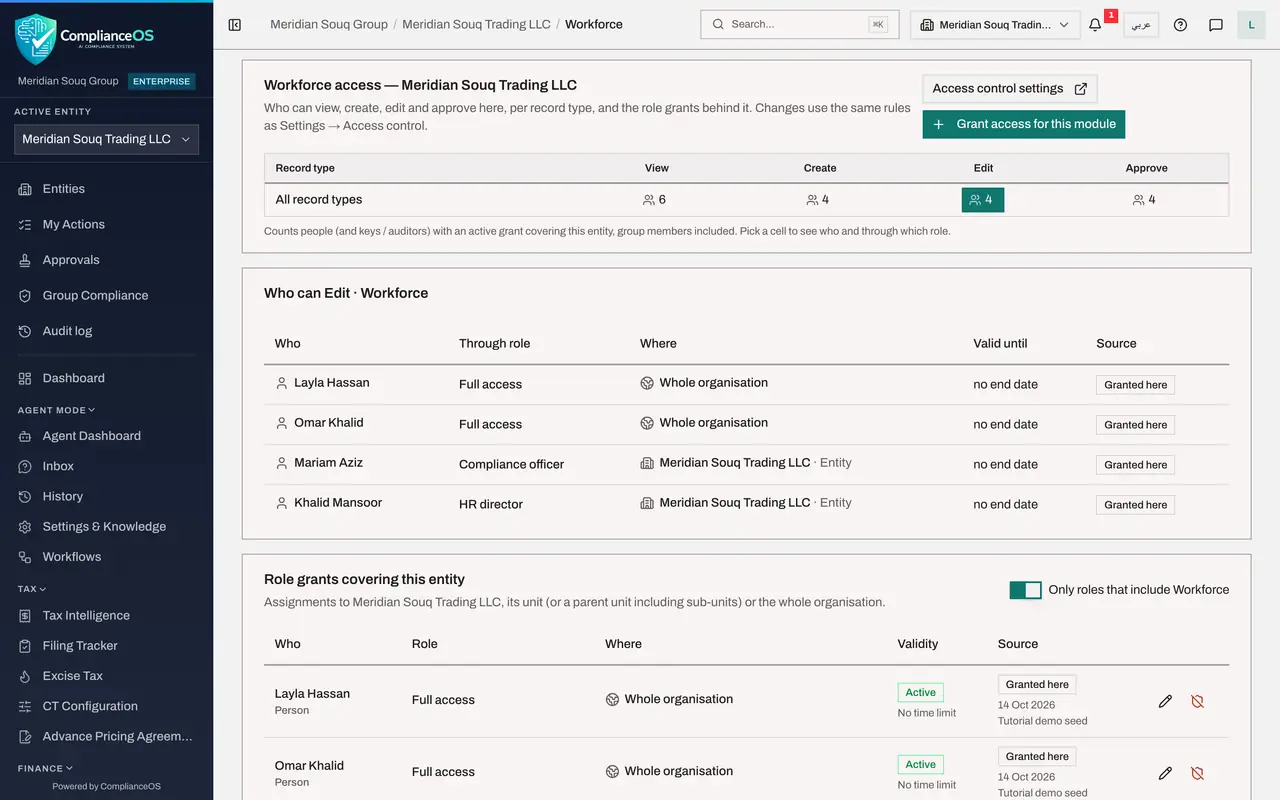
Open Workforce and select Access, the last tab. As an administrator you see the access to Workforce for the entity named in the heading. The text underneath says what the page shows: who can view, create, edit and approve here, and the role grants behind it.
- Select Access
- 2
Read the table
The table has one row, All record types, and four columns: View, Create, Edit and Approve. Each figure is the number of people who hold that right in this entity. Six people can view Workforce here, and four can create, edit and approve.
- 3
Select the figure under View
Every figure is a button. Select the 6 under View. A list opens below: who the six people are, the role each one holds, where the role was granted, whether it ends, and its source. The auditor is among them, through the read-only auditor role, and so is the tax manager, whose role lets her read Workforce without changing it.
- Select 6 people can View: All record types
- 4
Select the figure under Edit
Now select the 4 under Edit. The list changes to the people who can change employee records: the two administrators, the compliance officer and the HR director. The auditor is no longer on it.
- Select 4 people can Edit: All record types
- 5
Read the role grants
Scroll to Role grants covering this entity. Each row is one grant: the person, the role, where it applies, how long it is valid and where it came from. The last row is the Employee self-service role. It lets that employee see her own record and nothing else, which is why she is not counted in the table above. The two icons at the end of a row are Edit and Revoke: they change or withdraw the grant.
- 6
Select Grant access for this module
To give someone access, scroll back up and select Grant access for this module. The Grant role window opens. Where is already set to this entity. You choose who receives the role, which role, and optionally dates between which it is valid.
- Select Grant access for this module
- 7
Open the Role list
Open Role. Because you came from Workforce, the list shows only the roles that include it. HR director is the working role for the HR team; the auditor role reads without changing; Employee self-service is for a person's own record. Read-only, further down the window, keeps only the view and export rights of whichever role you pick.
- Select Choose a role
- 8
Close the window without granting
Press the Escape key to close the list, then select Cancel: nothing is granted in this lesson. Granting, changing and revoking roles is taught step by step in the course on organisation and access. The link Access control settings, beside the button, opens that part of the app.
- Select Cancel
How to check it worked
You can say how many people can view and how many can edit Workforce in this entity, name them, and name the role each of them holds.
Common mistakes
- Expecting the employee's own access to show under View. The Employee self-service role lets a person see only their own record, so it is listed under the role grants but not counted in the table.
- Granting HR director when the person only needs to look. Tick Read-only, or choose the auditor role, for people who must not change records.
- Forgetting that salaries need more than View. Salaries, IBANs and document scans are shown only to roles that include the right to see sensitive Workforce data.
Check your understanding
1. Where do you see which role gives a person their access to Workforce?
- A.On the person's employee record
- B.On the Access tab: select a figure in the table, and read the Through role column
- C.In the audit log only
- D.It is not shown anywhere
Show answer
Answer: B. On the Access tab: select a figure in the table, and read the Through role column
Each figure in the table opens the list of people behind it, with the role and the place where it was granted.
2. An HR assistant should be able to read the register but change nothing. What do you grant?
- A.Full access
- B.A role that includes Workforce, with Read-only ticked
- C.Employee self-service
- D.Nothing; everyone can read it
Show answer
Answer: B. A role that includes Workforce, with Read-only ticked
Read-only keeps only the view and export permissions of the role you grant.