Lesson 10 of 24
Follow a salary file: submitted, paid, rejected and void
What you will be able to do
This lesson is for the HR and payroll team. After a salary file leaves ComplianceOS you record what happened to it. You will mark last month's file as submitted and then as paid, see the payment record this creates for every employee, and mark an older file as rejected and void.
Before you start
- You are signed in with an HR role that may see salaries. In the demo company that is the HR director.
- Last month's salary file was generated in the previous lesson and has been uploaded to the exchange house outside ComplianceOS.
- A second file, for the month before, is also on the list with the status Generated. The exchange house refused that one.
Steps
- 1
Find the files on the WPS Payment Records tab
In Workforce select WPS Payment Records and look at Salary Information Files. Each row is one generated file with its salary month, name, number of employees, total and status. Both files here are still Generated: nothing has been recorded about them since they were downloaded.
- Select WPS Payment Records
- 2
Select Mark submitted on last month's file
You uploaded last month's file to the exchange house this morning. On its row select Mark submitted. The window explains that this records the upload. In Note, type something that will help later, such as the reference the agent gave you.
- Select Mark submitted
- Type Note:
Uploaded to the exchange house portal. Reference 4471.
- 3
Select Confirm
Select Confirm. The status changes to Submitted and your note is shown under it. The buttons on the row are now Mark paid, Mark rejected and Void.
- Select Confirm
- 4
Select Mark paid and enter the paid date
The exchange house has confirmed that the salaries were credited. Select Mark paid. In Paid date enter the day the employees received the money, not the day you are recording it. The date decides whether the payments count as on time.
- Select Mark paid
- Type Paid date:
2026-10-10
- 5
Select Confirm
Select Confirm. The status is now Paid, with the date underneath. Paid is final: the row keeps only the eye and the download icon.
- Select Confirm
- 6
Open the month under WPS Payment Records
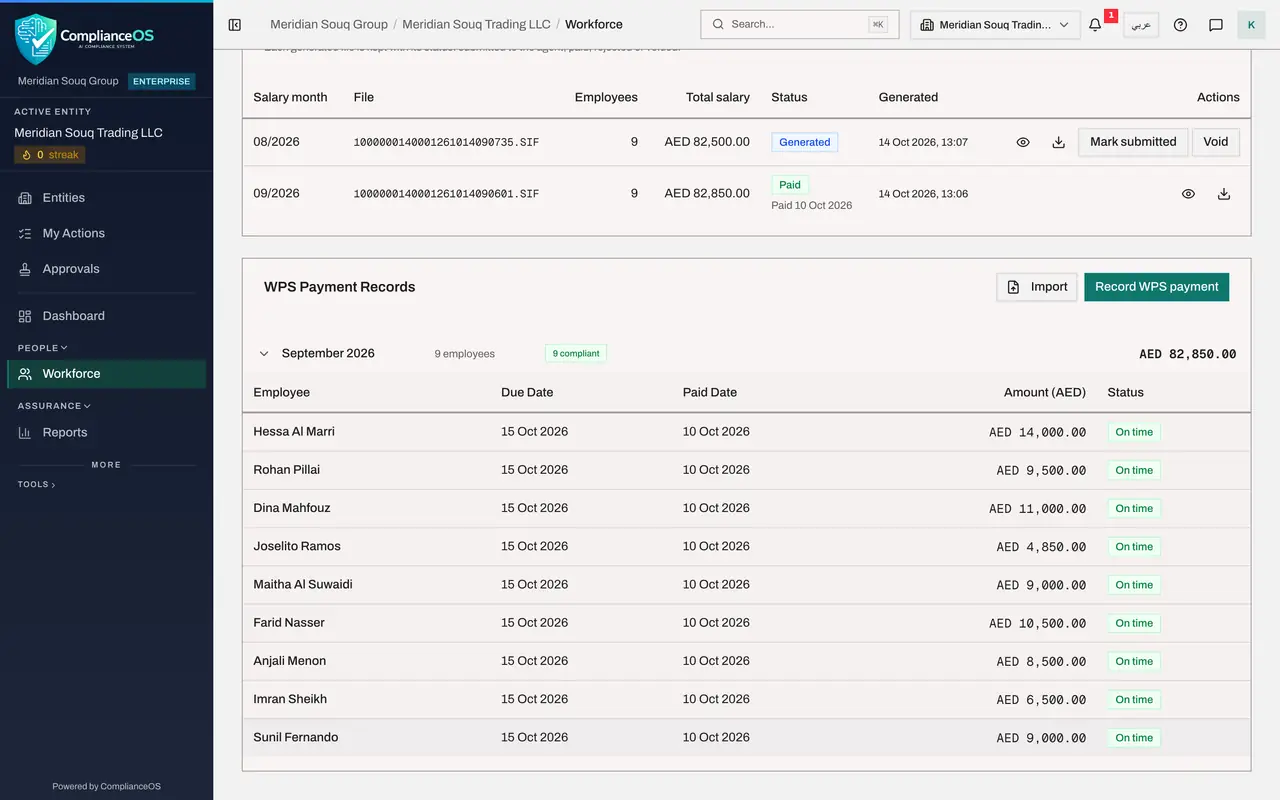
Scroll down to WPS Payment Records at the bottom of the tab. Marking the file as paid created a line for the month: nine employees, all compliant, and the total. Select the line to open it.
- 7
Read an employee's payment record
Each employee in the file has a record with the due date, the paid date, the amount and a status. The due date comes from the payment deadline in the employer set-up. The salaries were paid before it, so every record reads On time. Paid after the deadline, they would read Late.
- 8
Mark the older file as submitted
Now the older file. It was uploaded too, so scroll back up to Salary Information Files, select Mark submitted on its row and then Confirm. A note is optional.
- Select Mark submitted
- Select Confirm
- 9
Select Mark rejected and give the reason
The exchange house refused that file. Select Mark rejected and type the reason in Note, so that whoever prepares the corrected file knows what to fix. Then select Confirm.
- Select Mark rejected
- Type Note:
Rejected by the exchange house: one account was closed. - Select Confirm
- 10
Select Void to withdraw the file
A rejected file can only be voided. Select Void, then Confirm. The file stays on the list as part of the history, with the status Void, but it can no longer be downloaded or submitted. The month itself still needs a corrected file or payment records entered by hand, which the next lesson covers.
- Select Void
- Select Confirm
- 11
See the result on Overview
Select the Overview tab. The WPS Compliance card now has something to measure. Nine of the ten employees enrolled in WPS were paid on time last month, so the rate is ninety per cent. The tenth is the employee left out of the file; her payment is recorded by hand in the next lesson.
- Select Overview
How to check it worked
Last month's file shows the status Paid with the paid date. Under WPS Payment Records the month lists every employee in the file as On time. The older file shows Void and no longer has a download icon.
Common mistakes
- Marking a file as paid before the agent confirms. Paid cannot be changed afterwards, and it writes a payment record for every employee in the file.
- Entering today's date as the paid date out of habit. The paid date is the day the salaries reached the employees; it decides whether each payment counts as on time or late.
- Voiding a file that was only rejected for a small mistake and then forgetting to prepare a new one. Void withdraws the file; the month still has to be paid.
Check your understanding
1. What happens when you mark a file as paid?
- A.The bank is instructed to pay
- B.Each employee in the file gets a WPS payment record for the month, on time or late against the payment deadline
- C.The file is deleted
- D.Nothing, it is only a label
Show answer
Answer: B. Each employee in the file gets a WPS payment record for the month, on time or late against the payment deadline
Paid records the date the salaries were credited and creates the month's payment record for each employee, judged against the deadline in the employer set-up.
2. The exchange house rejects a file. Which statuses do you record, in order?
- A.Void only
- B.Mark rejected with the reason, then Void
- C.Mark paid, then Void
- D.Delete the file
Show answer
Answer: B. Mark rejected with the reason, then Void
Mark rejected keeps the reason on the record. A rejected file can only be voided; you then prepare a corrected file.