Lesson 19 of 24
What an auditor sees in Workforce
What you will be able to do
This lesson is for auditors and reviewers, and for HR staff who want to know what an auditor can see. With the read-only auditor role you can open every part of Workforce, but you cannot change anything, and salaries, bank details and document numbers are hidden. You will walk through each tab and one employee record.
Before you start
- You are signed in with the read-only auditor role. In the demo company that is Daniel Brooks.
- The HR team has registered employees, documents and salary payments, as in the earlier lessons.
Steps
- 1
Open Workforce from the side menu
Select Workforce under People in the side menu. You see the same page as the HR team: the counts, the Emiratisation rate and the WPS compliance rate, and the same seven tabs. What is missing are the buttons that change things: the cards on Overview have no Import and no Rebuild button.
- Select Workforce
- 2
Select the Employees tab
Select Employees. The whole register is listed, and the search, the filters and Show Terminated work as they do for HR. There is no Register Employee and no Import, and the rows have no Gratuity, Terminate or bin. The Salary column shows a dash for everyone: salaries are hidden from this role.
- Select Employees
- 3
Open an employee's record
Select a name to open the record. The Profile shows the personal and employment details, but Basic Salary and Allowances are rows of dots, and there is no Edit Employee button at the top.
- Select Aisha Farouk
- 4
Select the Documents tab
Select Documents. You can see which documents are on record, when they expire and their status. The number is masked except for its last digits. Under Scan, On file tells you a scan exists; opening it is reserved for HR staff with the right to see sensitive data and for the employee.
- Select Documents
- 5
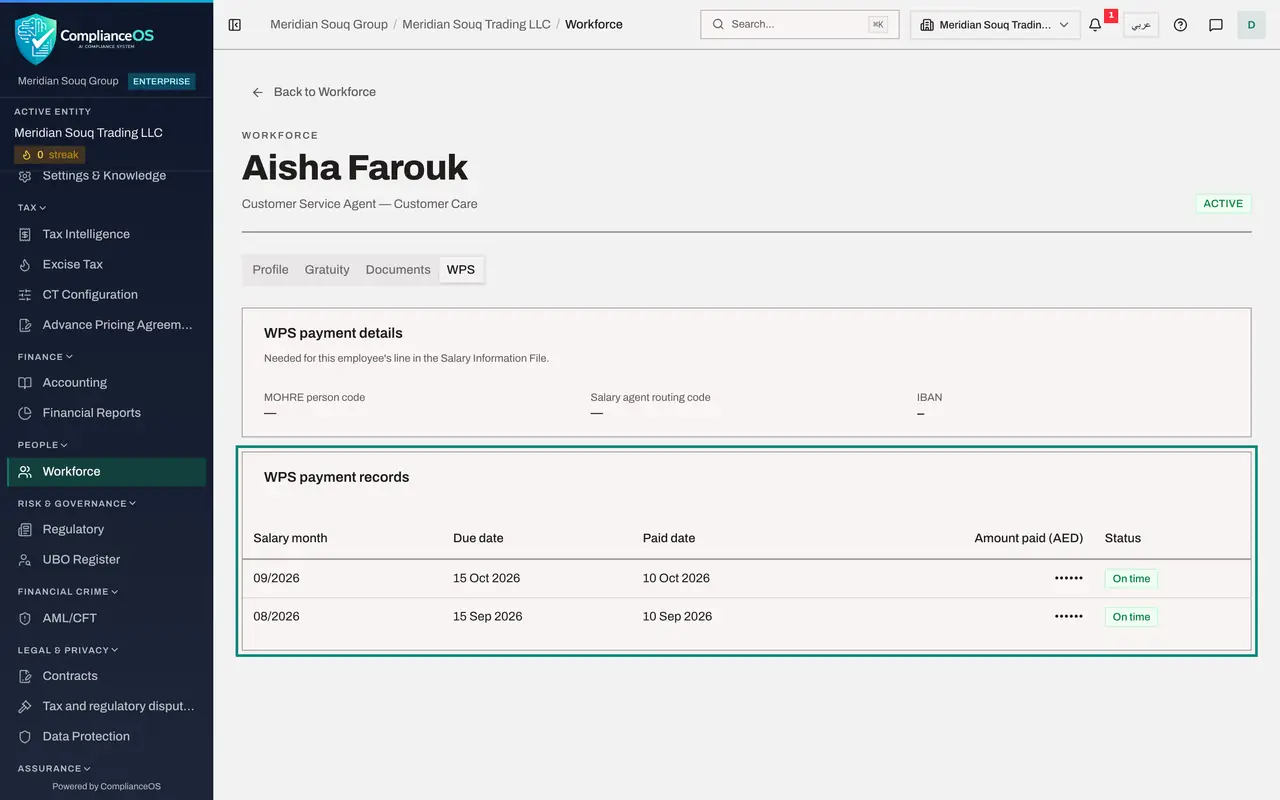
Select the WPS tab
Select WPS. The payment details show whether a person code, a routing code and an IBAN are recorded, with the IBAN masked. Under WPS payment records each month has its dates and status, and the amount paid is hidden behind dots.
- Select WPS
- 6
Select the Gratuity tab
Select Gratuity. The Calculate Gratuity button is greyed out: working out an estimate needs the right to edit Workforce.
- Select Gratuity
- 7
Go back and select WPS Payment Records
Select Back to Workforce, then the WPS Payment Records tab. You can read the employer set-up. In place of the list of salary files, a note says that preparing and viewing Salary Information Files needs access to salary data. The payment records at the bottom show each month with the number of employees and their statuses, without amounts.
- Select Back to Workforce
- Select WPS Payment Records
- 8
Select Expiring documents
Select Expiring documents. The list of documents that have expired or are about to is fully available, with the document numbers masked. This is the quickest place to test whether HR follows up visas and Emirates IDs in time.
- Select Expiring documents
- 9
Select Settings
Select Settings. The Emiratisation target and the rules for leavers and document reminders can be read, including what is in force, but the fields are greyed out and there is no Save button.
- Select Settings
- 10
Select Export CSV
Export CSV, at the top right of the page, is available to this role. Select it. The file lists the employees with their number, nationality, job, department, contract type, dates and status, but without the salary column. Each export is recorded in the audit log under your name.
- Select Export CSV
How to check it worked
You have found where the register, the documents, the payment records and the settings are, and you can tell a hidden value, shown as dots or a dash, from a value that was never entered.
Common mistakes
- Reporting a dash in the Salary column as a missing salary. For a reader without the right to see sensitive data the dash means hidden; point at it and the tip says so.
- Asking HR for the salary files through this screen. Salary Information Files are shown only to people with access to salary data; ask HR to send what your audit needs.
- Looking for an Edit button. This role is read-only by design; findings go back to HR to correct.
Check your understanding
1. On an employee's Profile, Basic Salary shows a row of dots. What does that mean for an auditor?
- A.No salary was entered
- B.The value is hidden because this role may not see sensitive Workforce data
- C.The salary is zero
- D.The page failed to load
Show answer
Answer: B. The value is hidden because this role may not see sensitive Workforce data
Dots are a mask. HR roles with the right to see sensitive data, and the employee themselves, see the amount.
2. Which of these can the read-only auditor do in Workforce?
- A.Register an employee
- B.Terminate an employee
- C.Read every tab and open employee records
- D.Change the reminder settings
Show answer
Answer: C. Read every tab and open employee records
The role can read everything that is not sensitive. It has no create, edit or delete rights.