Lesson 12 of 24
Follow the Emiratisation rate and set the entity's target
What you will be able to do
This lesson is for the HR team. Emiratisation is the share of a company's employees who are UAE nationals, which the law requires larger private employers to raise each year. You will read the current rate, see what counts towards it, build the month-by-month trend, give the entity its own target and go back to the legal default.
Before you start
- You are signed in with an HR role that can edit employees. In the demo company that is the HR director.
- Every employee who is a UAE national has the UAE National box ticked on their record.
Steps
- 1
Read the Emiratization card on Overview
Open Workforce. On the Overview tab, the Emiratization card shows the status, the current ratio, the target and the count: two of the eleven active employees are UAE nationals, a little over eighteen per cent. The same rate is the large figure at the top of the page.
- 2
See what counts, on the Employees tab
Select the Employees tab. The Emirati column shows Yes for the employees whose record has the UAE National box ticked. Those are the people who count; what is typed in Nationality does not. To change it, open the record and use Edit Employee.
- Select Employees
- 3
Select Rebuild from hire and exit dates
Go back to Overview and scroll to Emiratisation trend. The chart fills by itself with one point on the first of each month. To see the past as well, select Rebuild from hire and exit dates: the app works out each earlier month end from the employees' start and leaving dates.
- Select Overview
- Select Rebuild from hire & exit dates
- 4
Select Show monthly figures
The solid line is the Emirati ratio and the dashed line the target. A note under the chart says the earlier months were reconstructed. Select Show monthly figures for the table behind the chart: headcount, Emiratis, ratio, target and where each figure came from. Not subject means the entity had fewer employees than the headcount at which the target applies.
- Select Show monthly figures
- 5
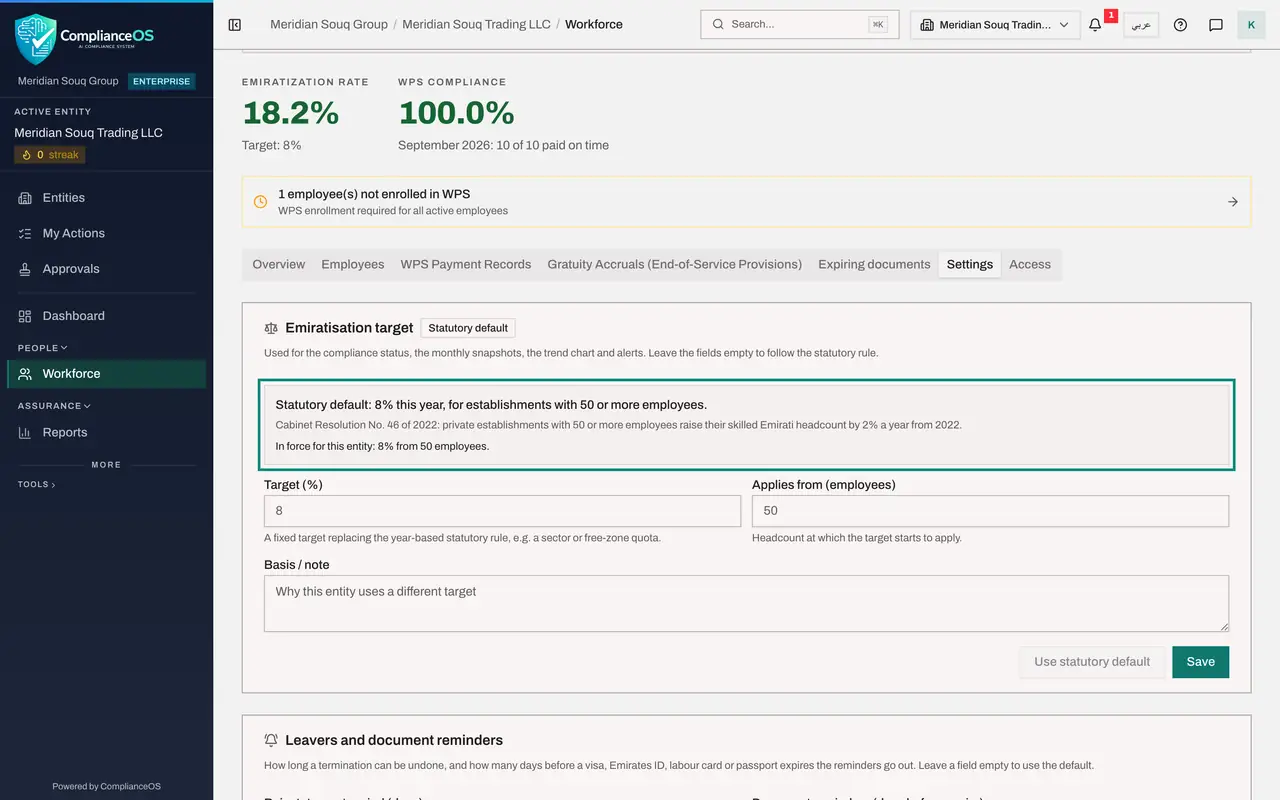
Open the Settings tab
Select the Settings tab. The first card is Emiratisation target. The grey box states the legal rule with its source, and what is in force for this entity. The badge beside the title reads Statutory default: the entity follows the law, which applies the target from fifty employees.
- Select Settings
- 6
Enter the entity's own target
Suppose the group has decided that its retail companies aim higher than the law. In Target type 25, for twenty-five per cent. In Applies from type 10, so that the target counts from ten employees instead of fifty.
- Type Target (%):
25 - Type Applies from (employees):
10
- Type Target (%):
- 7
Give the reason and select Save
In Basis or note write why this entity differs, so that an auditor can follow it. Then select Save in this card. The message Workforce settings saved appears, the badge changes to Entity setting, and the grey box shows the new rule in force.
- Type Basis / note:
Group policy 2026: retail entities aim for 25 per cent Emirati staff f… - Select Save
- Type Basis / note:
- 8
See the effect on Overview
Select Overview. The status is now Non-compliant against a target of twenty-five per cent, and the card says how many more Emirati hires are needed. The same message appears as a warning above the tabs, where the whole HR team sees it.
- Select Overview
- 9
Go back to the legal rule
To drop the entity's own target, return to Settings and select Use statutory default. The fields are emptied, the badge reads Statutory default again and the entity follows the law. The demo company carries on with the legal rule.
- Select Settings
- Select Use statutory default
How to check it worked
With the entity's own target saved, the Emiratization card on Overview shows the new target and the status, and a warning says how many more Emirati employees are needed. After Use statutory default, the card shows the legal target again.
Common mistakes
- Expecting the nationality field to drive the rate. Only the UAE National tick on the employee's record counts.
- Reading Compliant as proof that the quota is met. An entity below the headcount at which the target applies is shown as compliant because it is not subject to the quota.
- Setting an entity target and leaving Basis or note empty. In a year's time nobody will remember why this entity differs from the law.
Check your understanding
1. What makes an employee count towards the Emiratisation rate?
- A.Nationality typed as UAE
- B.The UAE National tick on their record, while they are an active employee
- C.Being enrolled in WPS
- D.Holding an Emirates ID
Show answer
Answer: B. The UAE National tick on their record, while they are an active employee
The rate divides active employees with the UAE National tick by all active employees.
2. The Settings tab shows the badge Statutory default beside Emiratisation target. What does that mean?
- A.The entity has its own target
- B.The entity follows the legal rule: the target for the year, applied from fifty employees
- C.The target is switched off
- D.Settings could not be loaded
Show answer
Answer: B. The entity follows the legal rule: the target for the year, applied from fifty employees
With the fields empty the entity follows the statutory rule. A saved target of its own changes the badge to Entity setting.