Lesson 2 of 24
Register an employee, field by field
What you will be able to do
This lesson is for the HR team. You will add one new employee to the register by hand and learn what every field in the Register Employee form is for, what a good value looks like and what happens when a field is left empty.
Before you start
- You are signed in with an HR role that can add employees. In the demo company that is the HR director.
- You have the person's contract in front of you: full legal name, start date, job title, department and basic monthly salary.
- The person is invented for training, like everyone in these lessons.
Steps
- 1
Select the Employees tab
In Workforce select Employees. The register lists one person so far. Register Employee, at the top right of the list, adds one person at a time.
- Select Employees
- 2
Select Register Employee
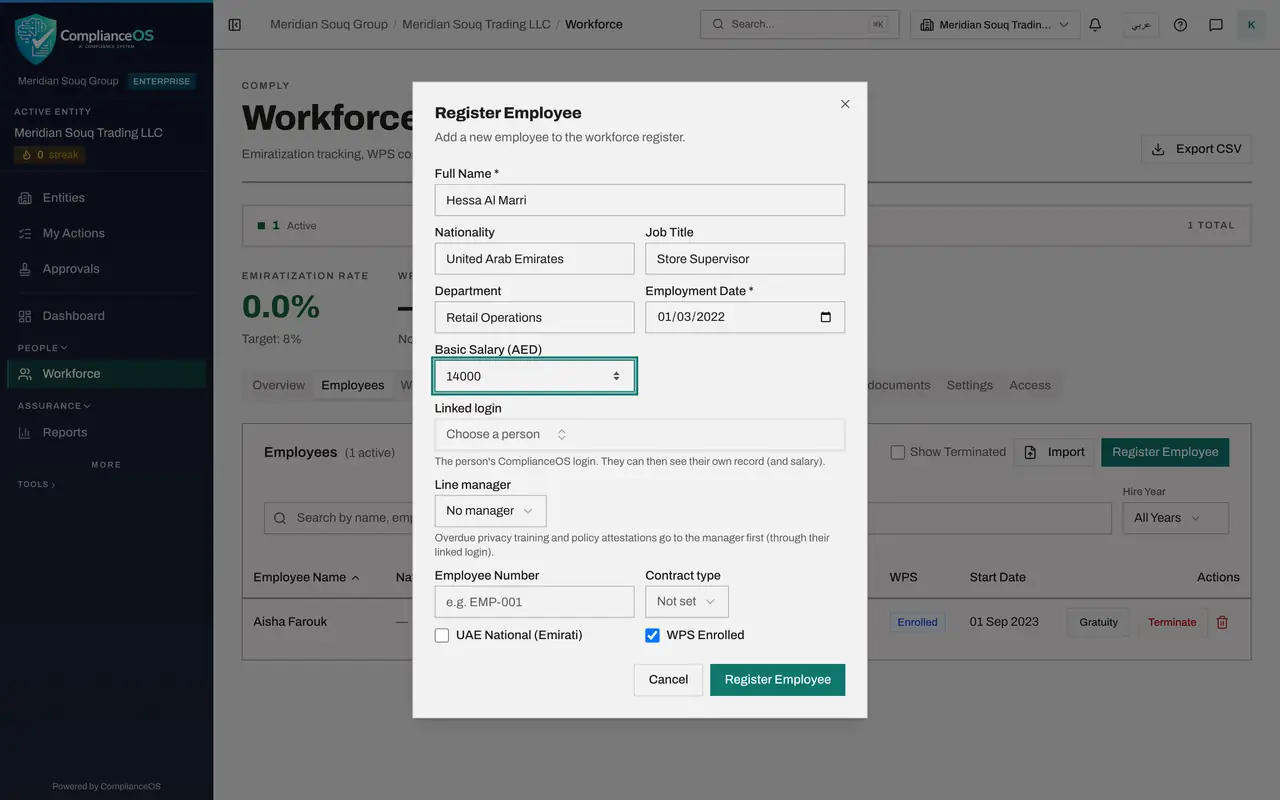
Select Register Employee. The form opens. Fields with a star are required: Full Name and Employment Date. The others can be completed later, but the more you enter now, the less there is to chase.
- Select Register Employee
- 3
Enter the full name
In Full Name type the name exactly as it appears on the passport or the contract. When you save, this name is screened against sanctions lists, and it is the name used in salary files and exports.
- Type Full Name *:
Hessa Al Marri
- Type Full Name *:
- 4
Enter nationality, job title and department
Nationality is a country: type its name or code, such as UAE, and the field recognises it. Job Title and Department are plain text; type them the same way for everyone, because the Employees list offers a filter for each department exactly as typed. Left empty, the list shows a dash and the person cannot be found by those filters.
- Type Nationality:
UAE - Type Job Title:
Store Supervisor - Type Department:
Retail Operations
- Type Nationality:
- 5
Enter the employment date
Employment Date is the first day of work under the contract. Length of service, and with it the end-of-service gratuity, is counted from this date, so take it from the contract and not from the day you happen to register the person.
- Type Employment Date *:
2022-03-01
- Type Employment Date *:
- 6
Enter the basic salary
Basic Salary is the monthly basic pay in dirhams, without allowances, typed as a plain number. Gratuity is worked out from it, and it is the starting figure for the monthly salary file. If you leave it empty, the employee's line in the salary file is flagged until an amount is entered.
- Type Basic Salary (AED):
14000
- Type Basic Salary (AED):
- 7
Open Linked login to see what it offers
Linked login lists the people who can sign in to ComplianceOS. Choose one only when the new employee has a login of their own: they can then open their own record and see their own salary. This employee has no login, so close the list without choosing anyone.
- Select Choose a person
- 8
Choose the line manager
Press the Escape key to close the list of logins. Line manager offers the employees already on the register. Overdue privacy training and policy sign-offs are reported to the manager first. This person's manager is not registered yet, so choose No manager; it can be set later with Edit Employee.
- Select No manager
- Choose No manager
- 9
Enter the employee number and the contract type
Employee Number is your own HR or payroll reference. It must be different for every employee, and it is how the person is named outside this module, for instance on the compliance calendar. Contract type records the kind of contract; choose Limited, fixed term, for a standard UAE contract.
- Type Employee Number:
MSQ-0102 - Select Not set
- Choose Limited (fixed term)
- Type Employee Number:
- 10
Tick UAE National and check WPS Enrolled
Tick UAE National, Emirati, only for a UAE citizen: it counts the person towards the Emiratisation rate. WPS Enrolled is already ticked. Leave it ticked for everyone whose salary is paid through the wage protection system; untick it only for someone paid outside it.
- Select UAE National (Emirati)
- 11
Select Register Employee to save
Select Register Employee at the bottom of the form. The message Employee registered appears and the form closes. The new person is in the list straight away, with the status Active.
- Select Register Employee
- 12
Open the new record
Select the name to open the record. The Profile tab repeats what you entered under Personal Information and Employment Details. Linked login shows Not linked and Line manager shows No manager, as chosen.
- Select Hessa Al Marri
How to check it worked
The new employee is in the Employees list with the status Active, Yes under Emirati and Enrolled under WPS, and the count next to the Employees heading has gone up by one.
Common mistakes
- Typing the name differently from the passport or contract. The name is checked against sanctions lists when you register, and it is printed in salary files and exports.
- Leaving Basic Salary empty to fill in later and then forgetting. Gratuity and the monthly salary file both need it.
- Ticking UAE National for anyone who is not a UAE citizen. The tick is what counts the person towards the Emiratisation rate.
Check your understanding
1. Which two fields must be filled in before Register Employee will save?
- A.Full Name and Employment Date
- B.Full Name and Basic Salary
- C.Employee Number and Nationality
- D.Job Title and Department
Show answer
Answer: A. Full Name and Employment Date
Full Name and Employment Date carry a star. Everything else can be added later with Edit Employee.
2. What is the Linked login field for?
- A.It sends the employee an invitation by e-mail
- B.It connects the record to the person's own sign-in, so that they can see their own record
- C.It chooses who approves the registration
- D.It records the person's line manager
Show answer
Answer: B. It connects the record to the person's own sign-in, so that they can see their own record
A record linked to a login is what the employee sees under My employee record. Most employees have no login, and the field stays empty.