Lesson 22 of 24
How this connects: calendar, evidence, sanctions screening and the audit log
What you will be able to do
This lesson is for compliance officers, and for HR staff who want to know where their work shows up elsewhere. What HR records in Workforce is picked up by other parts of ComplianceOS without anyone typing it twice. You will follow four of those connections: document expiry dates on the compliance calendar, snapshots in the evidence vault, sanctions screening of new employees, and the audit log.
Before you start
- You are signed in as the compliance officer. In the demo company that is Mariam Aziz, who can open the calendar, the evidence vault, the sanctions section and the audit log.
- The HR team has registered employees and their documents, prepared a salary file and recorded a leaver, as in the earlier lessons.
Steps
- 1
Open the Calendar
Select Calendar in the side menu. The compliance calendar gathers deadlines from every module. Under Upcoming deadlines, the entries marked employee document are the visas, Emirates IDs, labour cards and passports recorded in Workforce, each on its expiry date. They are named by employee number, never by the person's name.
- Select Calendar
- 2
Find the overdue document
The Overdue tile at the top counts one item past its date: the passport that HR's own list showed as expired. When HR records a renewal, the calendar entry moves to the new expiry date by itself.
- 3
Open the Evidence Vault
Select Evidence Vault in the side menu. Each time an employee is registered or terminated, a small sealed snapshot of the event is filed here automatically, with Workforce as its source, a fingerprint and a retention period. You can show an auditor that the event was recorded and has not been altered since.
- Select Evidence Vault
- 4
Open the sanctions screening checks
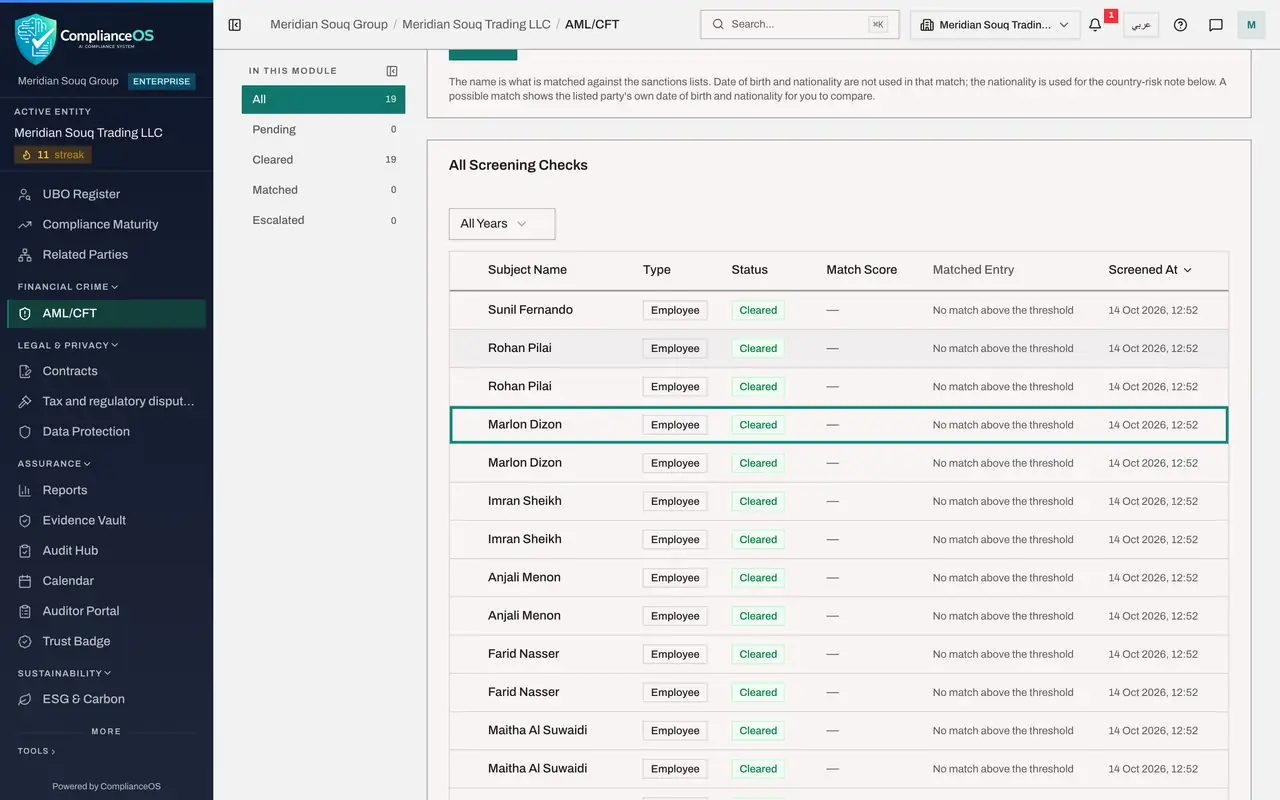
Select AML/CFT in the side menu, then the Screening tab. Under All Screening Checks, every employee appears with the type Employee: their name was screened against sanctions lists at the moment HR registered or imported them. The row shows the status, the closest list entry, here no match above the threshold, and when the check ran. Screening runs in the background after an import; until it finishes a name is listed as not screened, never as clear.
- Select AML/CFT
- Select Screening
- 5
Open the Audit log
Select Audit log in the side menu. Every action taken in Workforce is listed here with the time, the action, the kind of record, the entity and the person who did it. Type terminate in the search box to narrow the list: the two terminations recorded in this course appear, each with the HR director's name.
- Select Audit log
- Type Search by action name:
terminate
- 6
Select Details on an entry
Select Details at the end of a row. The entry opens to show what was recorded about the action: for a termination, the date, the type and the journal entry it posted. Hide closes it again.
- Select Details
- 7
Search for the salary file
Replace the search with wps. The salary file leaves the same kind of trail: generated, downloaded, and each change of status, with the person and the time. Exports of the register are logged in the same way.
- Type Search by action name:
wps
- Type Search by action name:
How to check it worked
You have found an employee document on the compliance calendar by its employee number, an Employee Created snapshot in the evidence vault, an employee's name among the sanctions screening checks, and a Workforce action in the audit log with the name of the person who did it.
Common mistakes
- Searching the calendar for an employee's name. Outside Workforce an employee is named by employee number only, to keep personal data out of shared screens.
- Treating a Cleared screening as the end of the matter for ever. Screening happens when a person is registered; the sanctions lessons explain re-screening.
- Looking in the evidence vault for scans of visas. Document scans stay on the employee's record; the vault holds sealed snapshots of events.
Check your understanding
1. How does an employee's visa expiry get on the compliance calendar?
- A.The compliance officer adds it by hand
- B.It is created automatically when HR records the document, and follows any renewal
- C.It is imported once a year
- D.It does not appear there
Show answer
Answer: B. It is created automatically when HR records the document, and follows any renewal
Each recorded document has a calendar entry of the type employee document, dated on the expiry date and named by employee number.
2. Where can you prove who terminated an employee, and when?
- A.Only by asking HR
- B.In the audit log, under the action Employee Terminated, with the actor and the time
- C.On the Overview tab of Workforce
- D.In the salary file
Show answer
Answer: B. In the audit log, under the action Employee Terminated, with the actor and the time
Every Workforce action is written to the audit log with the person, the time and the record concerned.