Lesson 8 of 24
Set up the wage protection system: employer and employee details
What you will be able to do
This lesson is for the HR and payroll team. Before the first salary file can be prepared, the wage protection system, or WPS, needs two sets of details: the employer's, entered once for the entity, and each employee's. You will enter both and learn what every field is.
Before you start
- You are signed in with an HR role that can edit employees. In the demo company that is the HR director.
- You have the company's establishment ID from the Ministry of Human Resources and Emiratisation, the routing code of the bank or exchange house that pays the salaries, and the company's IBAN.
- For each employee you have the person code from the labour card and the IBAN their salary is paid to. All numbers in this lesson are invented.
Steps
- 1
Select the WPS Payment Records tab
In Workforce select the third tab. Its first card holds the employer set-up for the wage protection system. These details go into the closing line of every Salary Information File, the file a bank or exchange house needs in order to pay salaries through the system.
- Select WPS Payment Records
- 2
Select Edit set-up
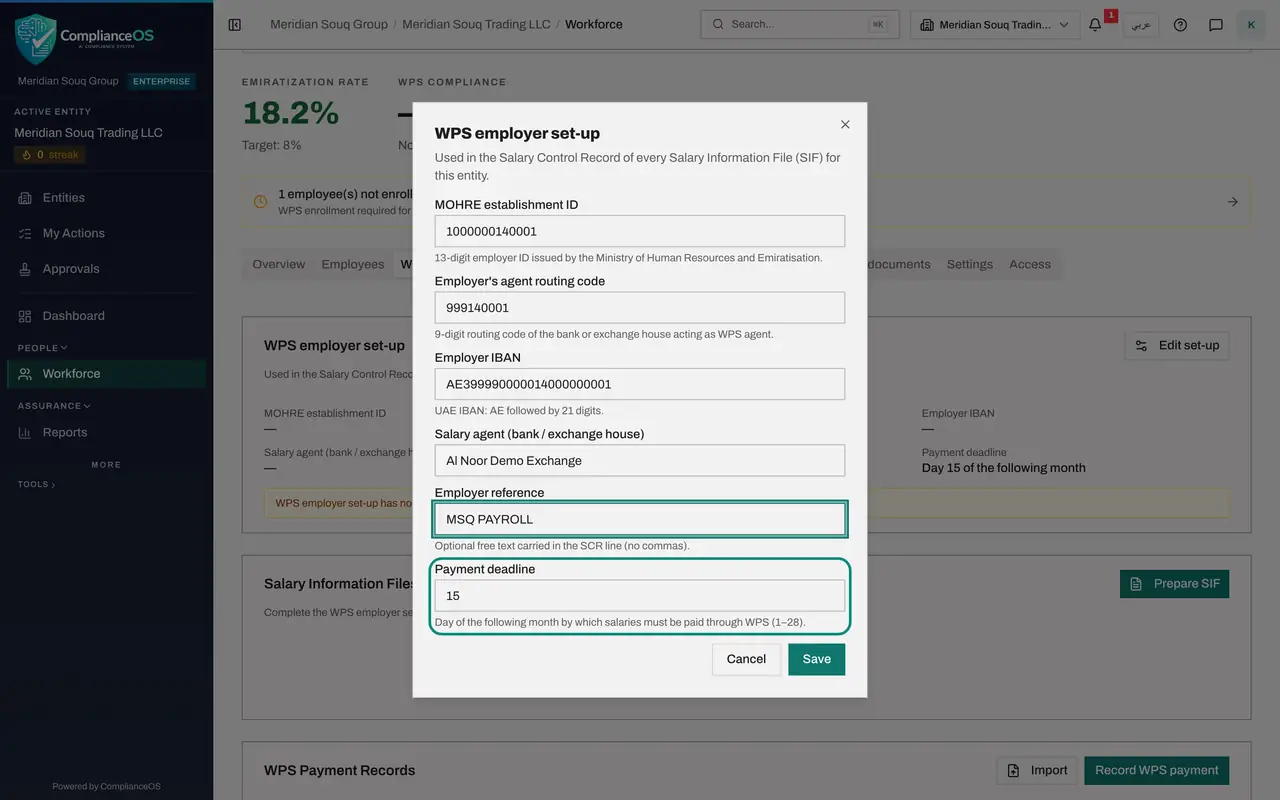
Select Edit set-up. The form has six fields. A short note under most of them says what is expected.
- Select Edit set-up
- 3
Enter the establishment ID
MOHRE establishment ID is the thirteen-digit employer number issued by the Ministry of Human Resources and Emiratisation. It identifies the company in the file and begins the file's name.
- Type MOHRE establishment ID:
1000000140001
- Type MOHRE establishment ID:
- 4
Enter the agent's routing code and the employer IBAN
Employer's agent routing code is the nine-digit code of the bank or exchange house that acts as the company's WPS agent. Employer IBAN is the company account the salaries are paid from: the letters A E followed by twenty-one digits.
- Type Employer's agent routing code:
999140001 - Type Employer IBAN:
AE399990000014000000001
- Type Employer's agent routing code:
- 5
Enter the agent's name and a reference
Salary agent is the name of that bank or exchange house, for your own records. Employer reference is optional free text that travels in the file, such as a payroll label. Do not use commas in it.
- Type Salary agent (bank / exchange house):
Al Noor Demo Exchange - Type Employer reference:
MSQ PAYROLL
- Type Salary agent (bank / exchange house):
- 6
Check the payment deadline
Payment deadline is the day of the following month by which salaries must be paid. It starts at 15. When a salary file is later marked as paid, each payment is judged on time or late against this day. Leave it unless your company has agreed a different day.
- 7
Select Save
Select Save. The message WPS set-up saved appears. The card now shows every detail, the amber warning has gone, and the line under Salary Information Files no longer asks you to complete the set-up first.
- Select Save
- 8
Open an employee's WPS tab
Each employee needs payment details too. Select the Employees tab, open the store supervisor's record and select its WPS tab. The amber note says the details are incomplete and that this employee cannot be included in a salary file until they are filled in.
- Select Employees
- Select Hessa Al Marri
- Select WPS
- 9
Select Edit details and enter the person code
Select Edit details. MOHRE person code is the fourteen-digit personal number printed on the employee's labour card. It is how the ministry recognises the employee in the file.
- Select Edit details
- Type MOHRE person code:
10014002000017
- 10
Enter the routing code and the IBAN
Salary agent routing code is the nine-digit code of the bank or exchange house that holds this employee's account. It can differ from the company's. IBAN is the account the salary is paid to.
- Type Salary agent routing code:
999140001 - Type IBAN:
AE159990000014002002222
- Type Salary agent routing code:
- 11
Select Save
Select Save. The message Payment details saved appears, the three details are shown and the amber note has gone. Repeat this for every employee who is enrolled in WPS. An employee paid outside the system is left out by unticking WPS Enrolled in Edit Employee.
- Select Save
How to check it worked
The WPS employer set-up card shows all the details with no amber warning under it, and the employee's WPS tab shows the person code, routing code and IBAN without the note that payment details are incomplete.
Common mistakes
- Typing an IBAN with a wrong digit. The IBAN is checked when you save, and one that fails the check is refused with the message that the details could not be saved.
- Entering the company's own bank routing code for an employee who is paid through a different bank. The employee's routing code belongs to the agent that holds the employee's account.
- Putting a comma in the employer reference. The salary file separates its fields with commas.
Check your understanding
1. How often is the WPS employer set-up entered?
- A.Every month, with each file
- B.Once for the entity, then only when something changes
- C.Once for each employee
- D.Never: it is filled in by the bank
Show answer
Answer: B. Once for the entity, then only when something changes
The set-up belongs to the entity and is reused in every salary file. Change it only when the agent, account or establishment changes.
2. An employee's WPS tab says payment details are incomplete. What follows?
- A.Nothing; it is only a reminder
- B.The employee's line in the salary file is flagged and the file cannot be generated with that line
- C.The employee is removed from the register
- D.The salary is paid in cash
Show answer
Answer: B. The employee's line in the salary file is flagged and the file cannot be generated with that line
The file needs the person code, the routing code and the IBAN for every employee in it. A line without them must be completed or left out.