Lesson 6 of 24
Record an employee's visa, Emirates ID and other documents
What you will be able to do
This lesson is for the HR team. You will record an employee's residence visa and Emirates ID with their expiry dates, attach a scan, download it again, record a renewal and delete a document that was entered by mistake.
Before you start
- You are signed in with an HR role that can edit employees. In the demo company that is the HR director.
- You have the documents in front of you, or scans of them as PDF, PNG or JPEG files of no more than 10 megabytes each.
- The employee is on the register. Employees added by import may already have their documents; this one has none.
Steps
- 1
Select the Documents tab
On the employee's record select Documents. The tab keeps four kinds of document: residence visa, Emirates ID, labour card and passport. Nothing has been recorded for this employee yet.
- Select Documents
- 2
Select Add document
Select Add document. The form asks for three things: which document it is, its number and its expiry date. The line at the top reminds you that there is one record for each document, and that a renewal is an edit of that record.
- Select Add document
- 3
Choose the document
Open Document and choose Residence visa. The list offers only the kinds this employee does not have yet.
- Select Choose a document
- Choose Residence visa
- 4
Enter the number
Type the number printed on the document. It is optional and is stored encrypted: people without the right to see sensitive data see it masked. The number here is invented for training.
- Type Number:
201/0000/0140001
- Type Number:
- 5
Enter the expiry date and select Save
Expiry date is required, because the reminders are counted back from it. Enter the date printed on the visa and select Save. The visa is listed with an amber status that says in how many days it expires.
- Type Expiry date *:
2026-11-23 - Select Save
- Type Expiry date *:
- 6
Add the Emirates ID the same way
Select Add document again, choose Emirates ID, type its number and its expiry date, and select Save. This one expires more than a year from now, so its status is a green Valid.
- Select Add document
- Select Choose a document
- Choose Emirates ID
- Type Number:
784-0000-0140001-0 - Type Expiry date *:
2027-11-18 - Select Save
- 7
Select Attach scan on the visa row
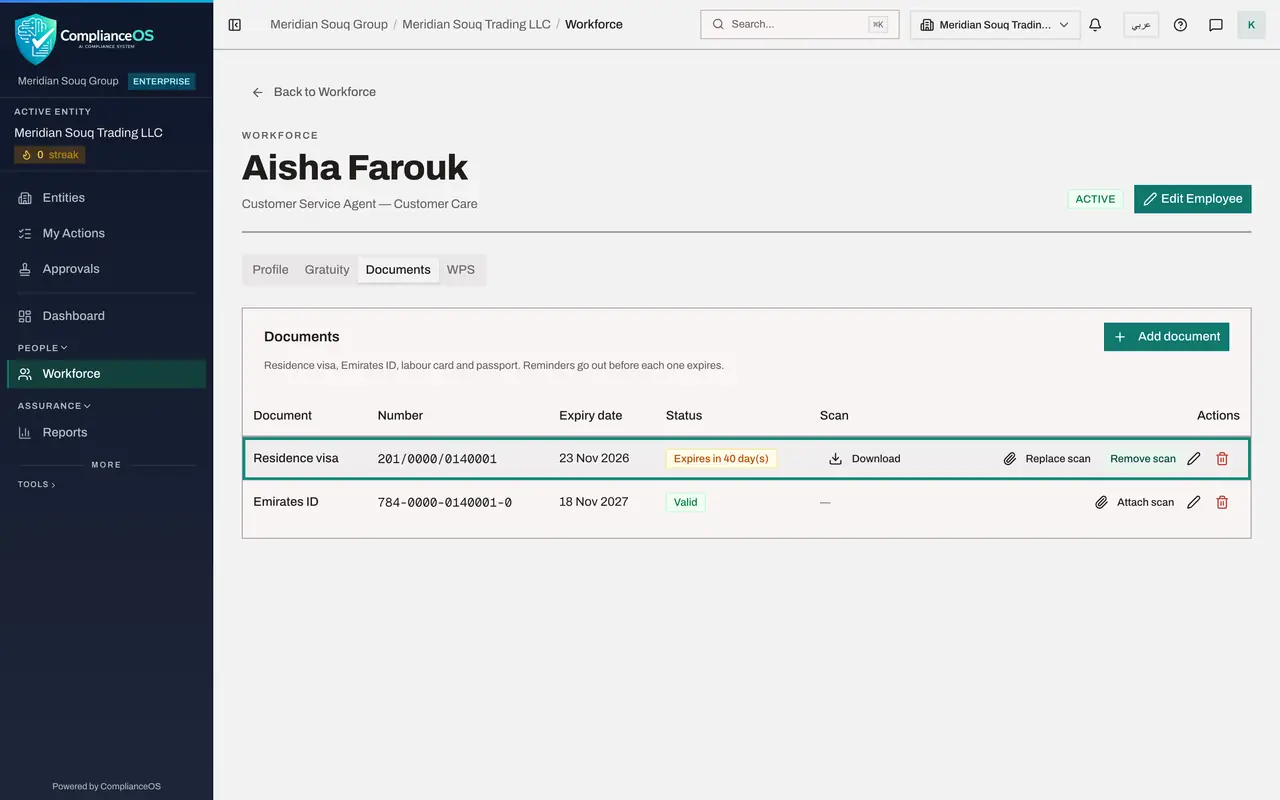
A scan is optional. Select Attach scan on the visa row and pick the file on your computer: a PDF, PNG or JPEG. The message Scan attached appears, and the Scan column now offers Download.
- Select Attach scan
- Upload Choose a file:
visa-page-blurred.pdf
- 8
Select Remove scan
The file turned out to be a blurred copy. Remove scan deletes the file and keeps the record. Replace scan, beside it, swaps the file for another in one go.
- Select Remove scan
- 9
Attach the right file
Select Attach scan again and pick the clear copy.
- Select Attach scan
- Upload Choose a file:
aisha-farouk-residence-visa.pdf
- 10
Select Download to open the scan
Download saves the scan to your computer under its original file name. Only HR staff who may see sensitive data, and the employee whose document it is, can download a scan.
- Select Download
- 11
Select the pencil to record a renewal
The visa has been renewed. Select the pencil at the end of the visa row; its name is Edit document. The form opens with the document fixed. Number shows the number on record in grey: leave the field alone to keep it.
- Select Edit document
- 12
Enter the new expiry date and select Save
Type the new expiry date and select Save. The status changes to Valid, and the reminders now count back from the new date.
- Type Expiry date *:
2028-11-22 - Select Save
- Type Expiry date *:
- 13
Select the bin on a document entered by mistake
Suppose the Emirates ID was typed on the wrong employee's record. Select the red bin at the end of its row; its name is Delete document. The app asks you to confirm, because the record, its scan and its reminders all go.
- Select Delete document
- 14
Confirm with Delete
Select Delete. The message Document removed appears and only the residence visa remains. Add document is still offered for the three kinds not yet recorded.
- Select Delete
How to check it worked
The employee's Documents tab lists the residence visa with its new expiry date, the status Valid and a Download button under Scan. The Emirates ID entered by mistake is no longer listed.
Common mistakes
- Adding a second record when a visa is renewed. There is one record for each kind of document: edit it and enter the new expiry date.
- Typing the number again when you only change the date. Leave Number empty in the edit form and the number on record is kept.
- Attaching a photo in a format the app does not take. Scans must be PDF, PNG or JPEG.
Check your understanding
1. An employee's residence visa has been renewed. How do you record it?
- A.Add document, and choose Residence visa again
- B.Select the pencil on the visa row and enter the new expiry date
- C.Delete the old record first
- D.Upload the new scan; the date is read from it
Show answer
Answer: B. Select the pencil on the visa row and enter the new expiry date
Each employee has one record for each kind of document. A renewal is an edit of that record, and the reminders follow the new date.
2. What does an amber status such as Expires in 40 days mean?
- A.The document has expired
- B.The expiry date falls inside the reminder period set for this entity
- C.The scan is missing
- D.The number was not entered
Show answer
Answer: B. The expiry date falls inside the reminder period set for this entity
Amber means the document expires within the longest reminder period, ninety days unless the entity changed it. Green is Valid, red is Expired.