Lesson 3 of 24
Import employees from a file
What you will be able to do
This lesson is for the HR team. You will download the import template, load ten employees from a file in one go, read the result line by line, correct the one row that was refused and import it with a second file.
Before you start
- You are signed in with an HR role that can add employees.
- You have a spreadsheet of the employees to add, saved as a CSV or Excel file, with the column names of the template in its first row.
- Every employee number in the file is different, and none is already used on the register.
Steps
- 1
Select Import on the Employees tab
In Workforce select Employees, then Import, next to Register Employee. The Import Employees window opens. It accepts a CSV file or an Excel file.
- Select Employees
- Select Import
- 2
Select Template to download the layout
Select Template. An Excel file is saved to your computer with the column names in the right order, three sample rows and a sheet of instructions. Three columns are required: full name, is Emirati, written as TRUE or FALSE, and employment date. The others are optional and include the number and expiry date of the visa, Emirates ID, labour card and passport.
- Select Template
- 3
Select Choose File and pick your file
Fill in your own copy, one row for each employee, with dates written year, month, day. Then select Choose File and pick the file on your computer. Here it is called new joiners and holds ten rows. Its name appears next to the button.
- Select Choose File
- Upload Choose a file:
new-joiners.csv
- 4
Select Import
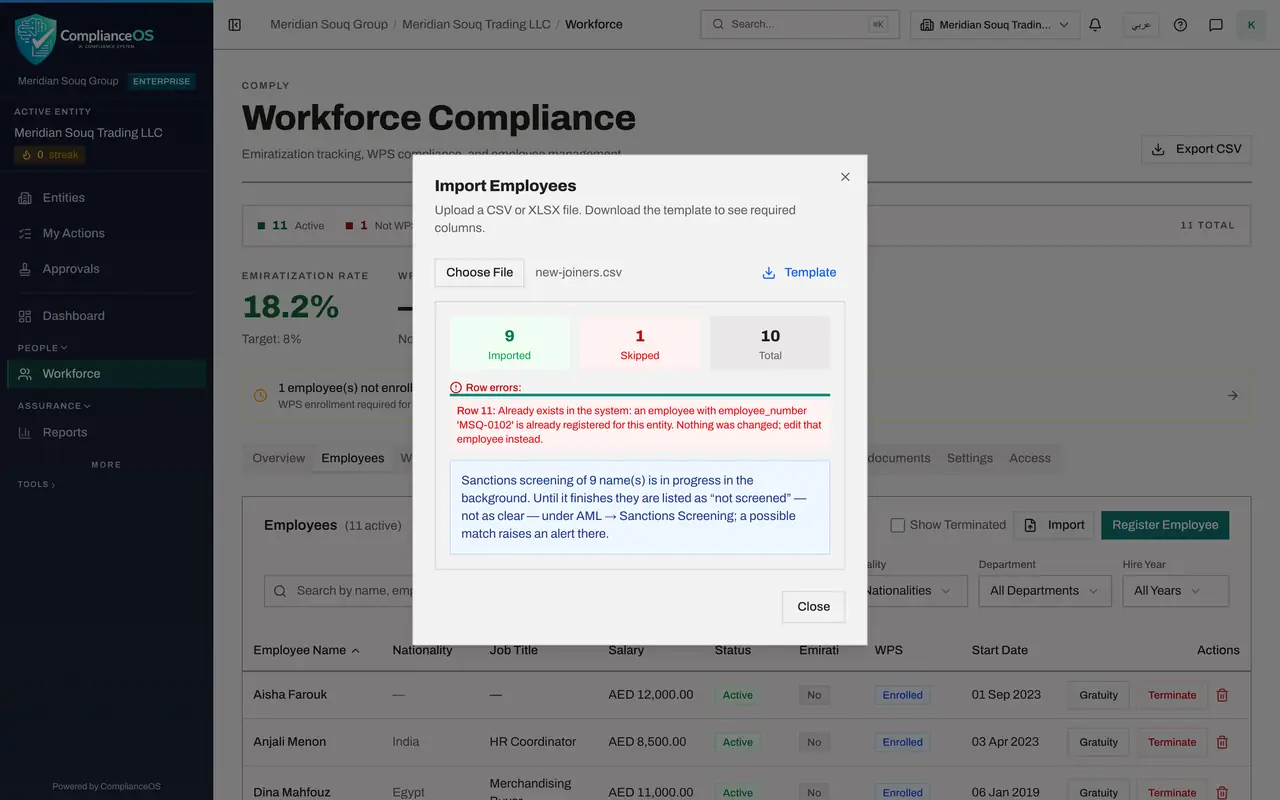
Select Import. Each row is checked and the accepted employees are created at once. The result box shows three figures: Imported, Skipped and Total: nine of the ten rows went in and one was skipped. A note says that the new names are being screened against sanctions lists in the background; until that finishes they are listed as not screened, never as clear.
- Select Import
- 5
Read why the row was skipped
Under Row errors every skipped row is listed with its row number and the reason. Row 1 is the line of column names, so row 11 is the tenth employee. The reason here: the employee number in that row already belongs to someone on the register. Nothing was changed for that row.
- 6
Select Close and look at the list
Select Close. The nine imported employees are in the list with the two who were there before, and the count beside the heading reads eleven active.
- Select Close
- 7
Import the corrected row in a second file
In your spreadsheet, give the refused employee a number that is not in use and save that one row, with the column names, as a second file. Select Import, Choose File, pick the corrected file and select Import. Do not send the first file again: its other rows would all be refused as already existing.
- Select Import
- Select Choose File
- Upload Choose a file:
new-joiners-corrected.csv - Select Import
- 8
Close the result and find the new employee
One row imported, none skipped. Select Close, then type the name in the search box above the list to find the employee you just added.
- Select Close
- Type Search by name, employee number, job title or department…:
Sunil
- 9
Open the record and select Documents
Select the name to open the record, then the Documents tab. The residence visa, Emirates ID, labour card and passport from the file are already listed, each with its number, expiry date and a status. Nothing more needs typing for imported employees.
- Select Sunil Fernando
- Select Documents
How to check it worked
The result box shows how many rows were imported and how many were skipped, every skipped row has a reason, and the imported employees are in the Employees list. Their Documents tab already holds the visa, Emirates ID, labour card and passport from the file.
Common mistakes
- Importing the whole file again after a correction. Rows that are already on the register are refused as already existing; put only the corrected rows in the second file.
- Typing dates as day, month, year. The file needs year, month, day with dashes, for example 2026-03-01.
- Filling in a document number without its expiry date. The row is refused, because the expiry date is what the reminders are based on.
Check your understanding
1. The result says one row was skipped because the employee number already exists. What do you do?
- A.Import the same file again
- B.Give that row a number that is not in use and import that row on its own
- C.Delete the employee who has the number
- D.Nothing: the row was imported anyway
Show answer
Answer: B. Give that row a number that is not in use and import that row on its own
A skipped row changes nothing. Correct it and import only that row; the rows that went in the first time would be refused as already existing.
2. Which three columns must be filled in for every row?
- A.full_name, is_emirati and employment_date
- B.full_name, nationality and job_title
- C.employee_number, department and basic_salary_aed
- D.full_name, visa_number and visa_expiry
Show answer
Answer: A. full_name, is_emirati and employment_date
The template marks those three with a star. The other columns are optional, though salary and employee number are worth filling in.