Lesson 4 of 24
Find employees, filter the list and remove a duplicate
What you will be able to do
This lesson is for the HR team. You will find people in the Employees list with the search box, the three filters and the column headings, see what the list shows when nothing matches, delete a record that was entered twice, and learn what Export CSV gives you.
Before you start
- You are signed in with an HR role. In the demo company that is the HR director.
- The register holds the twelve employees added in the earlier lessons. One of them was typed twice in the import file, with two spellings of the same name.
Steps
- 1
Open the Employees tab and read the count
In Workforce select Employees. The figure in brackets beside the heading counts the active employees of this entity: twelve. The list is in alphabetical order of name.
- Select Employees
- 2
Search by name
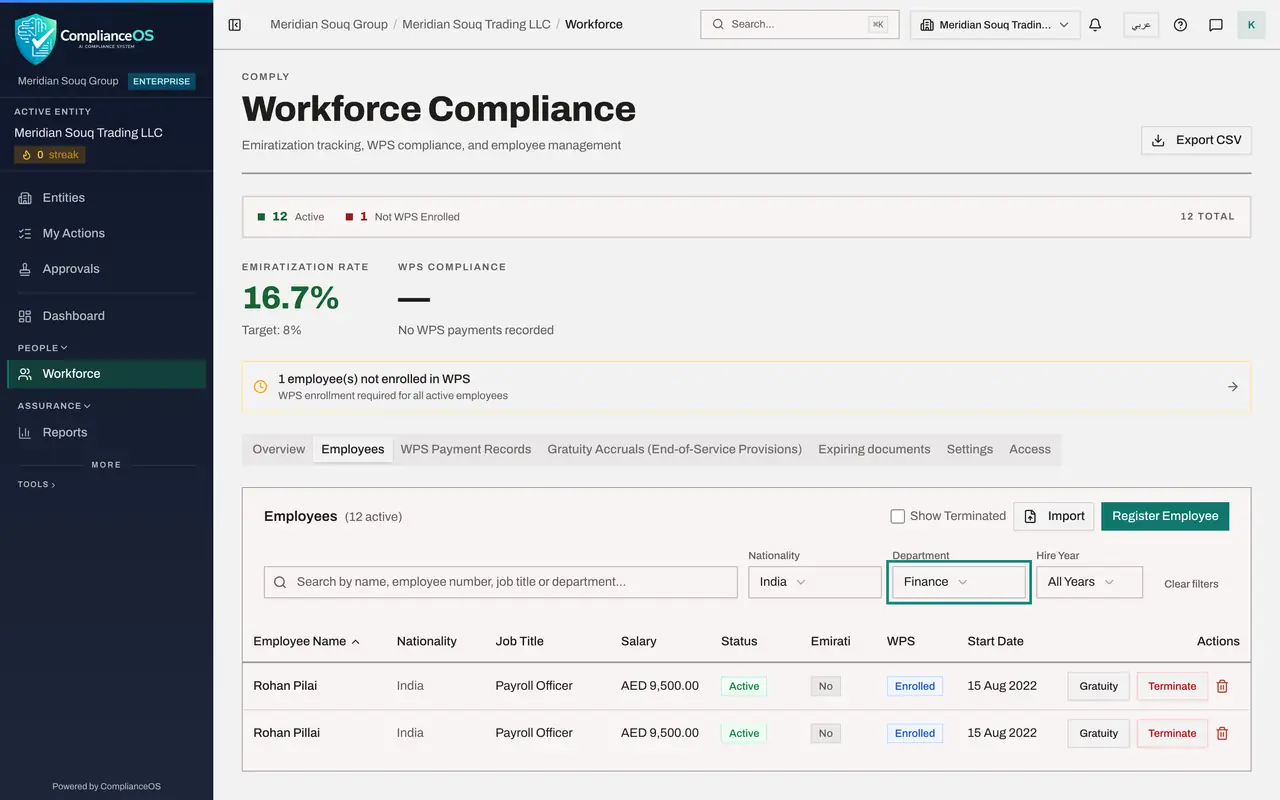
Type part of a name in the search box. The list narrows as you type. Typing Rohan finds two rows: the same payroll officer was entered twice, with two spellings of the family name. The second row is the mistake and is removed later in this lesson.
- Type Search by name, employee number, job title or department…:
Rohan
- Type Search by name, employee number, job title or department…:
- 3
Search by department or job title
The same box also searches the employee number, the job title and the department. Replace the text with Logistics: the list now shows the people of that department.
- Type Search by name, employee number, job title or department…:
Logistics
- Type Search by name, employee number, job title or department…:
- 4
See what an empty result looks like
Type a word that matches nobody. The list says No employees found and reminds you to clear the search or filters. Nothing is wrong with the register.
- Type Search by name, employee number, job title or department…:
Quality
- Type Search by name, employee number, job title or department…:
- 5
Select Clear filters
Clear filters appears at the end of the filter row whenever a search or a filter is on. Select it to see everyone again.
- Select Clear filters
- 6
Filter by nationality
Open the Nationality list and choose India. The list offers every nationality typed on the register, exactly as typed, which is why it pays to type them the same way each time.
- Select Nationality
- Choose India
- 7
Add the department filter
Filters work together. Open Department and choose Finance: the list now shows only employees from India who work in Finance.
- Select Department
- Choose Finance
- 8
Filter by hire year
Select Clear filters, then open Hire Year and choose the entry for 2025. Only people whose employment date falls in that year remain. The figures at the top of the page have not moved through any of this: they always count the whole entity.
- Select Clear filters
- Select Year
- Choose 2025
- 9
Sort by a column
Select Clear filters once more. Then select a column heading to sort the list by that column. Select Start Date: the newest starters come first, a small arrow beside the heading shows the direction, and a second click on the same heading reverses the order.
- Select Clear filters
- Select Start Date
- 10
Find the duplicate and select the bin icon
Now remove the record that was entered twice. Search for the misspelt family name, check the row is the wrong one, and select the red bin icon at the end of the row. Its name is Delete Employee.
- Type Search by name, employee number, job title or department…:
Pilai - Select Delete Employee
- Type Search by name, employee number, job title or department…:
- 11
Confirm with Delete
The window names the person and warns that this cannot be undone. Select Delete. The message Employee deleted appears and the row is gone. Use this only for a record that should never have existed; someone who has left is recorded with Terminate instead.
- Select Delete
- 12
Clear the search and check the count
Select Clear filters. The count beside the heading has dropped to eleven active, and one payroll officer remains.
- Select Clear filters
- 13
Select Export CSV
Export CSV, at the top right of the page, saves the register as a file you can open in a spreadsheet. It takes every employee that matches the search and filters in force, leavers included when Show Terminated is ticked, and it carries the salary column only for people who are allowed to see salaries. Select it: the file is downloaded and a message says how many employees it holds. Each export is written to the audit log.
- Select Export CSV
How to check it worked
After you clear the filters, the list shows every active employee again, the duplicate record is gone and the count beside the Employees heading is one lower.
Common mistakes
- Using the bin icon for someone who has left. Delete removes the record altogether and cannot be undone; a leaver is recorded with Terminate, which keeps the history.
- Forgetting a filter is still on. If the list looks short, look for Clear filters at the end of the filter row.
- Reading the figures at the top of the page as the result of your search. They always count the whole entity.
Check your understanding
1. What can you type in the search box to find an employee?
- A.Only the employee number
- B.Part of the name, the employee number, the job title or the department
- C.Only the full name, exactly
- D.The salary
Show answer
Answer: B. Part of the name, the employee number, the job title or the department
The search looks in all four: name, employee number, job title and department.
2. You registered the same person twice by mistake. How do you remove the extra record?
- A.Terminate it
- B.Select the bin icon on its row and confirm Delete
- C.Untick WPS Enrolled
- D.Leave it; duplicates are merged automatically
Show answer
Answer: B. Select the bin icon on its row and confirm Delete
Delete removes a record that should never have existed. Terminate is for a real employee who has left.