Lesson 20 of 24
For every employee: see your own record
What you will be able to do
This lesson is for any employee who has a ComplianceOS login. You can look at the record HR holds about you: your job details and salary, your documents and their expiry dates, and your salary payments. You cannot change it; if something is wrong, you ask HR.
Before you start
- You are signed in with your own login. In the demo company the employee is Aisha Farouk, a customer service agent.
- HR has linked your login to your employee record. Without that link the page says no employee record is linked to your login.
Steps
- 1
Select Workforce in the side menu
Select Workforce under People. As an employee you do not get the HR workspace. The page is called My employee record and shows one card: your name and job, your employment date, basic salary, employee number and whether you are enrolled in the wage protection system, or WPS.
- Select Workforce
- 2
Select Open my record
Select Open my record. The Profile tab shows what HR has recorded about you. Unlike other readers, you see your own basic salary and allowances. Line manager reads Assigned when HR has named your manager.
- Select Open my record
- 3
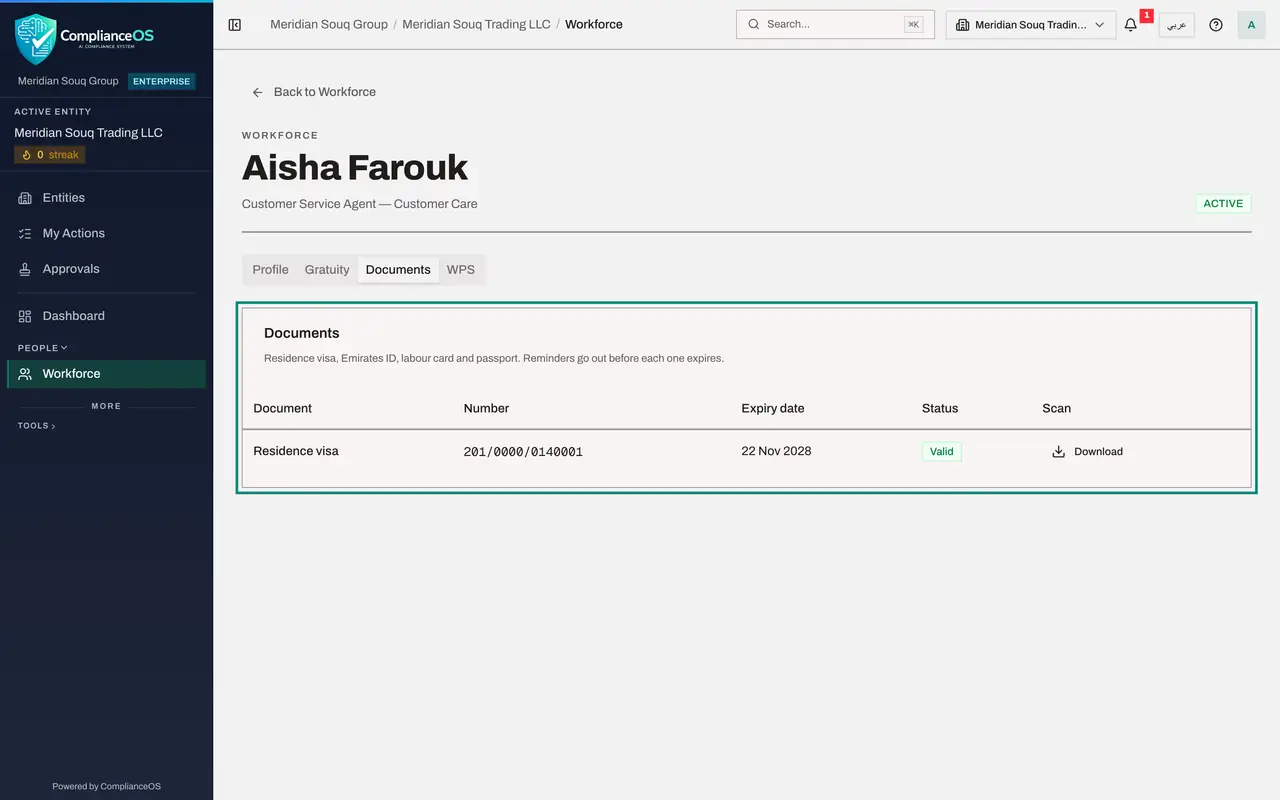
Select the Documents tab
Select Documents. Here are the documents HR holds for you, with their numbers, expiry dates and a status. Green means valid, amber means it expires soon, red means it has expired. There are no buttons to add or change a document.
- Select Documents
- 4
Download the scan of your own document
Where HR attached a scan, the Scan column has a Download button. Select it to save your own copy.
- Select Download
- 5
Select the WPS tab
Select WPS. The top card shows the payment details HR holds for your salary: person code, routing code and IBAN. Below it, WPS payment records lists your salary months with the due date, the date paid, the amount and whether it was on time.
- Select WPS
- 6
Select the Gratuity tab
Select Gratuity. The Calculate Gratuity button is greyed out: an estimate of your end-of-service payment is something HR runs for you. If anything on these four tabs is wrong, tell HR; they are the only ones who can change it.
- Select Gratuity
How to check it worked
You have opened your own record, seen your salary on the Profile tab, found the expiry date of your visa on the Documents tab and found last month's salary payment on the WPS tab.
Common mistakes
- Looking for an Edit button. Your record is kept by HR; tell them what needs correcting.
- Expecting to see colleagues. With the employee role you see your own record only.
- Ignoring an amber or red status on a document. It means the document is about to expire or has expired: speak to HR about the renewal.
Check your understanding
1. You notice your job title is wrong on your record. What do you do?
- A.Select Edit Employee
- B.Ask HR to correct it
- C.Register yourself again
- D.Nothing can be done
Show answer
Answer: B. Ask HR to correct it
The page says it at the top: this is your record as held by HR, and HR corrects anything that is wrong.
2. Who can download the scan of your residence visa?
- A.Every colleague
- B.You, and HR staff who may see sensitive data
- C.Nobody
- D.Only the auditor
Show answer
Answer: B. You, and HR staff who may see sensitive data
A scan can be opened by the employee it belongs to and by HR staff with the right to see sensitive data.