Lesson 1 of 24
A tour of Workforce
What you will be able to do
This lesson is for the HR team. You will open Workforce and walk through its seven tabs while the register is still almost empty, so that you know what each part is for and what it looks like before any work has been done.
Before you start
- You are signed in with an HR role. In the demo company that is Khalid Mansoor, the HR director.
- The entity you work for is selected at the top of the screen. Workforce is kept separately for each entity.
Steps
- 1
Select Workforce in the side menu
Workforce is under People in the menu on the left. Select it. The page opens with the title Workforce Compliance and, underneath, a row of seven tabs.
- Select Workforce
- 2
Read the figures at the top
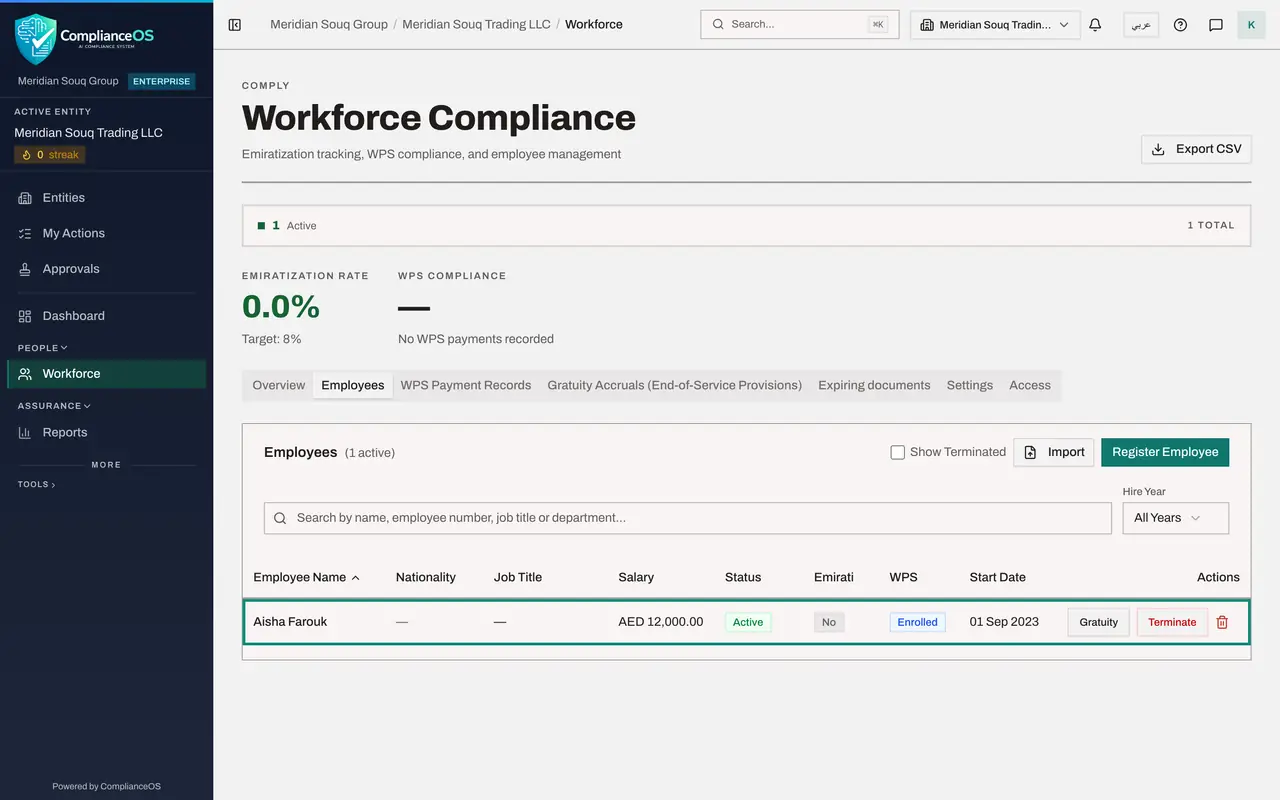
The strip under the title counts the employees of this entity by status. Below it are two large figures: the Emiratisation rate, which is the share of employees who are UAE nationals, shown against its target, and the compliance rate of the wage protection system, or WPS. The dash means no salary payments have been recorded yet.
- 3
Look at the Overview tab
Overview opens first. The Emiratization card shows the status, the current ratio, the target and how many employees are UAE nationals. The company has one employee so far, and she is not a UAE national.
- 4
Read the WPS Compliance card
The WPS Compliance card counts the employees enrolled in the wage protection system and how many were paid on time last month and in the last three months. Import on this card loads payment results from a file; a later lesson uses it.
- 5
Scroll down to the Emiratisation trend
The last card on Overview charts the Emirati ratio at each month end against the target. It is empty for now: a snapshot is recorded automatically on the first of each month, and Rebuild from hire and exit dates fills in the past.
- 6
Select the Employees tab
Employees is the register itself: one row for each person, with nationality, job title, salary, status, whether they are Emirati and enrolled in WPS, and the start date. Above the table are the search box, the filters, Show Terminated, Import and Register Employee. The only person so far is the employee who was set up with the company.
- Select Employees
- 7
Select the WPS Payment Records tab
This tab has three parts. WPS employer set-up holds the company's own details for the salary file. Salary Information Files lists each monthly file you prepare for the bank or exchange house. WPS Payment Records, at the bottom, shows what was paid to each employee, month by month. All three are empty at the start.
- Select WPS Payment Records
- 8
Select the Gratuity Accruals tab
Gratuity is the end-of-service payment owed to an employee when they leave. This tab lists, for each current employee, the years of service, the amount that builds up each month and the total provision so far. The two totals at the top right add up the whole entity.
- Select Gratuity Accruals (End-of-Service Provisions)
- 9
Select the Expiring documents tab
Expiring documents lists residence visas, Emirates IDs, labour cards and passports that have expired or will expire soon. Nothing is expiring because no documents have been recorded yet.
- Select Expiring documents
- 10
Select the Settings tab
Settings holds the rules for this entity. The first card is the Emiratisation target. The second, Leavers and document reminders, sets how long a termination can be undone and how many days before a document expires the reminders go out.
- Select Settings
- 11
Select the Access tab
Access shows who holds which rights in Workforce. Only people who administer access see the list. As HR director you see a note asking you to contact your security administrator; an administrator's view is shown in a later lesson.
- Select Access
How to check it worked
You can name the seven tabs of Workforce and say where you would go to add an employee, prepare a salary file, see documents that are about to expire and change the module's settings.
Common mistakes
- Looking for an employee from another company of the group. Workforce shows one entity at a time: change the entity at the top of the screen first.
- Reading the dash under WPS Compliance as a problem. A dash means no salary payments have been recorded for the last three months, so there is nothing to measure yet.
- Expecting the Access tab to list people. Only those who administer access see that list; everyone else sees a short note.
Check your understanding
1. Where do you add a new employee?
- A.On the Overview tab
- B.On the Employees tab, with Register Employee or Import
- C.On the Settings tab
- D.On the Access tab
Show answer
Answer: B. On the Employees tab, with Register Employee or Import
The Employees tab holds the register. Register Employee adds one person and Import adds many from a file.
2. The WPS Compliance figure at the top shows a dash. What does that mean?
- A.Salaries were paid late
- B.Nobody is enrolled in the wage protection system
- C.No salary payments are recorded for the last three months
- D.You do not have permission to see it
Show answer
Answer: C. No salary payments are recorded for the last three months
The rate is only worked out from recorded payments. With none in the last three months there is nothing to measure.