Lesson 21 of 24
What you see without access to Workforce
What you will be able to do
This lesson is for anyone whose role does not include Workforce, and for HR staff who are asked why a colleague cannot open a link. Employee records are personal data, so most roles cannot see them. You will see what the app shows instead, and what to do next.
Before you start
- You are signed in with a role that does not include Workforce. In the demo company that is Noura Salem, the legal counsel.
- A colleague in HR has sent you a link to the Workforce page.
Steps
- 1
Look for Workforce in the side menu
Your side menu is built from your role. As legal counsel you have Contracts, disputes and Data Protection, but there is no People group and no Workforce entry.
- 2
Open the link you were sent
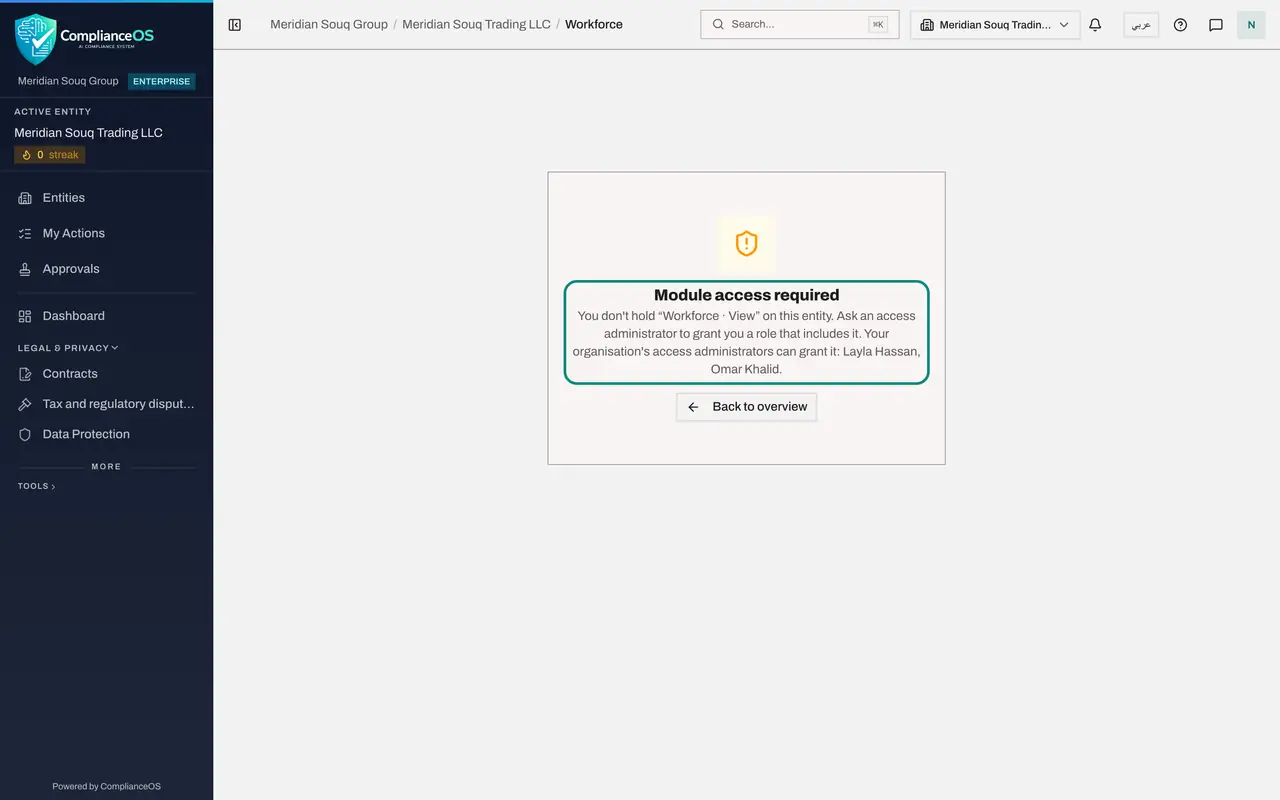
A colleague sends you a link to the Workforce page, and you open it. Instead of the register, the page says Module access required. The sentence underneath names what is missing: you do not hold the right to view Workforce on this entity.
- 3
Read who can grant it
The same message tells you what to do and whom to ask: an access administrator can grant you a role that includes Workforce, and the administrators of your organisation are named. Write to one of them, say which entity you need, and ask for read-only access if you only need to look.
- 4
Select Back to overview
Select Back to overview to return to the entity's dashboard and carry on with your own work.
- Select Back to overview
How to check it worked
You can explain why the page says Module access required, and you know to ask an access administrator, not HR, for a role that includes Workforce.
Common mistakes
- Asking HR to share their login. Every person signs in as themselves; ask for the right role instead.
- Assuming the link is broken. The page opens, and tells you plainly which permission is missing.
- Asking HR to grant the access. The message names the people who can: your organisation's access administrators.
Check your understanding
1. The page says Module access required, you don't hold Workforce View on this entity. What does that mean?
- A.The app is down
- B.Your role does not include the right to view Workforce in this entity
- C.The employee was deleted
- D.You typed the wrong password
Show answer
Answer: B. Your role does not include the right to view Workforce in this entity
The message names the missing permission and the entity. Access is granted for each entity through roles.
2. Who can give you access to Workforce?
- A.Any colleague
- B.A person who administers access, by granting you a role that includes Workforce
- C.The employee whose record it is
- D.Nobody
Show answer
Answer: B. A person who administers access, by granting you a role that includes Workforce
Roles are granted by access administrators. HR can support the request but cannot grant it unless they also administer access.