Lesson 20 of 21
What the accountant can and cannot do in VAT
What you will be able to do
This lesson is for accountants, and for managers who decide who gets which role. Signed in as the accountant, you will see where the role stops: the VAT set-up can be read but not saved, the access view is closed, filed transactions are locked, and corrections and VAT groups belong to other roles. You will also delete a transaction you entered by mistake, which the accountant can do while a period is open.
Before you start
- You are signed in as the accountant, Ahmed Saleh.
- The third quarter of 2026 is filed and locked. The fourth quarter is open.
- In the earlier lessons the accountant imported, added, edited and classified transactions and computed the return. The tax manager approved, overrode, and filed.
Steps
- 1
Select Setup, then VAT Config
In Tax Intelligence select Setup and then the VAT Config tab. The accountant can read the filing frequency, the tax registration number, the registration date and the Emirate. Beside Save frequency the screen says Needs the Tax, Approve permission, and the bar at the bottom says Needs the Tax, Configure permission. Both save buttons are greyed out. The Approving AI classifications box above the settings is greyed out for him as well: changing it needs the tax configuration permission.
- Select Setup
- Select VAT Config
- 2
Select the Access tab
Select the Access tab. The accountant sees one sentence: only people who administer access can see who holds which rights here. The administrator's lesson showed the full view.
- Select Access
- 3
Select Work, then Add Transaction
Now something the accountant can do. Select Work, then Add Transaction. You will enter a small purchase dated in October 2026, in the open fourth quarter.
- Select Work
- Select Add Transaction
- 4
Choose Expense and enter the amount and the date
In Type choose Expense. In Amount type 950. In Date enter 7 October 2026.
- Select Type
- Choose Expense
- Type AED 0.00:
950 - Type Date *:
2026-10-07
- 5
Type the description, the supplier and the invoice number
In Description type Printer paper and toner for the head office. In Vendor or Customer type Qalam Office Supplies LLC, and in Invoice Number type QOS-7781.
- Type Description *:
Printer paper and toner for the head office - Type Vendor/Customer:
Qalam Office Supplies LLC - Type Invoice Number:
QOS-7781
- Type Description *:
- 6
Select Add Transaction to save
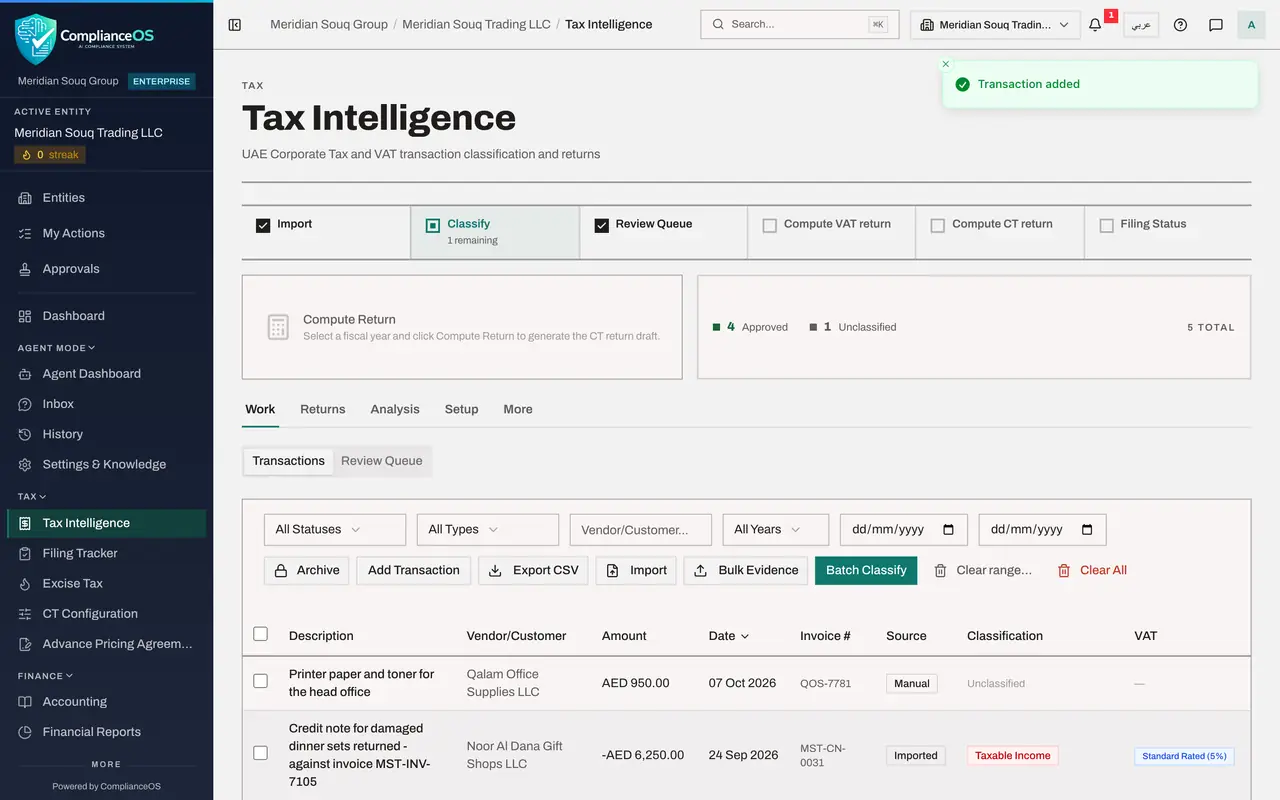
Select Add Transaction at the bottom of the form. A message confirms Transaction added.
- Select Add Transaction
- 7
Select the bin on the new row
Suppose that purchase belongs to the other entity and was entered here by mistake. Hide the menu, find the row and select the bin at its end. A window asks you to confirm, and warns that this action cannot be undone.
- Select Hide navigation
- Select Delete transaction
- 8
Select Delete
Select Delete. The row disappears from the list. The accountant can delete a transaction in a period that is still open.
- Select Delete
- 9
Look at a transaction of the filed quarter
Scroll the list sideways. The rows of the filed third quarter are different: each carries a VAT lock, and its pencil and bin are greyed out. Nobody can edit or delete them, whatever their role.
- 10
Open Voluntary Disclosures
Select More and then Voluntary Disclosures. The accountant can read the list, including the draft the compliance officer created, but the note says that creating and submitting disclosures requires admin or compliance officer access, and there is no form.
- 11
Open VAT Group Return
Go back, select More and then VAT Group Return. The page says Needs the Tax groups, View permission. Group returns are for the people who manage tax groups. Manage VAT groups, at the top, leads to the organisation settings, which are for administrators.
- 12
Remember where filing stops for the accountant
Select the Dock navigation icon at the top left to bring the menu back, and choose Filing Tracker. The accountant can see every deadline and its status, and can follow File the return to the VAT Return tab and compute a return. There, Submit and Lock is greyed out for him, as you saw when the return was prepared: filing needs the right to approve returns.
- Select Dock navigation
- Select Filing Tracker
How to check it worked
You can say, for each of these, whether the accountant may do it: save the VAT set-up, see who holds which rights, delete a transaction in an open period, edit a transaction in a filed period, create a voluntary disclosure, open the VAT group return.
Common mistakes
- Reporting a greyed out button as a fault. The screen says which permission is needed; ask an administrator if your job really requires it.
- Deleting a transaction to hide a mistake after it has been used in a return. Deleting is for entries made in error in an open period; a filed period is locked.
Check your understanding
1. The accountant opens Setup, VAT Config. What can he do there?
- A.Change and save everything
- B.Read the settings, but not save them
- C.Nothing, the tab is hidden
- D.Only change the Emirate
Show answer
Answer: B. Read the settings, but not save them
The fields are shown, but saving needs permissions the accountant does not hold, and the screen names them.
2. Which of these can the accountant do?
- A.Submit and lock a return
- B.Create a voluntary disclosure
- C.Delete a transaction he entered by mistake in an open period
- D.Change the approval policy
Show answer
Answer: C. Delete a transaction he entered by mistake in an open period
Entering, editing and deleting transactions in an open period is the accountant's work. Filing, disclosures and policies belong to other roles.