Lesson 2 of 21
Set up VAT for the entity: filing frequency, TRN and Emirate
What you will be able to do
This lesson is for the tax manager. You will enter the entity's VAT registration details once, before any return is prepared: the filing frequency the tax authority assigned, the tax registration number, the registration date and the Emirate. Then you will see how the filing frequency changes the periods offered on the VAT Return tab.
Before you start
- You are signed in as the tax manager. Saving this screen needs the tax manager's rights; an accountant can read it but cannot save it.
- You have the entity's VAT registration certificate to hand. It shows the tax registration number, the effective date of registration and the tax period.
- The numbers typed in this lesson are invented for training.
Steps
- 1
Open the VAT set-up
In Tax Intelligence select Setup in the row of groups, then select the tab named VAT Config. The VAT configuration card opens with a box named Approving AI classifications. Below that box are four settings: the filing frequency, the tax registration number, the registration date and the Emirate.
- Select Setup
- Select VAT Config
- 2
Read Approving AI classifications
This box decides who approves the AI's suggestions. A classification that rests on the AI alone waits in the review queue until a person approves it. Lines decided by a statutory rule, by your own supplier rules, or as a credit note of an approved invoice are approved automatically. The switch Approve AI suggestions without a person is off, which is the recommended setting: leave it off. An administrator could turn it on for standard rated lines only, within a minimum confidence and a maximum amount. Exempt, zero rated, outside scope and reverse charge lines and credit notes are never approved by the AI alone.
- 3
Look at the VAT settings
Below the approval box are four settings: VAT filing frequency, TRN, VAT registration date and Emirate. You fill them in once, from the VAT registration certificate.
- 4
Open VAT filing frequency
Select the VAT filing frequency box. It reads Not set, quarterly is used, which means nobody has recorded the tax period yet. The two choices are Monthly and Quarterly. Use the one printed on the registration certificate.
- Select VAT filing frequency
- 5
Choose Quarterly and select Save frequency
Choose Quarterly, then select Save frequency beside the box. A message confirms VAT filing frequency saved. Quarterly periods follow calendar quarters: January to March, April to June, July to September and October to December.
- Choose Quarterly
- Select Save frequency
- 6
Check the TRN and correct it
TRN is the tax registration number, the 15 digit number the Federal Tax Authority gave the entity when it registered for VAT. The box may already hold the number entered when the entity was created. Compare it digit by digit with the certificate and, if it differs, type the right one without spaces. It is printed on the return and on the documents you download.
- Type TRN (Tax Registration Number):
100347219600003
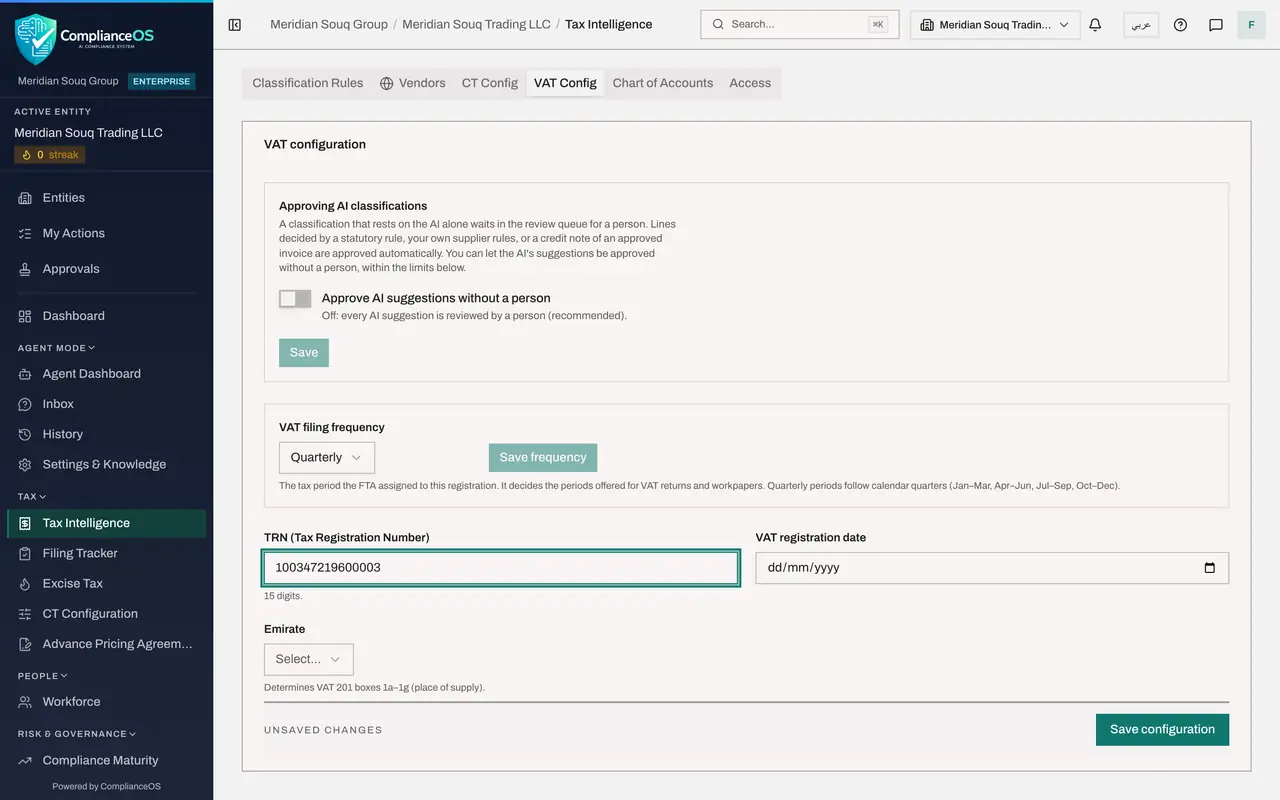
- Type TRN (Tax Registration Number):
- 7
Enter the VAT registration date
In the VAT registration date box, to the right of the TRN, enter the date the registration took effect, as shown on the certificate. Here it is 1 January 2018.
- Type VAT registration date:
2018-01-01
- Type VAT registration date:
- 8
Choose the Emirate
Open Emirate and choose Dubai. The return reports standard rated sales for each Emirate in boxes 1a to 1g, and this setting decides which box the entity's sales go to. A single transaction can be given a different Emirate later, when you edit it.
- Select Select…
- Choose Dubai
- 9
Select Save configuration
The bar at the bottom now warns that there are unsaved changes. Select Save configuration. A message confirms Configuration saved and the bar goes back to All changes saved.
- Select Save configuration
- 10
Select Returns to see the periods offered
Select Returns. On the VAT Return tab, Quick select now offers Q1, Q2, Q3 and Q4, and the line beside it reads Filing frequency: Quarterly, with a link back to the set-up. With monthly filing, the same row would offer the twelve months instead.
- Select Returns
- 11
Select Q3 to fill the two dates
Select Q3. Period Start becomes 1 July 2026 and Period End becomes 30 September 2026. That is the quarter this course works on. When the tab opens, it already proposes the latest period that has ended and is not yet filed.
- Select Q3
How to check it worked
The Approving AI classifications switch is still off. The VAT Config tab shows Quarterly, the tax registration number, 1 January 2018 and Dubai, with All changes saved at the bottom. The VAT Return tab says Filing frequency: Quarterly and offers Q1 to Q4.
Common mistakes
- Turning on Approve AI suggestions without a person to save time. The AI's answers then reach the return without anyone checking them. Leave it off unless the firm's policy says otherwise; the review queue is where a person confirms each suggestion.
- Leaving the filing frequency on Not set. The app then assumes quarterly. If the authority assigned monthly periods, the wrong periods are offered for returns and workpapers.
- Typing the tax registration number with spaces or missing a digit. It must be exactly 15 digits, as printed on the certificate.
- Leaving Emirate on Select. Standard rated sales are reported per Emirate in boxes 1a to 1g of the return, and this setting decides the box.
Check your understanding
1. What does the VAT filing frequency setting change?
- A.The VAT rate applied to sales
- B.The periods offered for VAT returns and workpapers
- C.Who is allowed to approve transactions
- D.The currency of the return
Show answer
Answer: B. The periods offered for VAT returns and workpapers
It records the tax period the authority assigned, monthly or quarterly, and the period buttons on the VAT Return tab and the workpaper follow it.
2. The entity is established in Dubai. Where will its standard rated sales appear on the return?
- A.Box 1a
- B.Box 1b
- C.Box 4
- D.Box 9
Show answer
Answer: B. Box 1b
Boxes 1a to 1g are the seven Emirates. Box 1b is Dubai, and the Emirate setting places the sales there.