Lesson 4 of 21
Add one transaction by hand, field by field
What you will be able to do
This lesson is for the accountant. You will type in a single purchase invoice from a supplier outside the United Arab Emirates and learn what every field of the Add Transaction form is for: the type, the net amount, the original currency and exchange rate, the date, the description, the supplier, the invoice number, the reverse charge tick box, the related party loan purpose and the attached receipt.
Before you start
- You are signed in as the accountant.
- You have the supplier's invoice. In this lesson it is an invoice for 2,800 pounds sterling from an advertising agency in the United Kingdom, which did not charge any VAT.
- The quarter's other transactions were imported in the previous lesson.
Steps
- 1
Select Add Transaction
In Tax Intelligence, on the Transactions tab, select Add Transaction in the row of buttons above the list. A form opens for one transaction. Fields marked with a star are required.
- Select Add Transaction
- 2
Open Type and choose Expense
Open Type. Income is a sale and Expense is a purchase. Asset, Liability, Equity and Other are for entries that are neither. Choose Expense.
- Select Type
- Choose Expense
- 3
Type the net amount
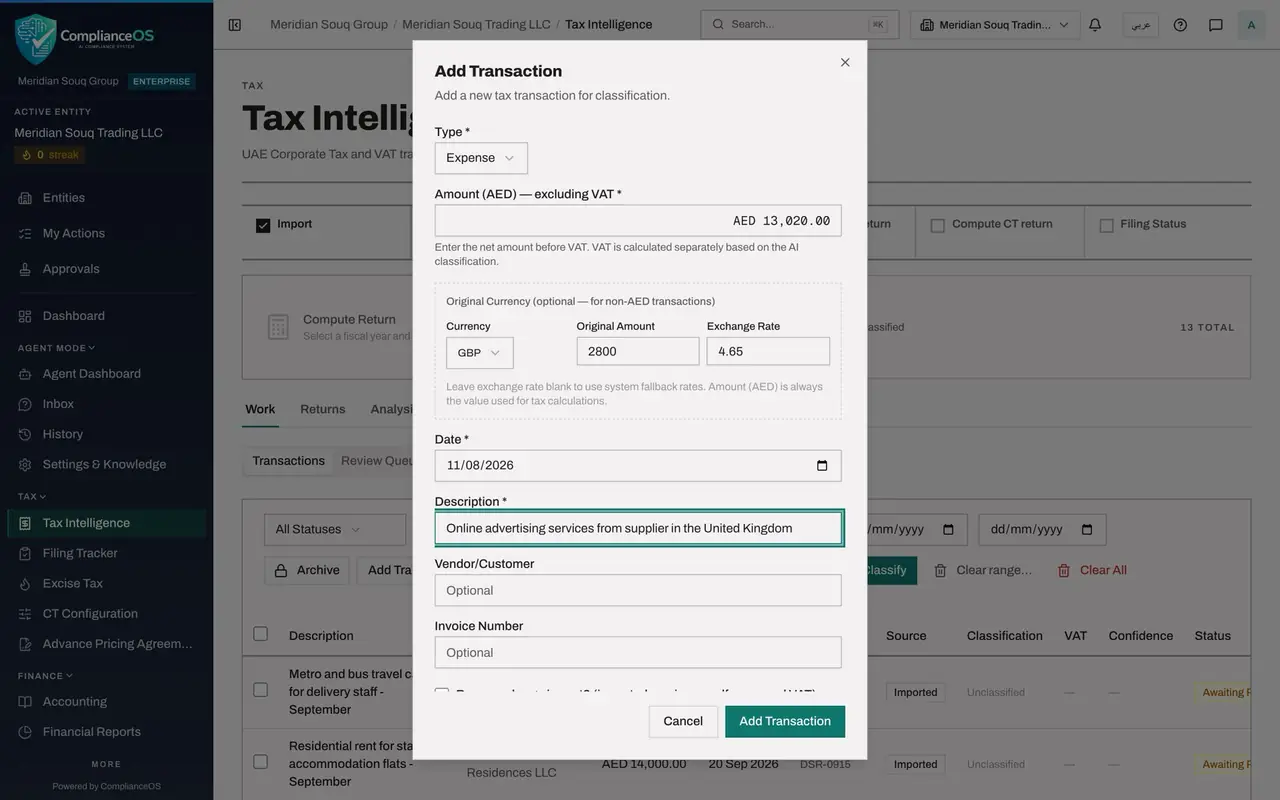
In the Amount box type the net amount of the invoice, before tax: 13020. Do not add the tax. The app calculates it separately, from the classification.
- Type AED 0.00:
13020
- Type AED 0.00:
- 4
Choose the original currency and type the original amount
Use the Original Currency boxes only when the invoice is not in dirhams. Open Currency and choose GBP, then type 2800 in Original Amount. Leave these boxes empty for a dirham invoice.
- Select Currency
- Choose GBP
- Type Original Amount:
2800
- 5
Type the exchange rate
In Exchange Rate type the rate you used to convert the invoice, here 4.65 dirhams to the pound. If you leave it blank, the app records its own fallback rate. Either way, the dirham amount you typed is the one used for tax.
- Type Auto:
4.65
- Type Auto:
- 6
Enter the date
In Date enter the invoice date, 11 August 2026. The date decides which tax period the transaction falls in.
- Type Date *:
2026-08-11
- Type Date *:
- 7
Type the description
In Description say plainly what was bought and from where. The app reads this when it classifies the transaction, so Online advertising services from supplier in the United Kingdom is far better than Invoice.
- Type Description *:
Online advertising services from supplier in the United Kingdom
- Type Description *:
- 8
Type the supplier and the invoice number
Type the supplier's name in Vendor or Customer and the number printed on the invoice in Invoice Number. Both are optional. Fill them in anyway: the name is used for classification rules and screening, and the app refuses a second transaction of the same type with the same invoice number.
- Type Vendor/Customer:
Brightpixel Lantern Media Ltd - Type Invoice Number:
BLM-88014
- Type Vendor/Customer:
- 9
Tick Reverse charge import
This supplier is outside the country and charged no VAT, so tick Reverse charge import. Reverse charge means the buyer, not the seller, reports the VAT. Leave it unticked for ordinary local purchases and for all sales.
- 10
Look at RP Loan Purpose
RP Loan Purpose appears for an expense. RP means related party. It matters only for interest paid on a loan from a related party, where it decides whether the interest is deductible for corporate tax. Open it to see the choices, then leave it on Not an RP loan.
- Select RP Loan Purpose (Article 31)
- 11
Attach the invoice
Close the list. Under Receipt or Supporting Document, choose a scan of the invoice: a PDF, JPG or PNG file of up to 10 megabytes. It is optional, but an expense needs its invoice on file before the return is filed. Here the file is sample-supplier-invoice.pdf.
- Upload Receipt / Supporting Document:
sample-supplier-invoice.pdf
- Upload Receipt / Supporting Document:
- 12
Select Add Transaction to save
Select Add Transaction at the bottom of the form. A message confirms Transaction added and the form closes.
- Select Add Transaction
- 13
Find the new row
Select the Hide navigation icon so the whole list fits. The new row shows 13,020 dirhams with 2,800 pounds underneath, the invoice number, and the source Manual. Like the imported rows it is Unclassified. The next lesson classifies them all.
- Select Hide navigation
How to check it worked
The Transactions list has a new row for Brightpixel Lantern Media Ltd with the amount 13,020 dirhams and 2,800 pounds underneath, the invoice number BLM-88014 and the source Manual.
Common mistakes
- Typing the amount including VAT. Amount is always the net amount in dirhams.
- Writing a vague description such as Invoice. The description is the main thing the app reads when it classifies the transaction.
- Ticking Reverse charge for a local purchase. Tick it only when a supplier outside the country supplied a service and charged no VAT, so that you must account for the VAT yourself.
Check your understanding
1. The invoice is in pounds sterling. Which figure does the VAT return use?
- A.The Original Amount in pounds
- B.The Amount in dirhams
- C.Whichever is larger
- D.Neither, until a rate is confirmed
Show answer
Answer: B. The Amount in dirhams
The form says the dirham amount is always the value used for tax. The original currency and amount are kept for reference.
2. What does ticking Reverse charge import tell the app?
- A.The supplier will refund the VAT
- B.The purchase is exempt
- C.The buyer must account for the VAT because an overseas supplier charged none
- D.The transaction should be deleted after filing
Show answer
Answer: C. The buyer must account for the VAT because an overseas supplier charged none
Reverse charge means the buyer reports the VAT that a supplier outside the country did not charge, and normally recovers it in the same return.