Lesson 7 of 21
Review the classifications: approve and override
What you will be able to do
This lesson is for the tax manager, the person who approves or corrects what the AI suggested. You will open the Review Queue, read a suggestion and approve it. Then you will find a suggestion that is wrong and override it, giving the correct VAT treatment and your reason, and approve the reverse charge purchase.
Before you start
- You are signed in as the tax manager, Fatima Noor. Approving and overriding need the tax manager's rights.
- The accountant has classified the quarter's transactions. Every row the AI classified is waiting for review; only the three rows decided by a statutory rule were approved automatically.
- You know the VAT treatment the law gives to the transactions in front of you. The AI suggests; you decide.
Steps
- 1
Select the Review Queue tab
In Tax Intelligence select the Review Queue tab. The number on the tab is how many transactions are waiting for a person. Every suggestion made by the AI comes here, so the number is most of the quarter. The four tiles show how many are pending, how many are high risk, the tax at stake and the possible corporate tax saving.
- Select Review Queue12
- 2
Read the panel on the right
The panel on the right repeats the counts, adds how many rows were approved automatically, here the three decided by a statutory rule, and shows the amount pending and the date of the oldest item. Hide closes the panel. The letters above the tiles are keyboard shortcuts: A approves, R rejects, the down arrow moves to the next item and O opens the override.
- 3
Read a proposal
Each waiting transaction is a card. Corporate gift hampers shows the customer, the amount, the date, the proposed category and the proposed VAT treatment, Standard Rated, with the badge AI suggestion and its percentage. The AI's reasoning is written on the card. A sale of goods in the country at five percent is right.
- 4
Select Approve
Select Approve on that card. A message confirms Transaction reviewed and the card leaves the queue. The transaction is now Approved, with your name against the decision as the reviewer.
- Select Approve
- 5
Find a suggestion that is wrong
The queue is where you catch the AI's mistakes. Select the Transactions tab and hide the menu. Find Sea freight for shipping homeware cartons from Jebel Ali to Sohar Oman. The AI suggested Standard Rated and the row is Awaiting Review. Transport of goods from the UAE to another country is an international transport service, which the law makes zero rated, so this suggestion is wrong.
- Select Transactions
- Select Hide navigation
- 6
Select Override on that row
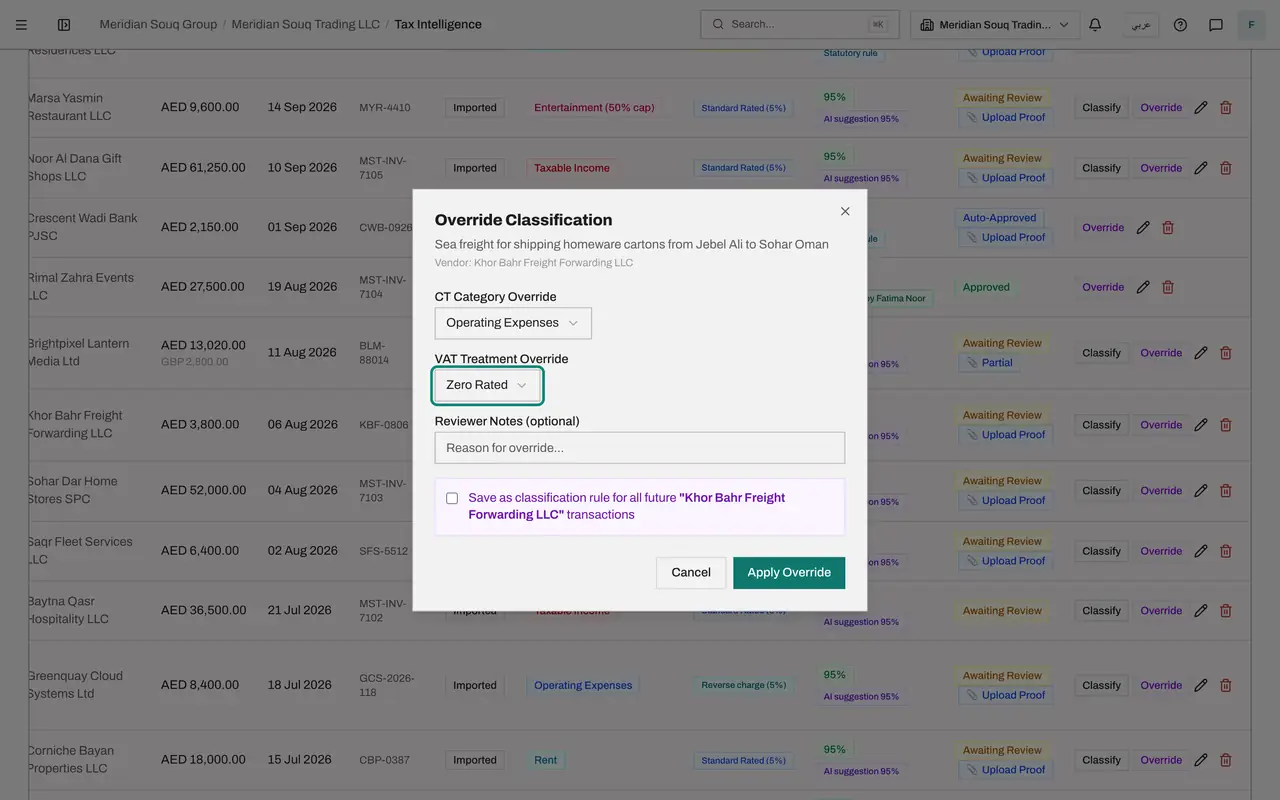
Select Override at the end of the row. Reject, in the queue, would only refuse a proposal and leave the transaction out of the return until someone corrects it. Override corrects it in one step. The Override Classification window opens with the description and vendor at the top, and the current category and VAT treatment filled in.
- Select Override classification
- 7
Choose the right VAT treatment
Leave CT Category Override as it is: the corporate tax category is not what you are correcting. Open VAT Treatment Override. The four choices are Standard Rated, Zero Rated, VAT Exempt and Outside VAT Scope. Choose Zero Rated.
- Select VAT Treatment Override
- Choose Zero Rated
- 8
Give the reason in Reviewer Notes
Type the reason in Reviewer Notes. Keep it short and factual. The note is optional, but always write one: it is stored with the override and with your name.
- Type Reason for override...:
International transport of goods from Jebel Ali to Oman is zero rated…
- Type Reason for override...:
- 9
Decide whether this should become a rule
The tick box at the bottom would save your choice as a classification rule for all future transactions with this vendor. Leave it unticked for a one-off correction. Tick it only when every transaction from the vendor should get the same treatment.
- 10
Select Apply Override
Select Apply Override. A message confirms Override applied and the window closes. The row now reads Zero Rated with the status Approved, and the badge under its confidence names you: Overridden by Fatima Noor. A decision by a person shows as Approved; a decision made by a rule shows as Auto-Approved.
- Select Apply Override
- 11
Read the reverse charge row
Now find Online advertising services from supplier in the United Kingdom. Its VAT column reads Reverse charge (5%) and it is Awaiting Review. The rate is right: a service bought from a supplier outside the UAE is taxed under the reverse charge at five percent, and the app always applies that rate to a reverse charge purchase. The company accounts for the VAT itself and reclaims it in the same return.
- 12
Approve it in the Review Queue
Select the Review Queue tab and find the card for Online advertising services. Read the treatment and the reasoning, then select Approve. A message confirms Transaction reviewed and the card leaves the queue.
- Select Review Queue10
- Select Approve
- 13
Read the approved row
Select the Transactions tab. The advertising row reads Reverse charge (5%) with the status Approved, and its badge says Approved by Fatima Noor. The Reverse charge tick on the transaction is kept, so the return reports its VAT both as tax due and as recoverable tax.
- Select Transactions
How to check it worked
The corporate gift hampers sale shows the status Approved, the sea freight to Oman shows Zero Rated and Approved, and the online advertising services show Reverse charge (5%).
Common mistakes
- Approving a suggestion because its confidence is high. The percentage is the AI's own estimate. Read the treatment and the reasoning, and approve only what you agree with.
- Overriding without a note. The note is stored with your name and is what an auditor reads to understand why the treatment differs from the proposal.
- Ticking Save as classification rule for a one-off correction. A rule changes every future transaction with that vendor.
Check your understanding
1. The AI suggests Standard Rated for sea freight that carries the company's goods from Jebel Ali to a customer in Oman. What should the reviewer do?
- A.Approve, because the app is usually right
- B.Override the VAT treatment to Zero Rated and note the reason
- C.Delete the transaction
- D.Leave it in the queue until after filing
Show answer
Answer: B. Override the VAT treatment to Zero Rated and note the reason
Transport of goods from the UAE to another country is an international transport service, which the law makes zero rated. Override corrects the treatment and records who decided and why.
2. What does the tick box Save as classification rule do in the override window?
- A.Saves a copy of the note
- B.Applies your choice to all future transactions with that vendor
- C.Locks the transaction
- D.Sends the override to the tax authority
Show answer
Answer: B. Applies your choice to all future transactions with that vendor
It creates a classification rule for the vendor, and rules are applied before the app's own classification.