Lesson 17 of 21
After filing: the frozen period, the closed deadline and the package
What you will be able to do
This lesson is for the tax manager. The return for July to September 2026 has been submitted and locked. You will see what that changed: the return reads Filed and its transactions are frozen, the deadline is marked as filed in the Filing Tracker, the filed package is kept with its acknowledgement, and the page for corrections is ready if one is ever needed. You will also see where deadline reminders are set.
Before you start
- You are signed in as the tax manager.
- The return was submitted and locked in the previous lesson, with the acknowledgement attached and the reference typed in.
Steps
- 1
Open the filed return
In Tax Intelligence select Returns, choose 2026 and Q3 and select Compute VAT Return. The status line now reads Filed and Submit and Lock has gone. A green panel, Return filed, recomputed figures match, says that today's data gives the same figures as filed, and shows the figures as filed. Computing a filed period never overwrites them.
- Select Returns
- Choose Year:
2026 - Select Q3
- Select Compute VAT Return
- 2
Look at the locked transactions
Select Work, hide the menu and scroll the list sideways. Every transaction of the quarter now carries a small VAT lock beside its buttons, and its pencil and bin are greyed out. The rows stay visible, but they can no longer be edited or deleted.
- Select Work
- Select Hide navigation
- 3
Open the Filing Tracker
Select the Dock navigation icon to bring the menu back, and under Tax choose Filing Tracker. The VAT Return Filing line for 1 July to 30 September 2026 now shows the reference you typed, the word Filed with the date submitted, and the status Filed. Nobody recorded anything here: locking the return completed the deadline.
- Select Dock navigation
- Select Filing Tracker
- 4
Read the tiles
The tiles have caught up: 1 total filing, 1 filed, none due soon, none overdue, and compliance of 100 percent.
- 5
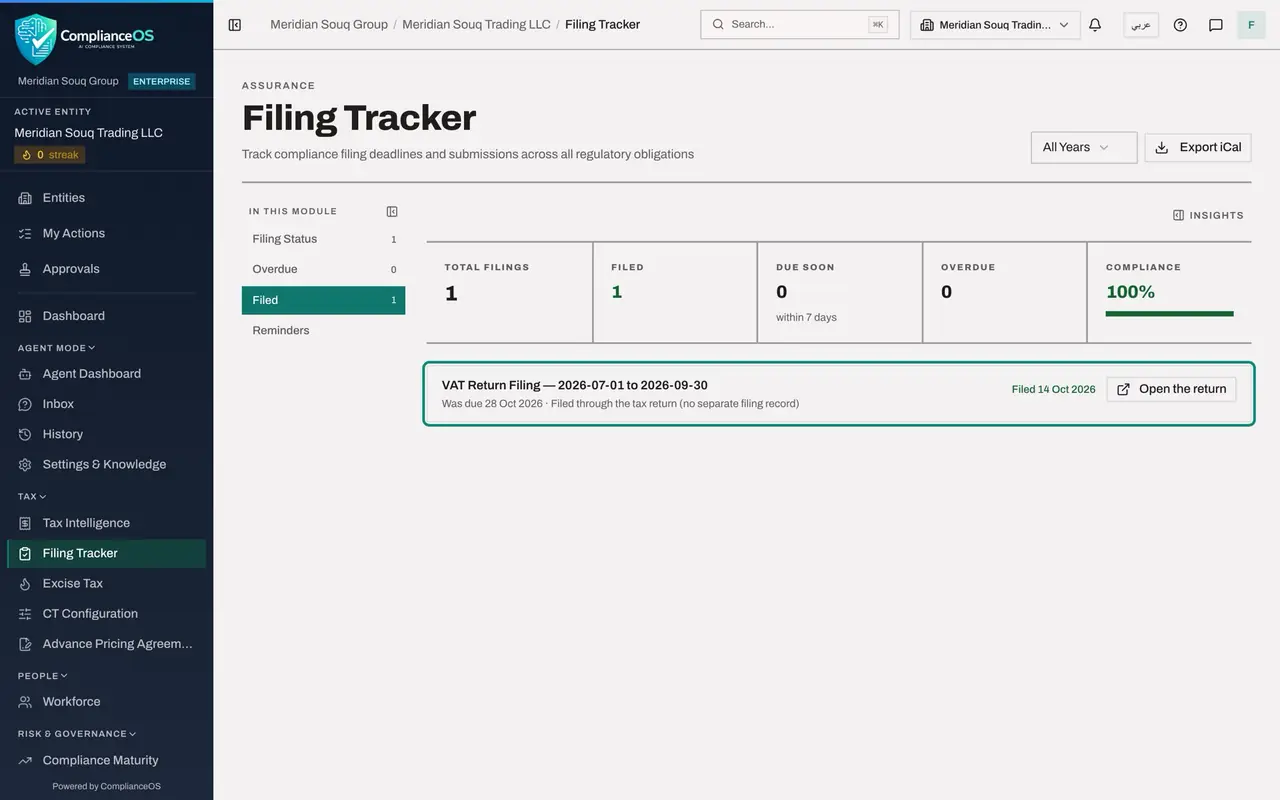
Select the Filed section
In the list on the left select Filed. The VAT return is listed with its due date and the note Filed through the tax return, no separate filing record: nobody had to record it here. Open the return, on the right, leads to the filed package. Deadlines that are not linked to a return are recorded here by hand with Record filing.
- Select Filed1 (1)
- 6
Select the Reminders section
Select Reminders. Default reminders for this entity apply to every filing deadline. The page says that no default is saved yet, so no reminders are sent. The suggested settings remind people 30, 14, 7, 3 and 1 days before a deadline, inside the app.
- Select Reminders
- 7
Read who is reminded and when a deadline is escalated
Who gets reminders is everyone on the entity unless you choose people. Escalate after sets how many days overdue a deadline may be, with no filing recorded, before the escalation recipients are told. Save default switches the reminders on. Saving needs the right to edit filing settings.
- 8
Select View filing on the VAT line
Go back to Filing Status and select View filing on the VAT line. Submitted Packages opens, the list of filed and locked periods, with the package of this return already open. It shows how many transactions were locked and lists the vaulted documents: the acknowledgement attached at Submit and Lock, with the start of its fingerprint.
- Select Filing Status1 (1)
- Select View filing
- 9
Close the package and read the list
Close the package. The list shows the filed period with its type, period, filing date, reference, number of documents and the status Locked. View opens the package again. The same page is reached from More, Submitted Packages, and from the Archive button above the Transactions list.
- Select Close
- 10
Open Voluntary Disclosures
Go back to Tax Intelligence, select More and select Voluntary Disclosures. A voluntary disclosure, the authority's Form 211, is how a filed return is corrected. The page explains that a difference above 10,000 dirhams must be disclosed. With the tax manager's role you can read the list, but a note says that creating and submitting disclosures requires admin or compliance officer access. The next lesson shows the compliance officer drafting one.
How to check it worked
The return reads Filed and its transactions carry a VAT lock. The Filing Tracker shows the VAT Return Filing line as Filed with your reference. Submitted Packages lists the VAT period as Locked with one document, and its package shows the acknowledgement under Vaulted documents.
Common mistakes
- Recording the VAT filing again by hand in the Filing Tracker. The deadline was completed by Submit and Lock; its documents are in Submitted Packages and in the Evidence Vault.
- Expecting reminders without saving the default. The Reminders section says no filing reminders are sent until a default is saved.
Check your understanding
1. Where do you find the acknowledgement that was attached when the return was locked?
- A.In VAT Config
- B.In Submitted Packages, by selecting View on the period, and in the Evidence Vault
- C.In the Review Queue
- D.It is not kept
Show answer
Answer: B. In Submitted Packages, by selecting View on the period, and in the Evidence Vault
Locking vaults the attached documents. The package lists them, and the files themselves are in the Evidence Vault.
2. Who can create a voluntary disclosure in the demo company?
- A.The accountant
- B.The tax manager
- C.An administrator or the compliance officer
- D.The auditor
Show answer
Answer: C. An administrator or the compliance officer
The page says creating and submitting voluntary disclosures requires admin or compliance officer access. The tax manager can read the list.