Lesson 3 of 21
Import a quarter's sales and purchases from a spreadsheet
What you will be able to do
This lesson is for the accountant. You will bring a quarter's sales and purchases into Tax Intelligence in one go from a spreadsheet, read the preview before anything is saved, see which row was left out and why, and then find the imported rows with the filters above the list.
Before you start
- You are signed in as the accountant, Ahmed Saleh, who can add tax transactions for the entity.
- Your sales and purchases are in a CSV or Excel file that uses the template's column names. Four columns are required: transaction_date, transaction_type, amount_aed and description.
- Amounts are net, in dirhams, without VAT. The app works out the VAT from how each transaction is classified.
Steps
- 1
Open Tax Intelligence and find Import
In the left menu, under Tax, choose Tax Intelligence. The Transactions tab opens. The Import button is in the row of buttons above the list.
- 2
Select Import
Select Import. The Import Transactions window opens. It accepts a CSV file or an Excel file.
- Select Import
- 3
Select Template to get the column names
Select Template. An Excel file is downloaded with the column names and three sample rows. Put one transaction on each row. The date is written year, month, day. The type is INCOME for a sale and EXPENSE for a purchase. The amount is the net amount in dirhams, without VAT. The description says what was sold or bought.
- Select Template
- 4
Choose your file
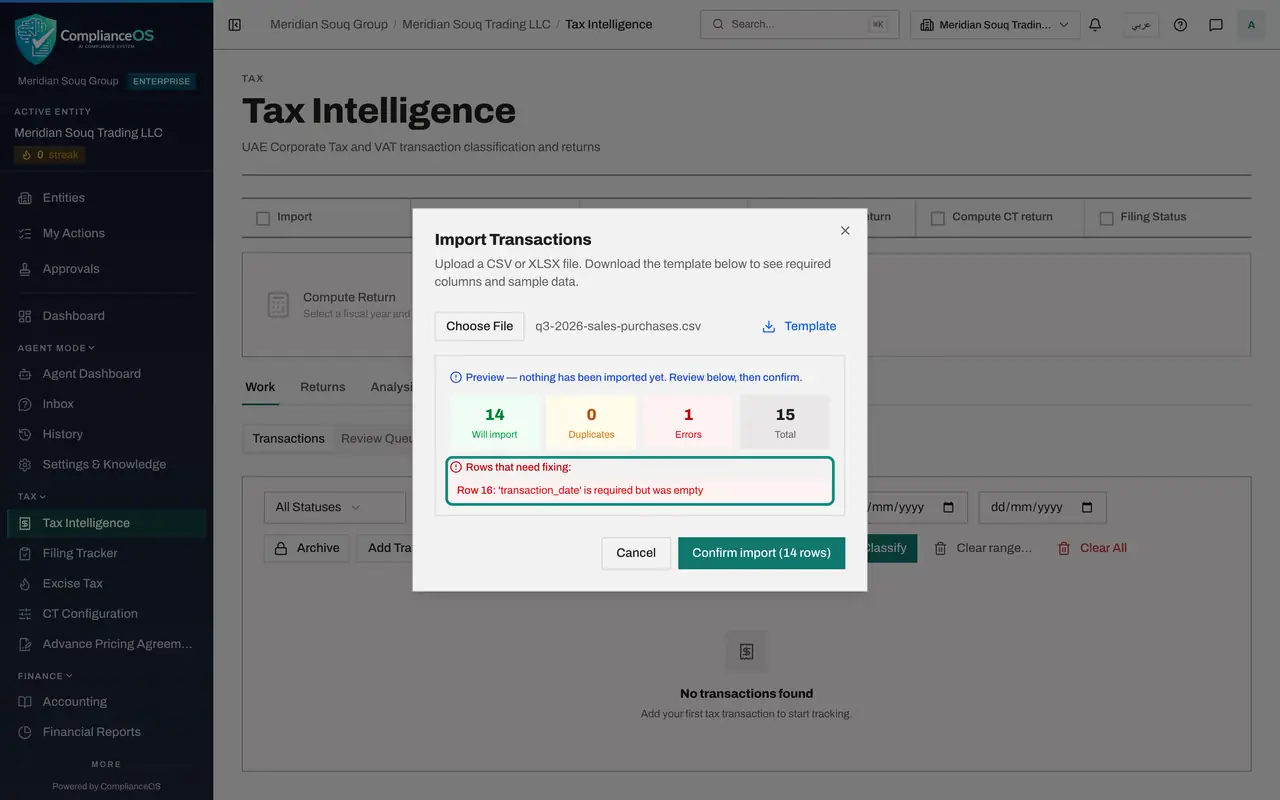
Select Choose File and pick your spreadsheet. Here it is the file q3-2026-sales-purchases.csv, with fifteen rows for July to September 2026. The vendor or customer name, the account and the invoice number are optional columns, but fill them in: they help the classification and stop the same invoice being imported twice.
- Upload Choose a file:
q3-2026-sales-purchases.csv
- Upload Choose a file:
- 5
Read the preview
The app checks the file and shows a preview. Nothing has been imported yet. Will import counts the good rows, here 14. Duplicates counts rows that are already in the app. Errors counts rows that cannot be read, here 1. Total is every row in the file.
- 6
Read the rows that need fixing
Under Rows that need fixing, each problem is listed with its row number in the file. Row 16 has no transaction date, so it will be left out. You can fix the file and choose it again, or carry on and add that purchase later.
- 7
Select Confirm import
Select Confirm import, 14 rows. The button changes to Importing while the rows are saved. This can take a minute or so. Wait for the counts to change from Will import to Imported.
- Select Confirm import (14 rows)
- 8
Read the note about classification
The window now says 14 transactions imported, not classified yet. Importing does not classify. The button Classify these transactions would classify exactly these rows now. In this course you will classify them from the list in a later lesson, so leave that button alone.
- 9
Select Close and hide the menu
Select Close. The fourteen rows are in the Transactions list. The list is wide, so select the Hide navigation icon at the top left to give it more room. The strip at the top now says 14 remaining under Classify, and the counter shows 14 Unclassified.
- Select Close
- Select Hide navigation
- 10
Read a row
Each row is one transaction: Description, Vendor or Customer, Amount, Date and Invoice number. Source says Imported. Classification says Unclassified, and the VAT and Confidence columns are empty. Each row ends with a Classify button, a pencil to edit and a bin to delete.
- 11
Filter the list by customer
To find rows quickly, type part of a name in the Vendor or Customer box above the list. Typing Noor leaves the two sales to Noor Al Dana Gift Shops.
- Type Vendor/Customer...:
Noor
- Type Vendor/Customer...:
- 12
Filter the list by date
Clear the name. To see one month, enter its first day in the From date box and its last day in the To date box. With 1 August and 31 August 2026 the list shows the four August rows. Clear both dates to see everything again. These dates only filter the list; they do not set the return period.
- Type From date:
2026-08-01 - Type To date:
2026-08-31
- Type From date:
How to check it worked
The import window shows 14 Imported, 0 Duplicates, 1 Errors and 15 Total. The fourteen rows are in the Transactions list, each with the source Imported and the classification Unclassified.
Common mistakes
- Entering amounts that include VAT. The amount_aed column must be the net amount before VAT, or the return will overstate both the sale and the VAT.
- Writing dates as 03/07/2026. Use year, month, day, for example 2026-07-03. A row with no date is not imported.
- Assuming the file is classified once it is imported. Importing only stores the rows. They stay Unclassified until someone runs the classification.
Check your understanding
1. The preview says 14 Will import and 1 Errors. What has been saved at that point?
- A.All 15 rows
- B.The 14 good rows
- C.Nothing yet
- D.Only the row with the error
Show answer
Answer: C. Nothing yet
The preview is a check only. Rows are saved when you select Confirm import.
2. After the import the window says the transactions are not classified yet. What does that mean for the VAT return?
- A.The rows are already counted in the return
- B.The rows have no VAT treatment yet, so they must be classified before they can be counted
- C.The rows were rejected
- D.The file must be imported again
Show answer
Answer: B. The rows have no VAT treatment yet, so they must be classified before they can be counted
Importing does not classify. Until a row has a VAT treatment the return cannot place it in a box.