Lesson 8 of 21
Sign off several classifications at once in the Sign-off cockpit
What you will be able to do
This lesson is for the tax manager. When many AI suggestions are waiting, approving them one card at a time is slow. You will open the Sign-off cockpit, read the AI's reasoning, select the suggestions you agree with and approve them together, as their reviewer.
Before you start
- You are signed in as the tax manager.
- The rest of the quarter's AI suggestions are still waiting for review: the other sales and purchases, including services bought from abroad under the reverse charge. You approved the hampers and corrected the wrong suggestions in the previous lesson.
- Bulk approval is still your decision on every ticked item: you are recorded as the reviewer of each one. Read the reasoning for anything you are not sure about first.
Steps
- 1
Select Open sign-off cockpit
In Tax Intelligence, on the Review Queue tab, select Open sign-off cockpit at the top right of the queue. You can also reach it from More, under Filing, corrections and sign-off.
- Select Open sign-off cockpit →
- 2
Read the three counters
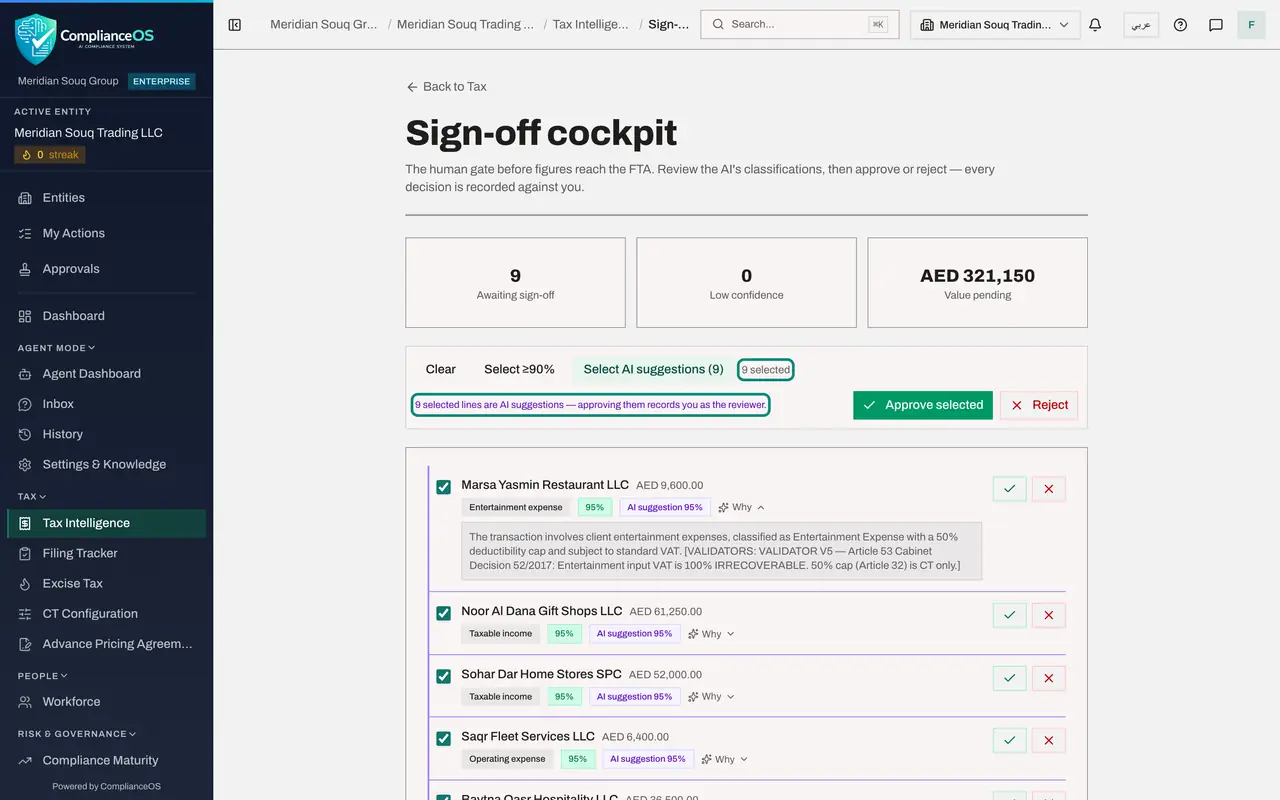
The cockpit is the last human check before figures go into a return. Awaiting sign-off counts the classifications nobody has decided yet. Low confidence counts those the AI was unsure about. Value pending is their total amount. Each row the AI suggested has a coloured border and the badge AI suggestion.
- 3
Select Why on a row
Each row shows the counterparty, the amount, the proposed category and the confidence. Select Why on the first row. The AI's reasoning opens under the row: read it as you would read a colleague's working. Do this for every row you are not sure of. The tick and the cross at the end of a row approve or reject that one row.
- Select Why
- 4
Select AI suggestions
You have read the suggestions and agree with them. Select the button Select AI suggestions, which shows how many there are. It ticks every row the AI suggested, and the count changes to the number selected. A note appears: approving AI suggestions records you as the reviewer. Select 90 percent and above would tick only the confident rows, Select all ticks every row, and you can also tick rows one by one with the box at the start of each row.
- Select Select AI suggestions (9)
- 5
Select Approve selected
Select Approve selected. A message confirms how many were approved, and each decision is recorded against your name as the reviewer. The Reject button beside it would refuse the ticked suggestions instead.
- Select Approve selected
- 6
Check that nothing is left
The cockpit now says Nothing awaiting sign-off: every AI classification has been reviewed by a person.
- 7
Select Back to Tax
Select Back to Tax at the top. In Tax Intelligence the Review Queue tab no longer carries a number, and the Review Queue step on the strip is ticked. The quarter's transactions are ready for the return.
- Select Back to Tax
How to check it worked
The cockpit says Nothing awaiting sign-off, and the Review Queue tab in Tax Intelligence no longer shows a number.
Common mistakes
- Approving AI suggestions in bulk without reading them. A high confidence is not a check. Open Why on anything you are not sure of, untick it, and correct it with Override in the Transactions list.
- Pressing Reject for an item that only needs a different treatment. Reject refuses the proposal; to correct the treatment, use Override in the Review Queue or the Transactions list.
Check your understanding
1. What does the Why button on a cockpit row show?
- A.The audit log
- B.The app's reasoning for the proposed classification
- C.The supplier's invoice
- D.The VAT return
Show answer
Answer: B. The app's reasoning for the proposed classification
Why opens the reasoning recorded with the classification, including what the checks found.
2. You select Select AI suggestions and then Approve selected. What is recorded?
- A.Nothing: the AI approves its own suggestions
- B.Each ticked suggestion is approved, with you recorded as its reviewer
- C.The suggestions are sent to the tax authority
- D.Only the suggestions above 90 percent are approved
Show answer
Answer: B. Each ticked suggestion is approved, with you recorded as its reviewer
Select AI suggestions only ticks the rows. Approve selected approves them, and the cockpit warns that approving records you as the reviewer of each one.